Jobs, Actions and Widgets
The three building blocks behind every project: background work, the screens that ask a person, and the tiles.
On this page
Jobs, Actions and Widgets are the three building blocks every Kareenos build is made from. One does work, one asks a person, one shows a screen.
Where to find it
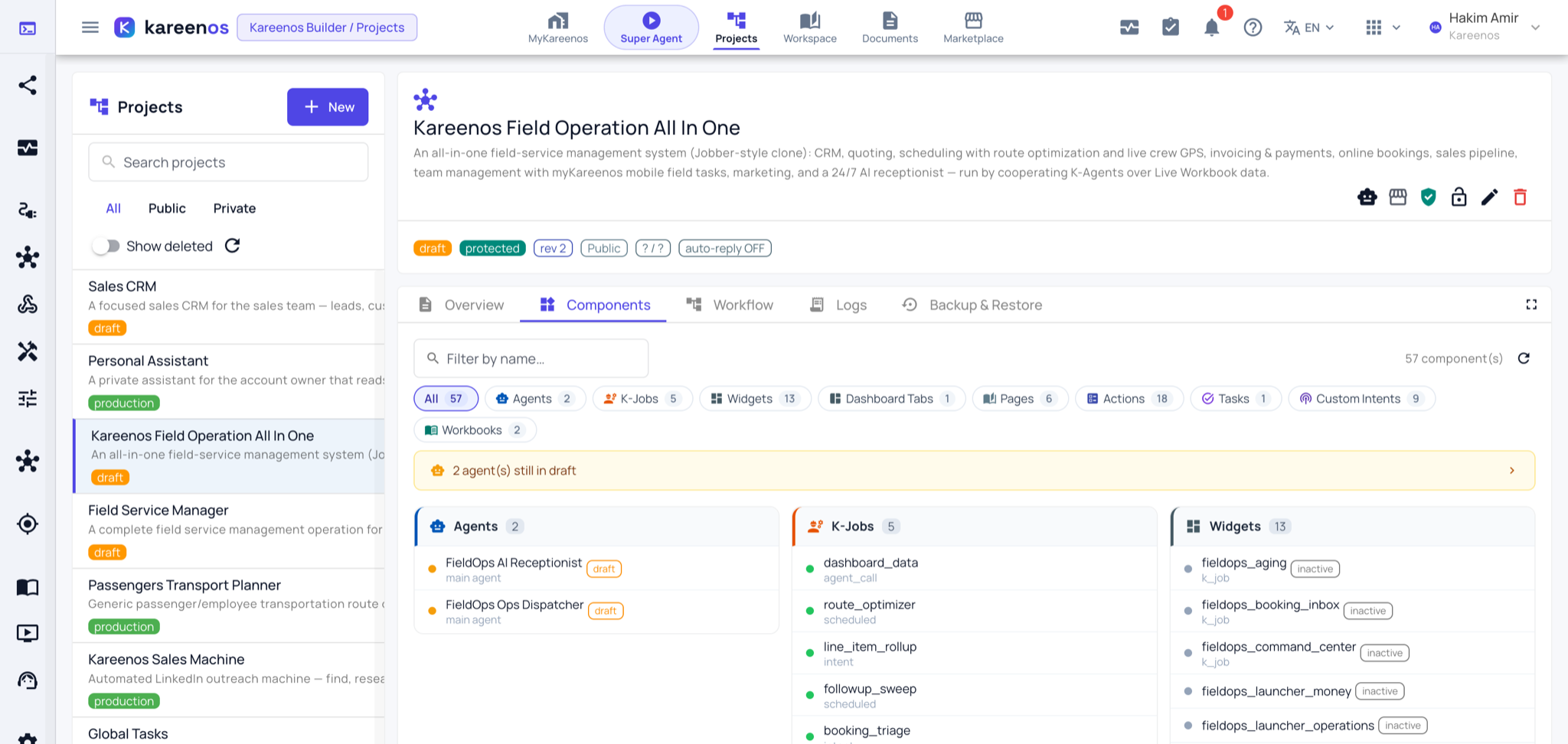
All three live on one page: press Open in Kareenos above to open Advanced Editors on its Jobs tab, then switch to Actions or Widgets. Pick the project in the selector at the top right first. The same parts are also listed on the Components tab of the project, where each card opens in place.
Jobs: work that runs on its own
A Job is background automation with no AI in the loop: a fixed set of steps that does the same thing every time. Fetching data, calculating a total, syncing two systems, optimising routes or a staff roster.
A Job runs in one of four ways: on a schedule, when something happens (an event), when a Sheet in a Live Workbook changes, or on demand when a person or an agent asks for it.
Every Job carries explicit permissions: which Sheets it may read, which it may write, which tools it may call. Nothing is granted by default.
Important
A new Job cannot run until a person approves it. Approval is where you review the whole reach of the Job (what it may touch and what it may call), so read the permissions, not only the description, before you approve.
Step by step: approving and running a job
Open Advanced Editors, Jobs and pick the project.
Click the job in the list. Each entry shows its trigger (scheduled, intent, agent call) and its state; a new one is a Draft.
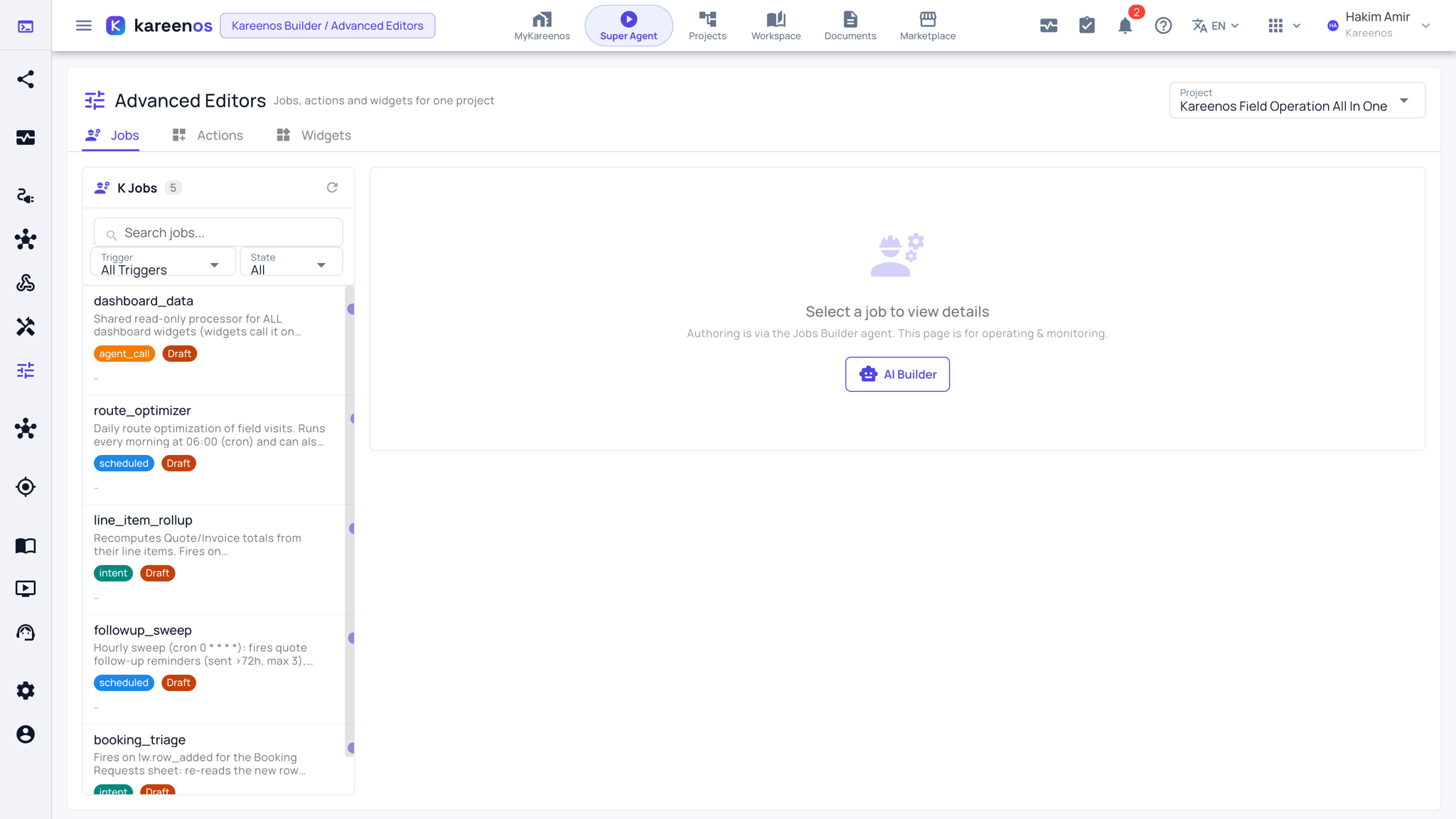
Read what it does and the Sheets and tools it may touch, then approve it.
Trigger it by hand from its page. If it needs input, a form is generated for you to fill in.
Read its run history and the output of the run.
Actions: asking a person
An Action is a short screen that puts a question to a person: approve this, confirm that, fill in these few fields. An agent raises one into your inbox in MyKareenos, or you launch one yourself from a team menu or from a link in a Page drawer.
You author the screen once: fields and sections, dropdowns fed from a Sheet so the choices are always current, searchable lookups for finding a customer or an order, and buttons that open another form on top of the first. That one definition renders the same on the web, inside a chat, and in the mobile app.
Step by step: previewing and testing an action
Open Advanced Editors, Actions. The list on the left shows every action in the project with a switch to enable or disable it.
Click an action. Its description and a Live preview of the screen appear on the right, exactly as a person would see it.
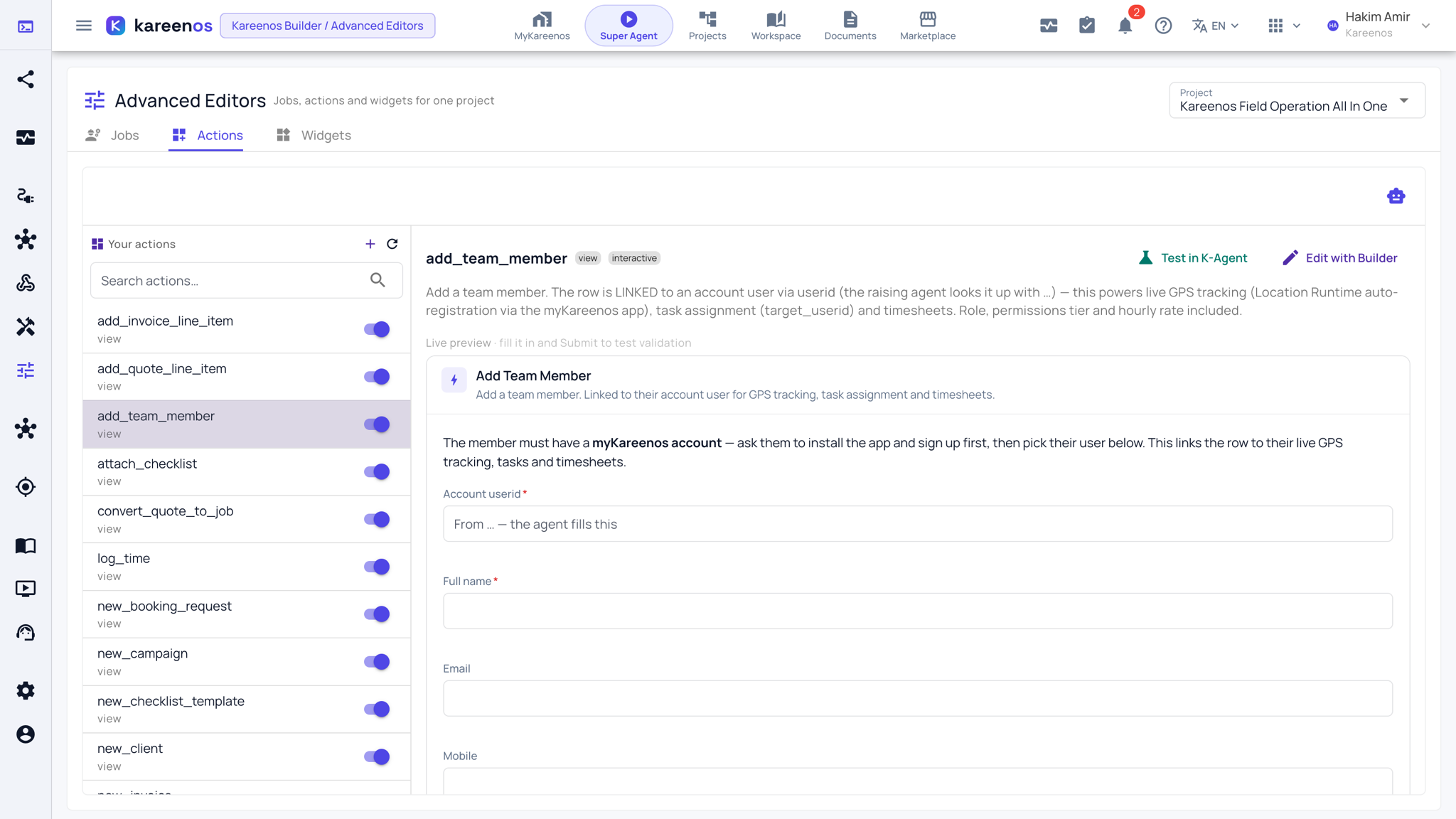
Fill the preview in and submit it to test the validation.
Press Test in K-Agent to have a real agent raise it into your inbox, or Edit with Builder to change it by describing the change.
Widgets: the tiles
A Widget is a live tile. There are two kinds.
Presenting widgets show information: a headline number, a table, a chart, a map. Each is fed by a small Job or an agent that produces the figures behind it, and refreshes as the data changes.
Input widgets collect information: a form, or an editable grid that writes straight back into a Sheet. This is where day-to-day data entry belongs.
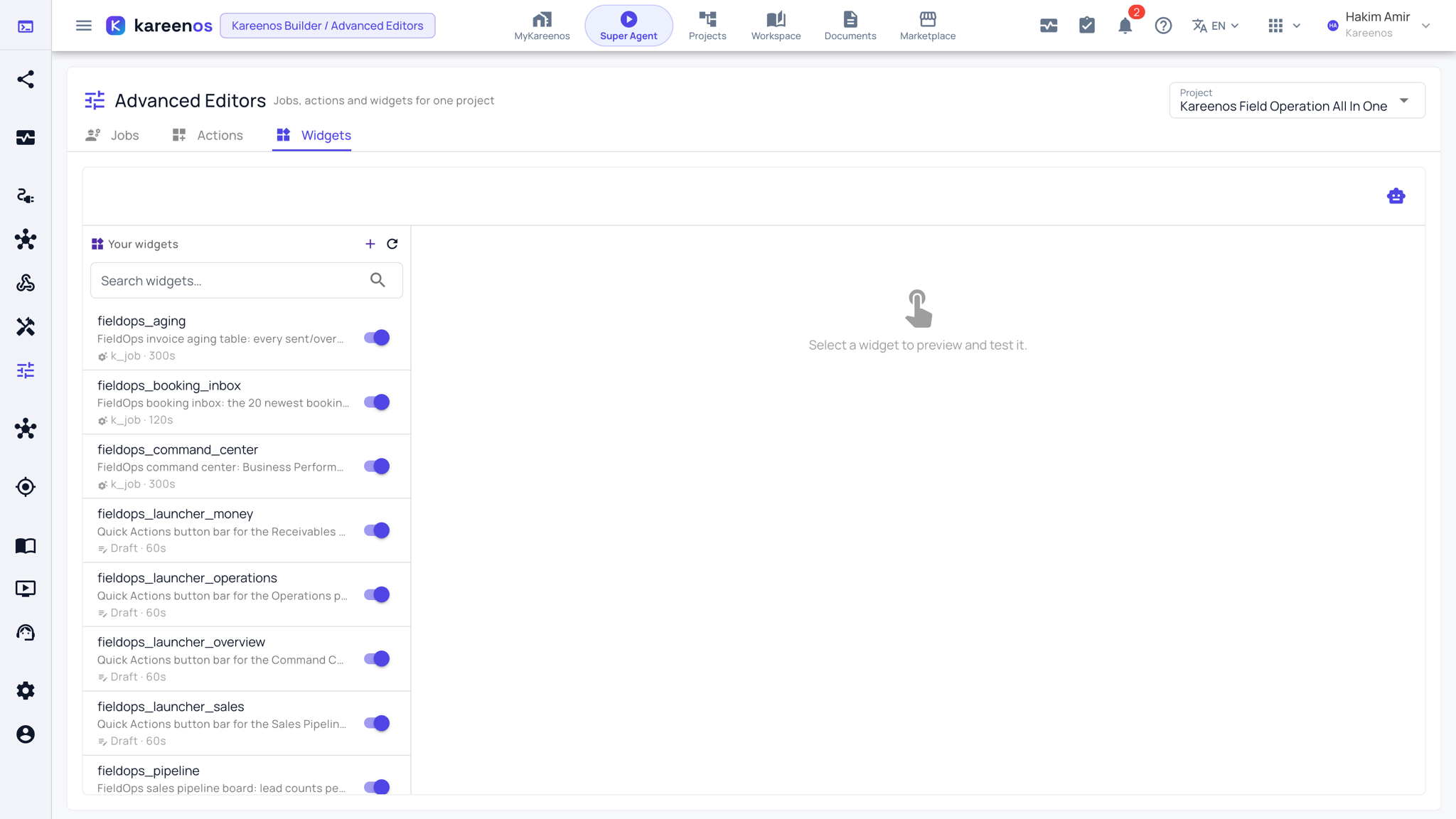
Every Widget must end up placed somewhere a person can reach: on a Page, on a dashboard tab, on a view inside a workbook, or behind a link that opens it as a dialog. A widget that is built but never placed is invisible.
Common mistakes
- Building a Job and never approving it, then reporting that nothing runs.
- Using an Action for routine data entry. Long forms people fill in every day belong in an input Widget behind a dialog.
- Leaving a Widget unplaced, so the build looks finished but nothing appears for the team.
- Granting a Job write access to Sheets it only reads.