Editors
The Agents editor, Automations and Actions: where builders look behind what the Super Agent made.
On this page
The editors are where builders look behind what the Super Agent made: the agents, the automations and the actions of a project, each on a page of its own under Advanced.
Where to find it
Open the level menu at the top of the sidebar and choose Advanced (builders only), then one of the three rows under Editors: Agents editor, Automations or Actions. Press Open in Kareenos above for the Agents editor. The editors need edit rights. Widgets have their own row in level 2.
Why these pages exist
You will rarely open them to build something from nothing. The Super Agent authors agents, automations and actions as part of a task, and it is usually faster to describe a change in New Task than to make it by hand. What you do need is somewhere to look afterwards: to see what was built, read it, adjust one detail, and check it does what you asked. That is this area.
What each editor holds
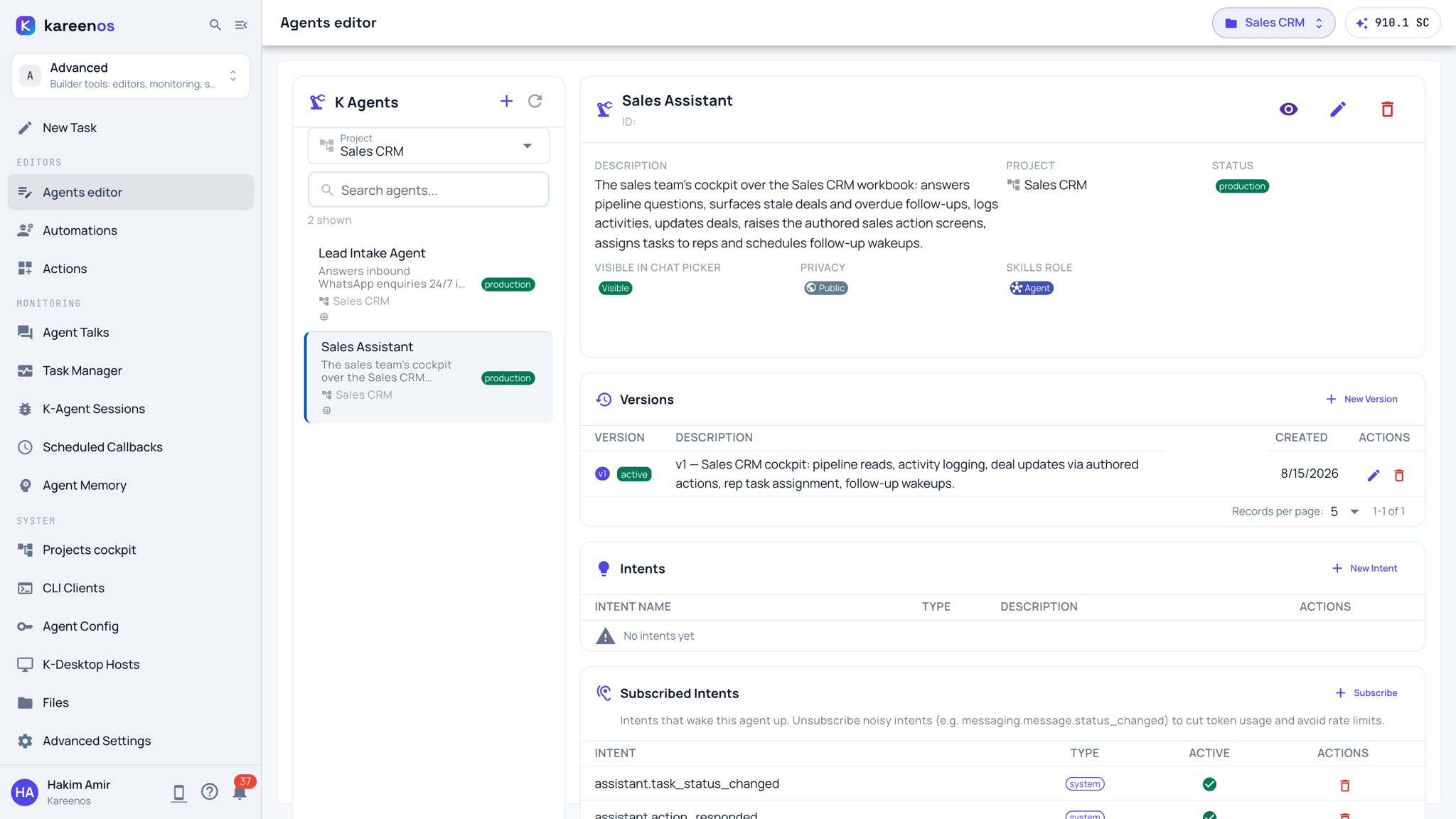
- Agents editor lists every agent in the account, with a Project filter at the top. Selecting one opens its full record: description, project, status, its Versions, the Intents it raises, the Subscribed Intents that wake it, and the Tools it holds. The pencil at the top edits it; the eye previews it. In the edit dialog, the Model tab holds the main model and, at the bottom, an optional Voice calls model used only on calls (see AI Agents).
- Automations lists the project's automations, each with what starts it (a schedule, an event, a sheet change, an agent call) and its state, and opens one to show what it may touch, its run history and the output of each run.
- Actions lists the screens that ask a person something, each with a switch, and shows a live preview of the one you select.
Automations, Actions and Widgets follow the project in the top bar. The Agents editor has its own Project filter, because agents are often compared across projects.
Step by step: after a build
Ask the Super Agent for what you need in New Task and let it build.
Open Advanced, then Automations, click each new automation, read its permissions and approve it so it is allowed to run.
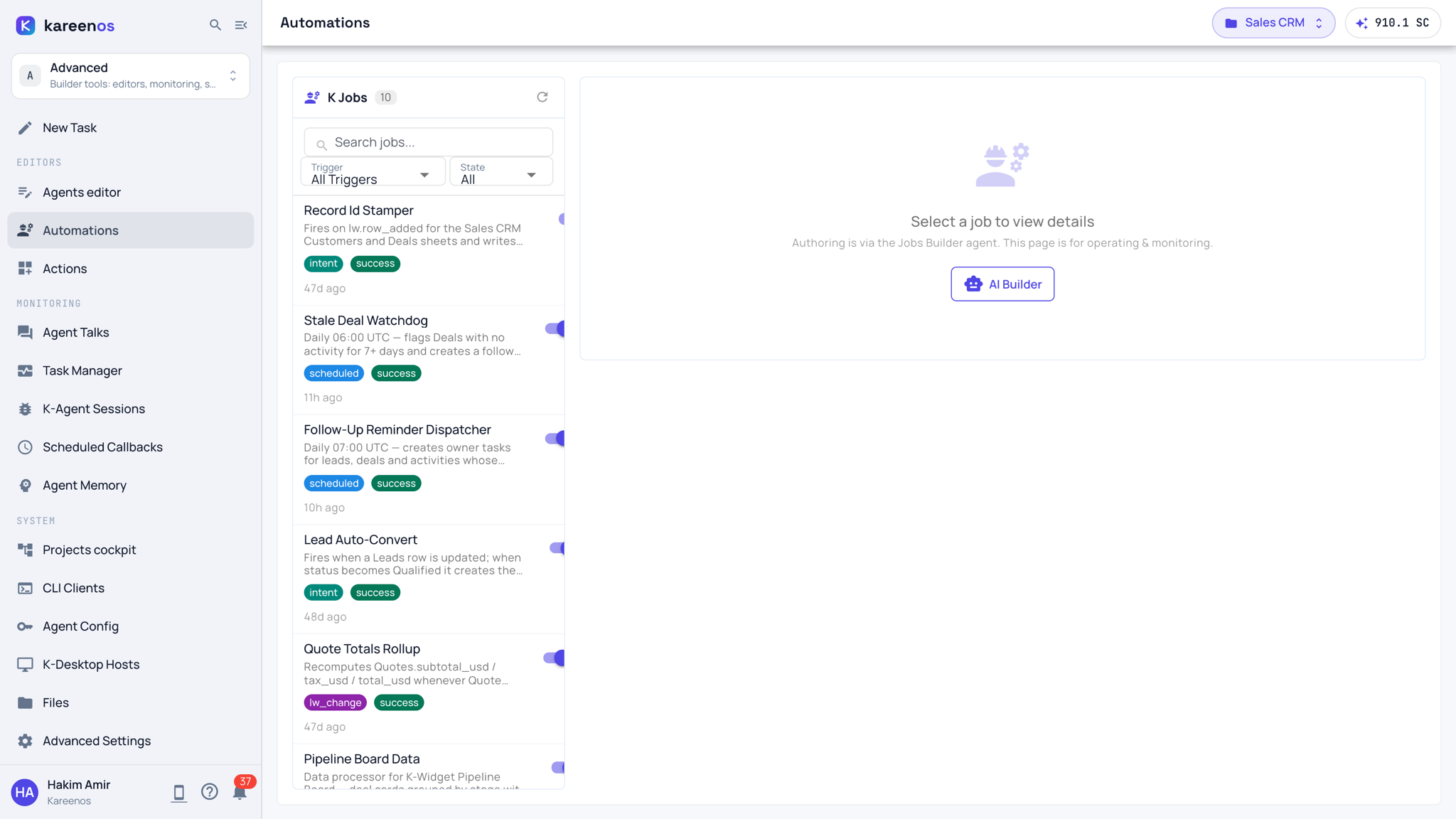
Run one by hand from its page and read the output.
Open Actions and click an action to check that its form reads the way your team speaks. The live preview can be filled in and submitted as a test.
Open Agents editor, select the agent that uses them, and confirm its tools and subscribed intents are the ones the job needs, no more.
Take anything you want changed back to New Task.
Tip
Describe the change you want rather than making it here. The Super Agent keeps the pieces consistent with each other, and a hand edit to one piece can leave the others pointing at something that has moved.
Common mistakes
- Looking at the wrong project's automations because the top bar shows another one.
- Editing an automation's steps by hand and leaving its description saying something else, so nobody can tell later what it was for.
- Giving an agent every tool. Narrow agents behave more predictably than broad ones.