Geofences
Draw zones on the map so arriving or leaving becomes an event that wakes an agent or runs a job.
On this page
A Geofence is a named zone you draw on a map so that arriving at a place, or leaving it, becomes something the system can react to.
Where to find it
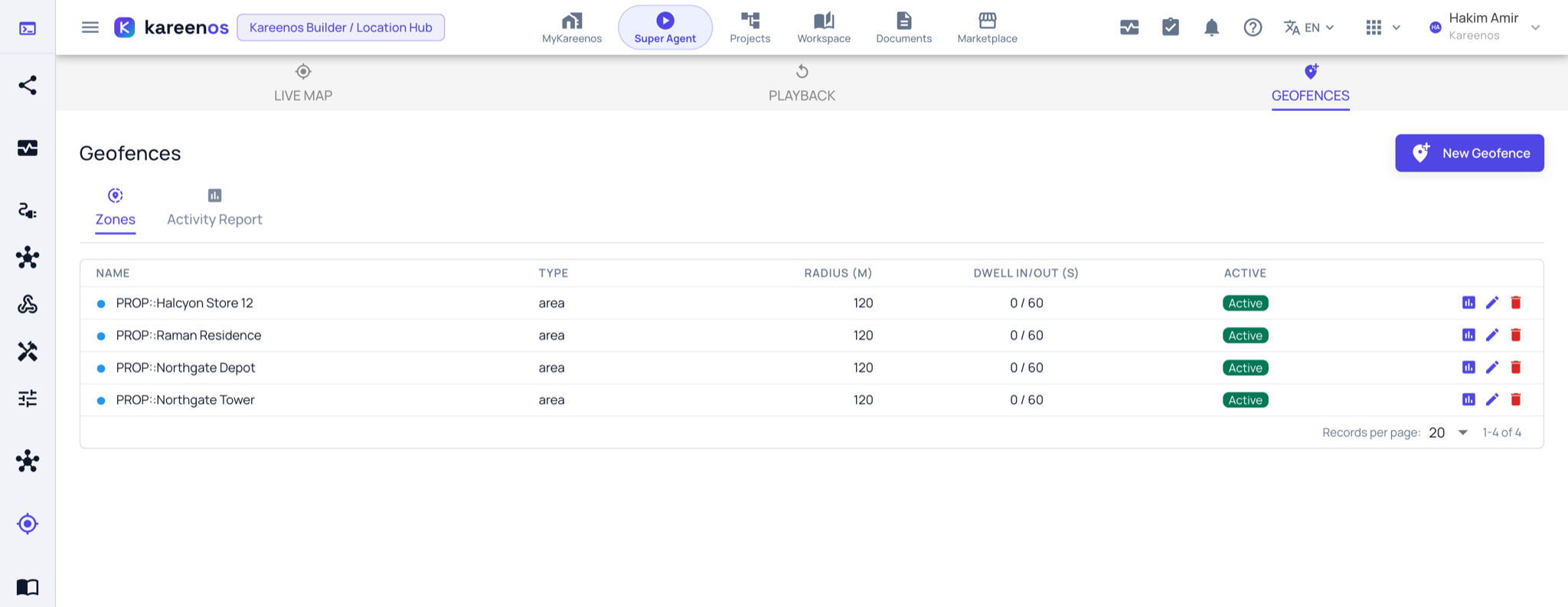
Press Open in Kareenos above, or open the left menu, choose Location, Location Hub, and select the Geofences tab. This tab needs edit rights: a builder with view-only access is shown the Live Map instead. Inside it are two tabs, Zones and Activity Report.
When to use it
Use zones to turn location into events: when a driver reaches this customer, raise the delivery form. When a van leaves the depot, start the run. When an engineer arrives on site, notify the client. Zones also give you an arrival and departure record you can hand to a customer.
Step by step: drawing a zone
Open Geofences and press New Geofence.
Choose the shape beside Draw the zone: Point (a centre with a radius), Line (a corridor along a route) or Area (a shape you draw yourself), then draw it on the map.
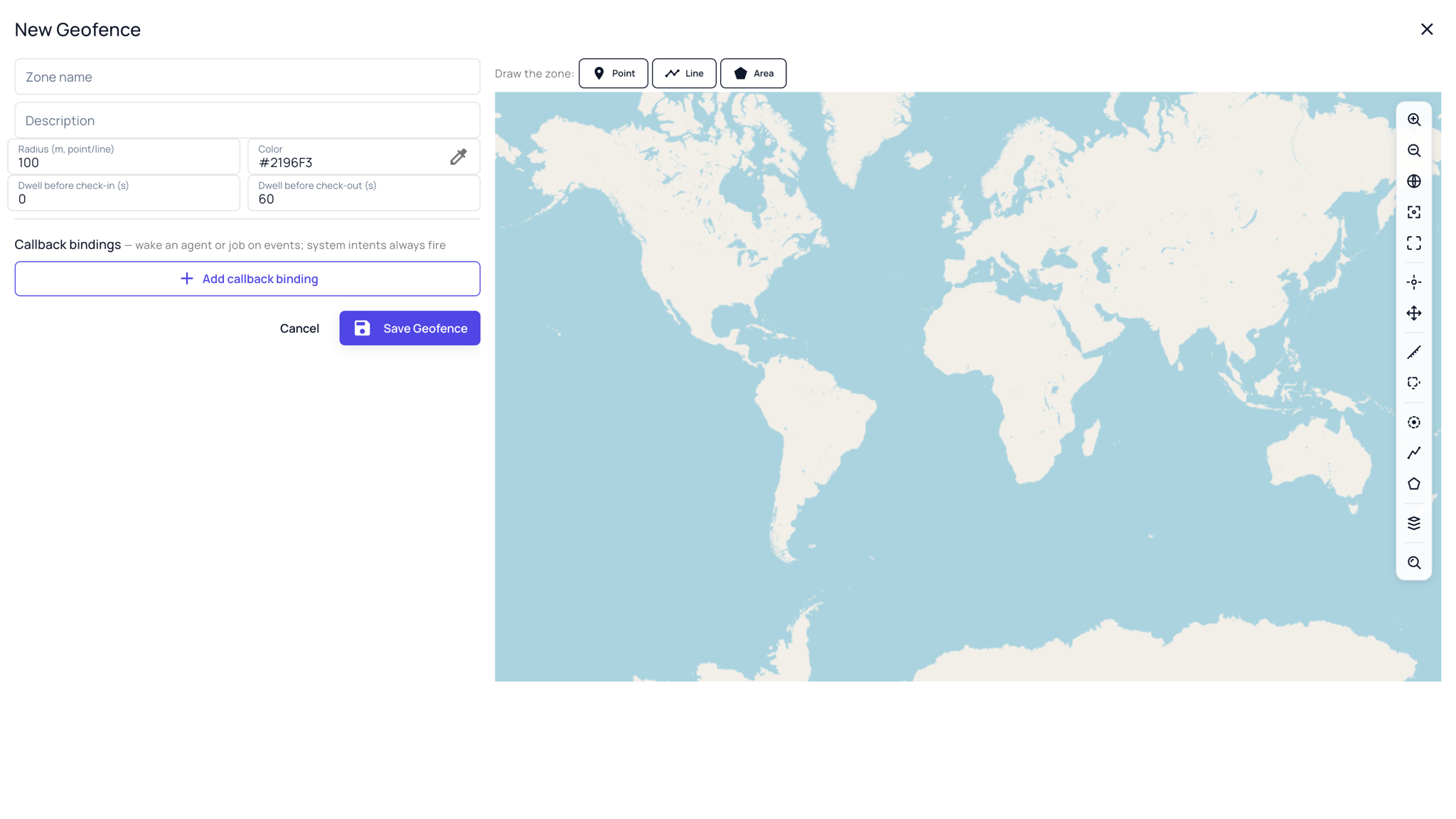
Fill in Zone name in words your team will recognise, and pick a Colour so it reads on the Live Map.
Set Dwell before check-in and Dwell before check-out: how long something must stay inside before it counts as arrived, and how long outside before it counts as departed.
Press Add callback binding to bind the zone to a K-Agent or a Job, so entry or exit wakes it up, and choose which objects the binding applies to.
Press Save Geofence, then open the Activity Report tab and watch check-ins arrive.
The Activity Report
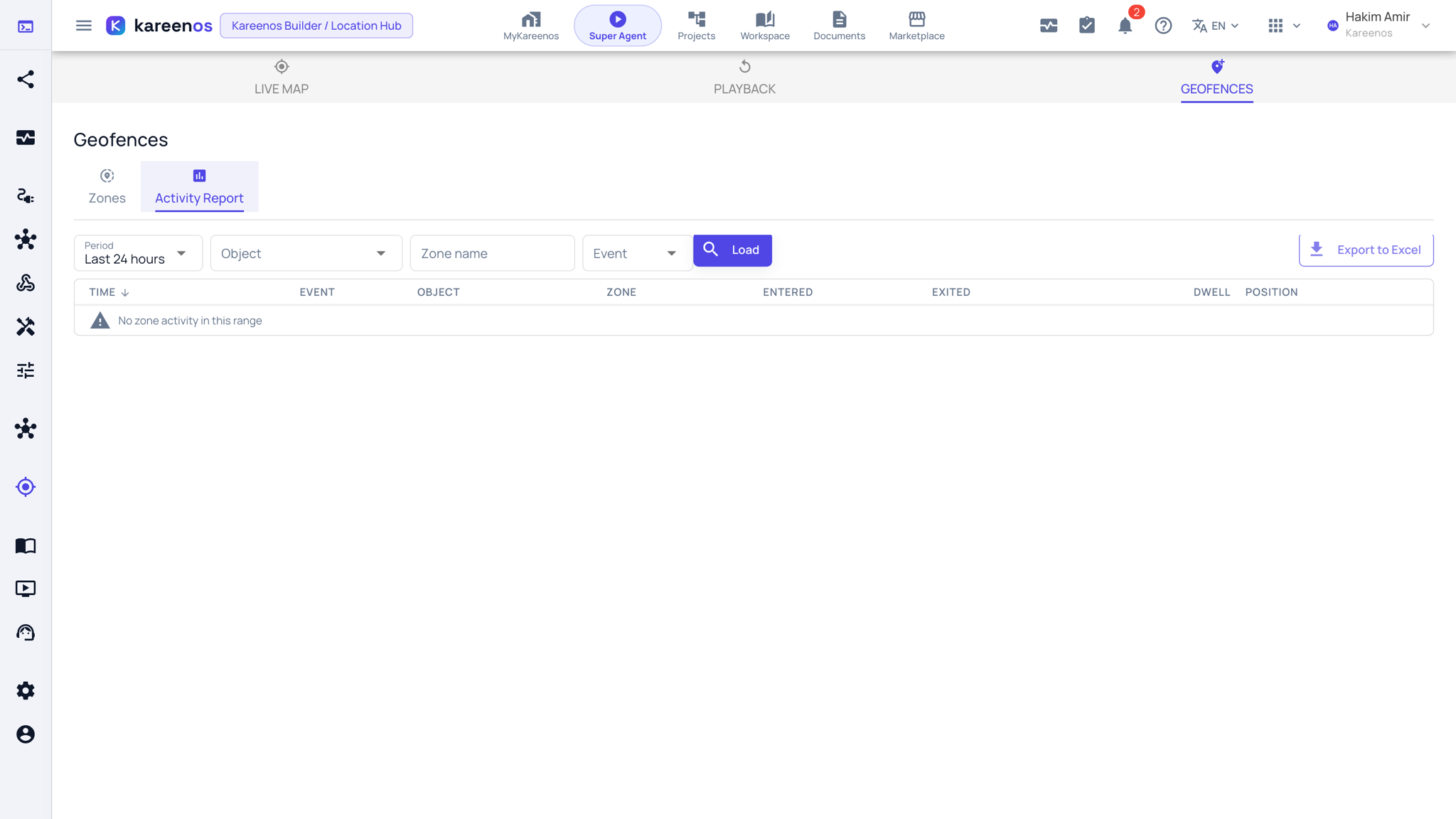
Every check-in and check-out is recorded with the object, the zone, the times and how long it stayed. Filter by period, object, zone name or event, press Load, and use Export to Excel for a customer report or a payroll check.
Note
Dwell time is what stops a zone firing every time a vehicle passes the end of the street. A short dwell on a busy road produces noise, so start higher and reduce it.
Common mistakes
- Drawing a radius far larger than the site, so arrival registers before the driver is anywhere near it.
- Binding a zone to an agent without filtering the objects, which wakes the agent for traffic that has nothing to do with it.
- Assuming a zone works retrospectively. It records from the moment you create it.