Live Map
Real-time positions of your staff, vehicles and assets on one map, with search, filters and alerts.
On this page
The Live Map shows where everything you track is right now: staff carrying the mobile app, vehicles, deliveries, equipment, or rows from a Live Workbook that carry a position.
Where to find it
Press Open in Kareenos above, or open the left menu and choose Location, Location Hub. The hub has three tabs across the top: Live Map, Playback and Geofences. Live Map and Playback are open to every builder; the Geofences tab needs edit rights.
When to use it
Use it as the wall board for a live operation: who is out, who is where, who has stopped reporting. It answers "where is my team" without anyone sending a message.
Reading the map
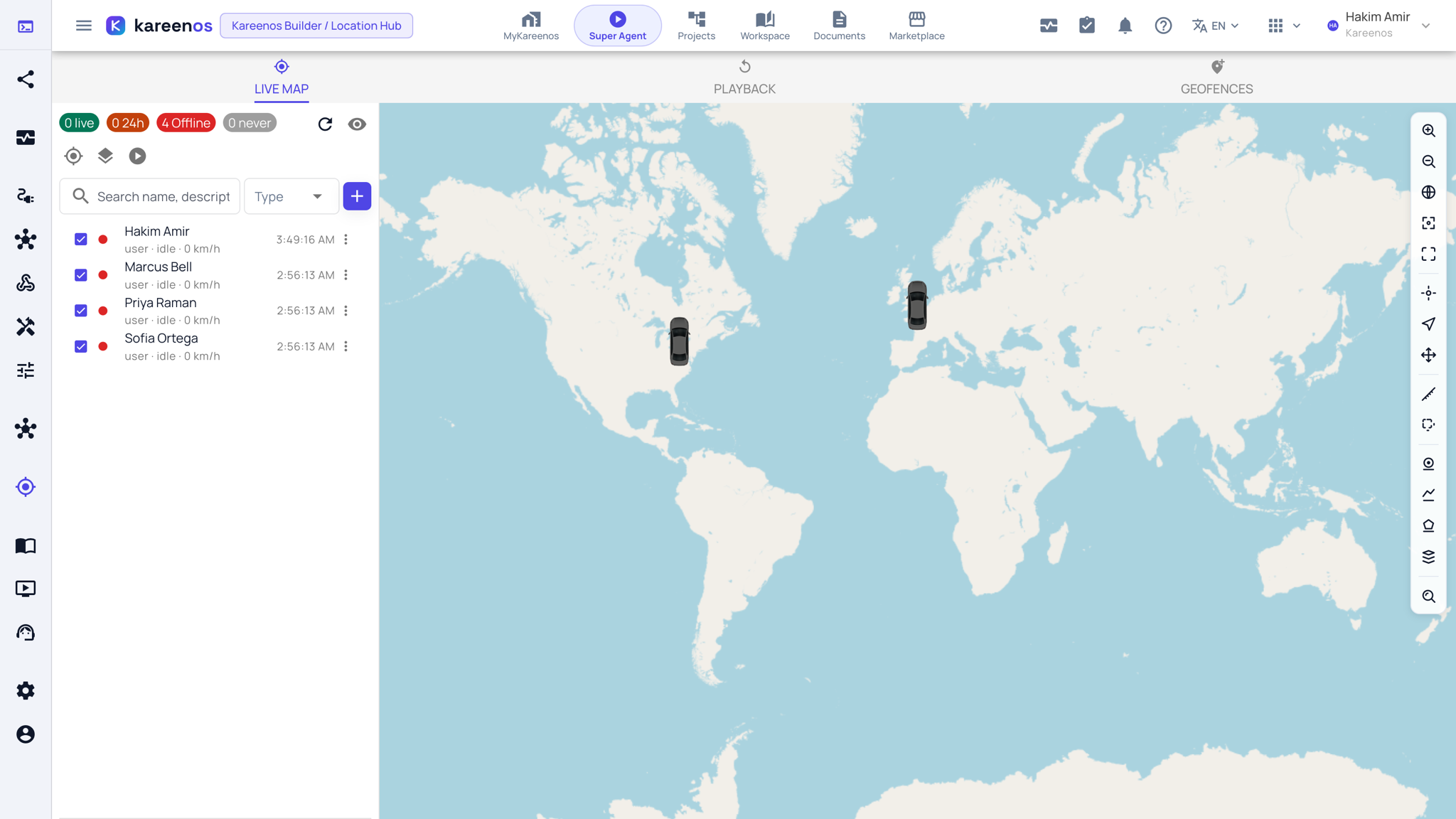
A side panel lists every tracked object beside the map. You can search it, filter it, and see at a glance who is online, who reported a while ago, and who has never reported at all. Selecting an object centres the map on it and you can lock the map to follow that object as it moves, or let it auto-centre on everything at once.
Step by step: finding an object and following it
Open the Live Map. The chips at the top of the panel count objects that are live, seen in the last day, offline and never seen.
Type a name in the search box, or narrow by Type. Tick the checkbox on a row to show or hide that object on the map.
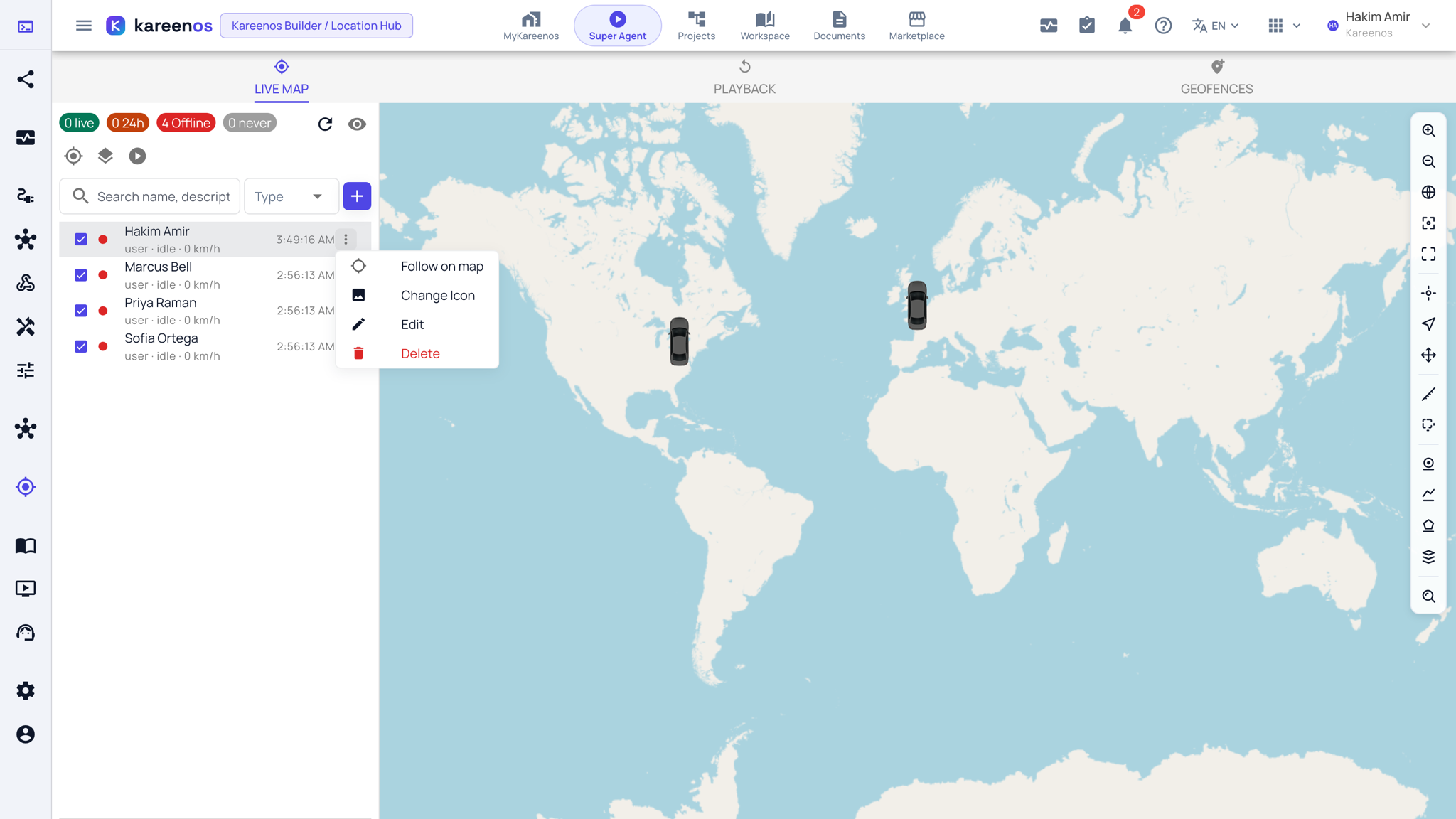
Open the three-dot menu on the object's row. Follow on map locks the map to it; Change Icon sets its marker artwork; Edit changes its name and type.
Press the + button above the list to register something that is missing (a vehicle, a trailer, a piece of equipment) and give it a clear name.
Use the toolbar on the right edge of the map to fit all objects, follow units, show the geo-zones, measure a distance or draw a new zone.
Leave the page open: entry and exit alerts appear as they happen.
Tip
Marker artwork is worth the five minutes. A map where vans, staff and assets look identical is a map nobody reads during a busy morning.
Common mistakes
- Naming objects with codes only, so the panel is unreadable to anyone but the person who set it up.
- Assuming a device with no recent position is broken: the panel separates "never reported" from "reported earlier", and they mean different things.
- Overlaying every zone at once, which hides the objects underneath.