Playback
Replay where a tracked object has been over any time window, with speed and trail controls.
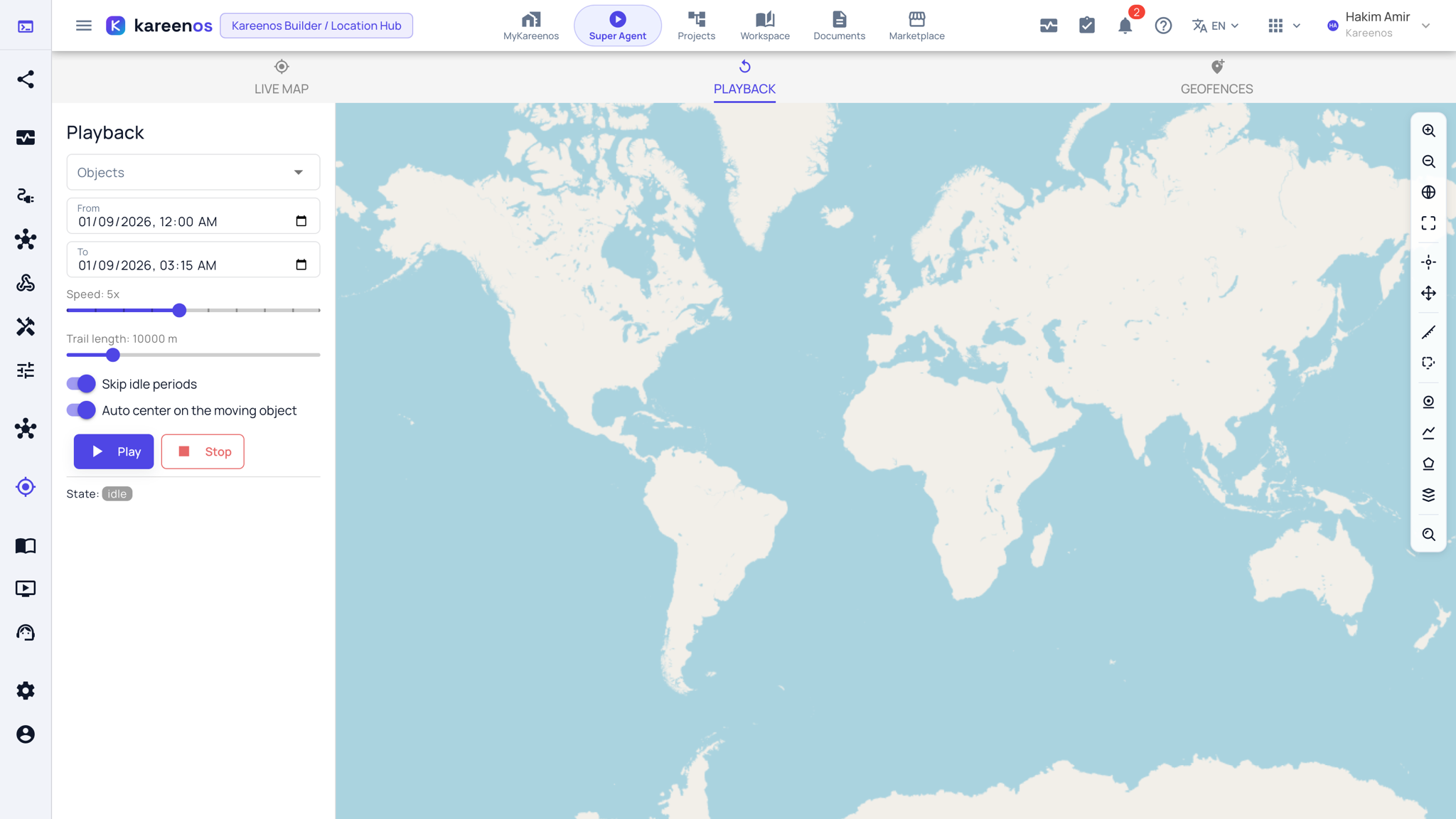
Playback replays where a tracked object has been, drawing its route on a map for a time window you choose.
Where to find it
Press Open in Kareenos above, or open the left menu, choose Location, Location Hub, and select the Playback tab. Every builder can use it.
When to use it
Use it to answer questions about the past without reading a table of coordinates: where was this driver at three in the afternoon, did this van follow the planned route, how long did the team spend at that address, why was the delivery late.
Step by step: replaying a journey
- Open Playback and pick the object in the Objects selector.
- Set From and To: today, yesterday, or a specific date and time range.
- Press Play and watch the trail redraw along the route that was actually taken. Stop ends the replay.
- Move the Speed slider to run quickly through quiet periods and slow down where it matters; Skip idle periods jumps over the time the object did not move.
- Move the Trail length slider to show more or less of the route behind the marker, and leave Auto center on the moving object on to keep it in view.
- Pause anywhere to read the position and time at that moment.
Tip
If a journey looks like a straight line between two distant points, the device was out of signal in between. The gap is a reporting gap, not a shortcut the driver took.
Common mistakes
- Choosing a window that is too wide, which turns a useful trail into a tangle. Narrow to the hours in question.
- Treating playback as proof of speed or conduct on its own: it shows reported positions and times, and it is best read alongside Geofence arrivals and departures.
- Forgetting that an object only has a trail for the period it was actually reporting.