Data Adaptors
See a system you already run as an ordinary sheet, without copying the data. Read-only by design.
A Data Adaptor connects a system you already run and shows it as an ordinary Sheet inside a Live Workbook, without copying the data anywhere.
Where to find it
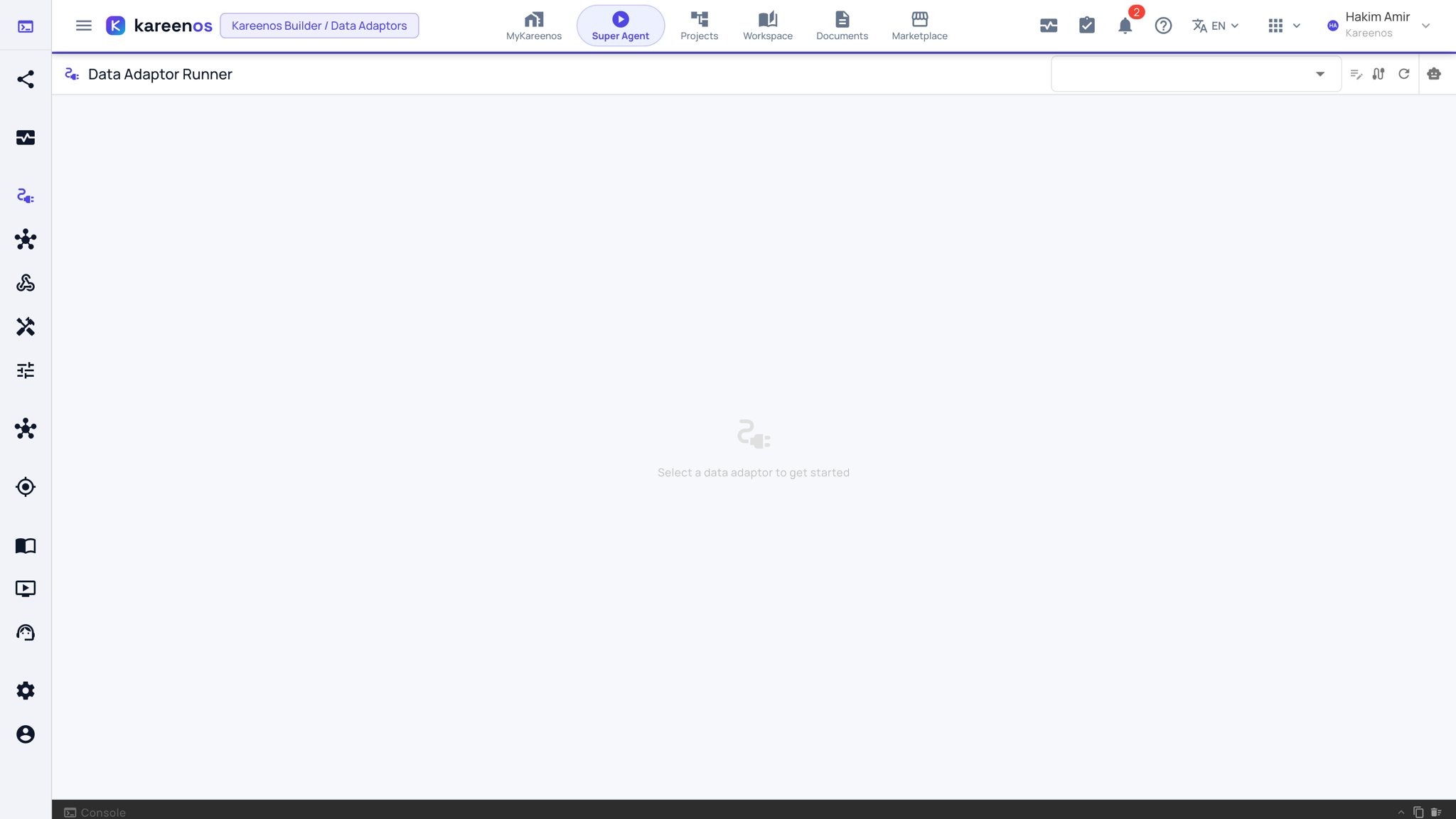
Press Open in Kareenos above, or open the left menu and choose Editors, Data Adaptors. The page is the Data Adaptor Runner: pick an adaptor in the selector at the top right to run it, and use the buttons beside the selector to edit it, open its connections, refresh, or open the AI builder. It is a builder page; building and editing need edit rights.
When to use it
Use one when the information already lives somewhere else and should stay there: your accounting database, an ordering system, a supplier's web service. Your agents, screens and reports read it as though it were a normal Sheet, while the original system stays the single source of truth.
Important
Data Adaptors are read-only by design. Kareenos reads from your system and never writes into it. If you need the platform to send data back, that is a different tool: see Third-Party Integrations.
Step by step: setting one up
Open Data Adaptors and press the robot button at the top right. Describe what you want to read, in plain language: the system, and the fields you need.
Answer the Super Agent's questions about the source.
Let it build the adaptor, then pick it in the selector and run it on the same page to see the rows it returns.
Press the connections button (the cable icon). The Data Connections dialog opens with three tabs: Details, Code & Schemas and Connections, where the account-wide list of connections lives.
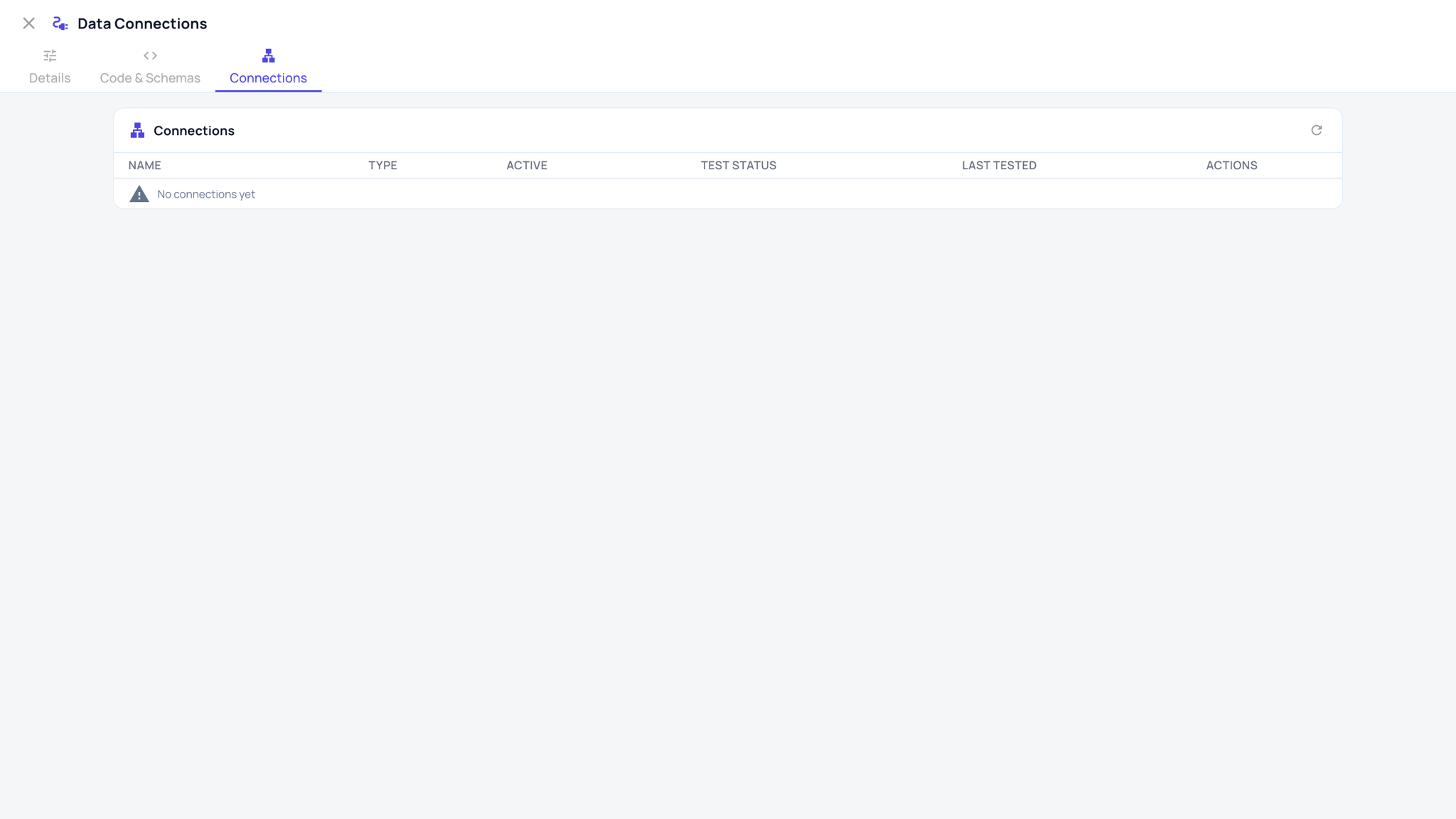
Add or change the connection details there, and check how each external field maps onto a Sheet column on the Code & Schemas tab.
Point a Sheet at the finished adaptor and use it like any other Sheet.
Common mistakes
- Pulling a whole table when the screen needs one filtered view, which makes every read slow.
- Mapping fields with the source system's internal names, so nobody reading the Sheet knows what a column means.
- Expecting an edit in Kareenos to reach the source system. It will not, and that is deliberate.