Teams and access
Teams decide what each person sees and does, which agents they get, and what they can start themselves.
On this page
A Team is a group of people in your business (Sales, Operations, Drivers) that also carries everything those people are allowed to see and do. Teams are the whole access model: there is no second place to grant permissions.
Where to find it
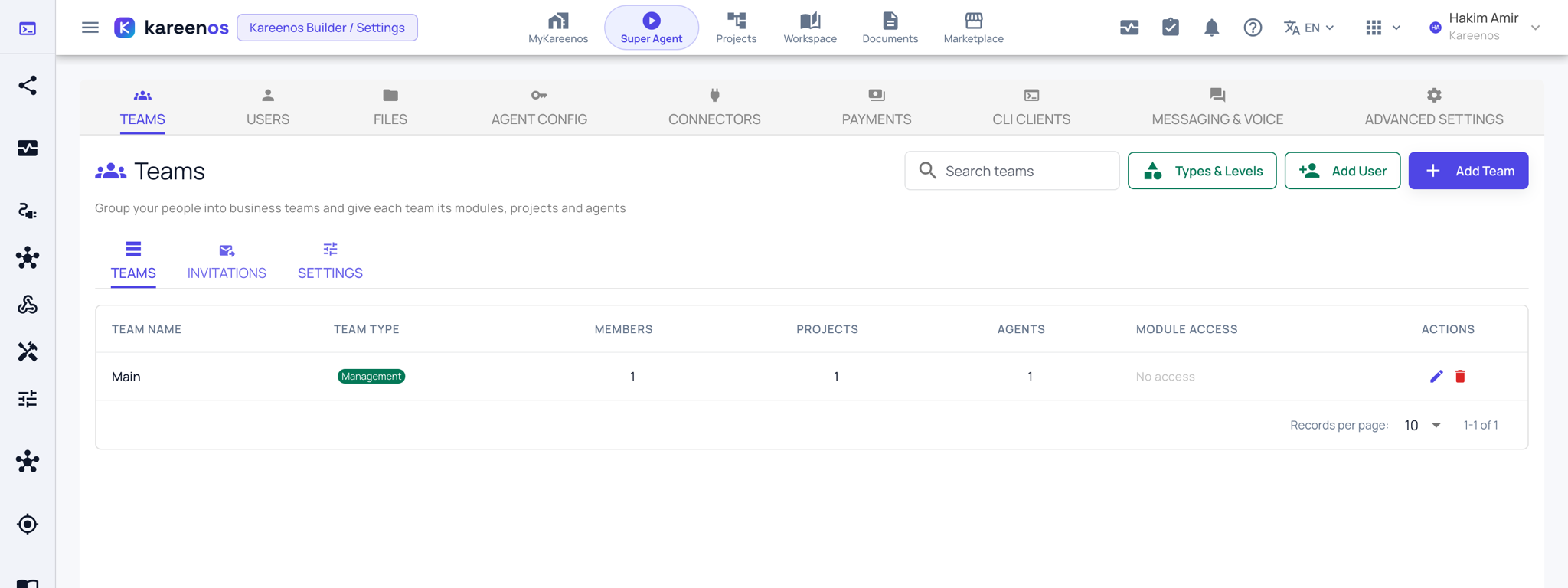
Press Open in Kareenos above, or open the avatar menu at the top right, choose Settings, and stay on the first tab, Teams. Settings is for administrators; if you cannot see it, ask whoever manages your account.
What a Team carries
Each Team holds four things beyond its member list:
- The Projects its members can open, and the agents inside them.
- The agent tabs that appear in each member's MyKareenos.
- The menu of Actions members can start themselves.
- How far members can go: view only, edit, or administer.
Step by step: creating a Team and adding people
Open Settings, Teams and press Add Team.
On the Details tab give it a Team Name, a Team Type and a short description.
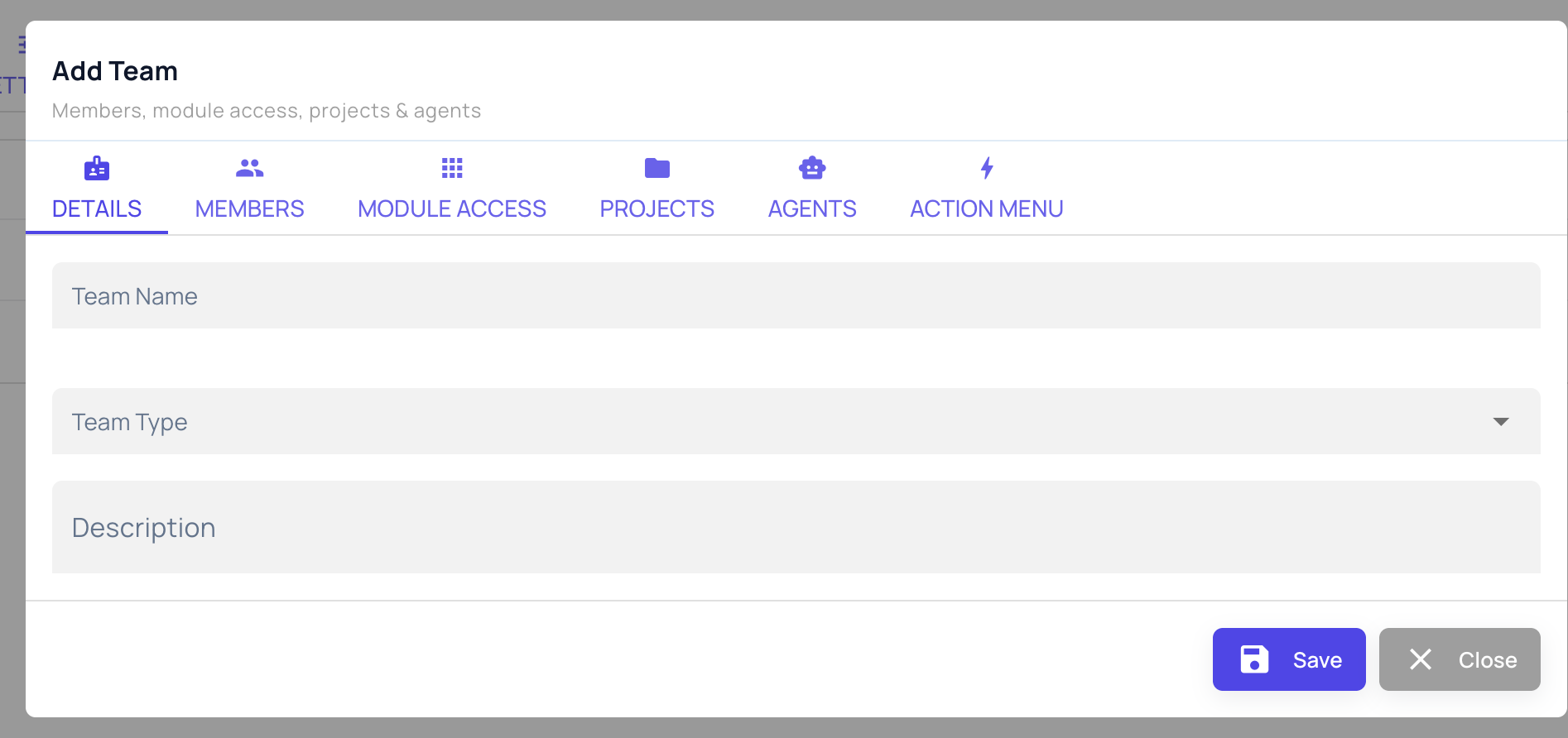
On Module Access, set how far members can go in each area of the platform: view, edit or administer.
On Projects and Agents, assign a whole Project and every agent inside it (including agents added later), or pick individual agents. Each assigned agent becomes a tab in that member's MyKareenos, and you control the tab order.
On Members, add users who already exist on your account. To bring in someone new, press Add User on the Teams tab, or invite them by email from the Invitations tab; the invited person receives a link, sets a name and password, and lands already inside the Teams you chose.
On Action Menu, choose which Actions the Team may start on its own, grouped into sections with a title and a one-line description. This is what fills the Actions tab your people see. Press Save.
Belonging to more than one Team
Someone in several Teams gets the sum of all of them: the widest access level, and every Project and agent from any of them combined.
Careful
A person in no Team sees nothing. They can sign in, but no screens, agents or actions appear. This is the most common reason a new user reports an empty app: add them to a Team.