Task Manager
One page showing what is running right now and what just ran, across every part of your account.
On this page
Task Manager is the activity monitor: one account-wide page showing what is running right now and what has just finished, across every part of the platform.
Where to find it
Open the level menu at the top of the sidebar, choose Advanced, then Task Manager under Monitoring, or press Open in Kareenos above. Every builder can open it.
When to use it
It is the first place to look when somebody asks "is anything actually happening?". Use it when a screen has not refreshed, when a customer is waiting on a reply, when a nightly routine may not have started, or to see how busy the system is this morning.
What it covers
Everything that runs, not only the parts you were watching:
- Agent runs and background automations
- Builder runs from the Super Agent
- Incoming events and Vision Manager processing
- Geofence checks and screen tile refreshes
- Calls out to external tools
- Phone calls, messages and notifications
- Scheduled wake-ups that are due
Step by step: reading the page
- Open Task Manager.
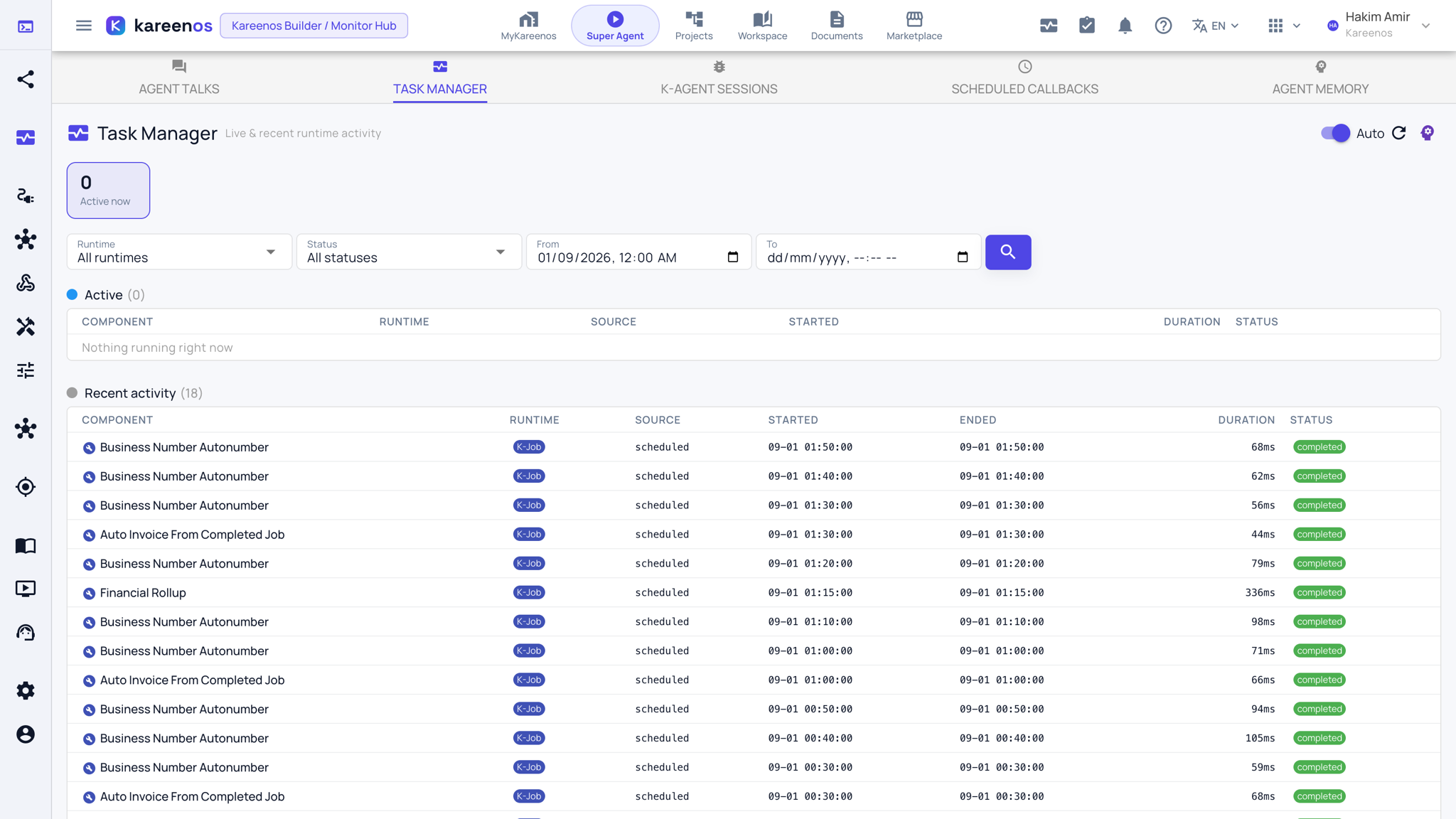
- Read the tiles at the top: each counts what is active for one kind of work.
- Look at the live table, where durations tick upward while work is still running.
- Look at the recent table below it for what has finished and how it ended. Press Load older to go further back.
- Click through into anything that ran long or ended badly; an agent run opens its recording in K-Agent Sessions.
Tip
A long-running entry is not automatically a problem. Compare it with the same kind of work in the recent table before you go looking for a fault.
Common mistakes
- Treating an empty page as a fault. Quiet is the normal state for most accounts most of the time.
- Looking here for the details of a single agent run. This page tells you it happened; K-Agent Sessions tells you why it did what it did.