New Task
Give the Super Agent a job in your own words: it plans, asks what it needs, and builds the agents, sheets, automations and connections.
On this page
New Task is where you give the Super Agent a job in your own words. The Super Agent is your building assistant: it plans, asks you what it needs, and builds the projects, agents, data sheets, automations, widgets, pages and connections your operation runs on. You never need to know which screen builds what. Start here, say what you want, and it finds the way.
Where to find it
New Task is the first row of every level, and every level asks its own question: "What do you want to build?" at level 1, "What do you want to see?" at level 2, "What do you want to ship?" at level 3. It is the same Super Agent each time; only the examples around the box change. Press Open in Kareenos above. New Task is for builders; a team member's sidebar starts at the Inbox instead.
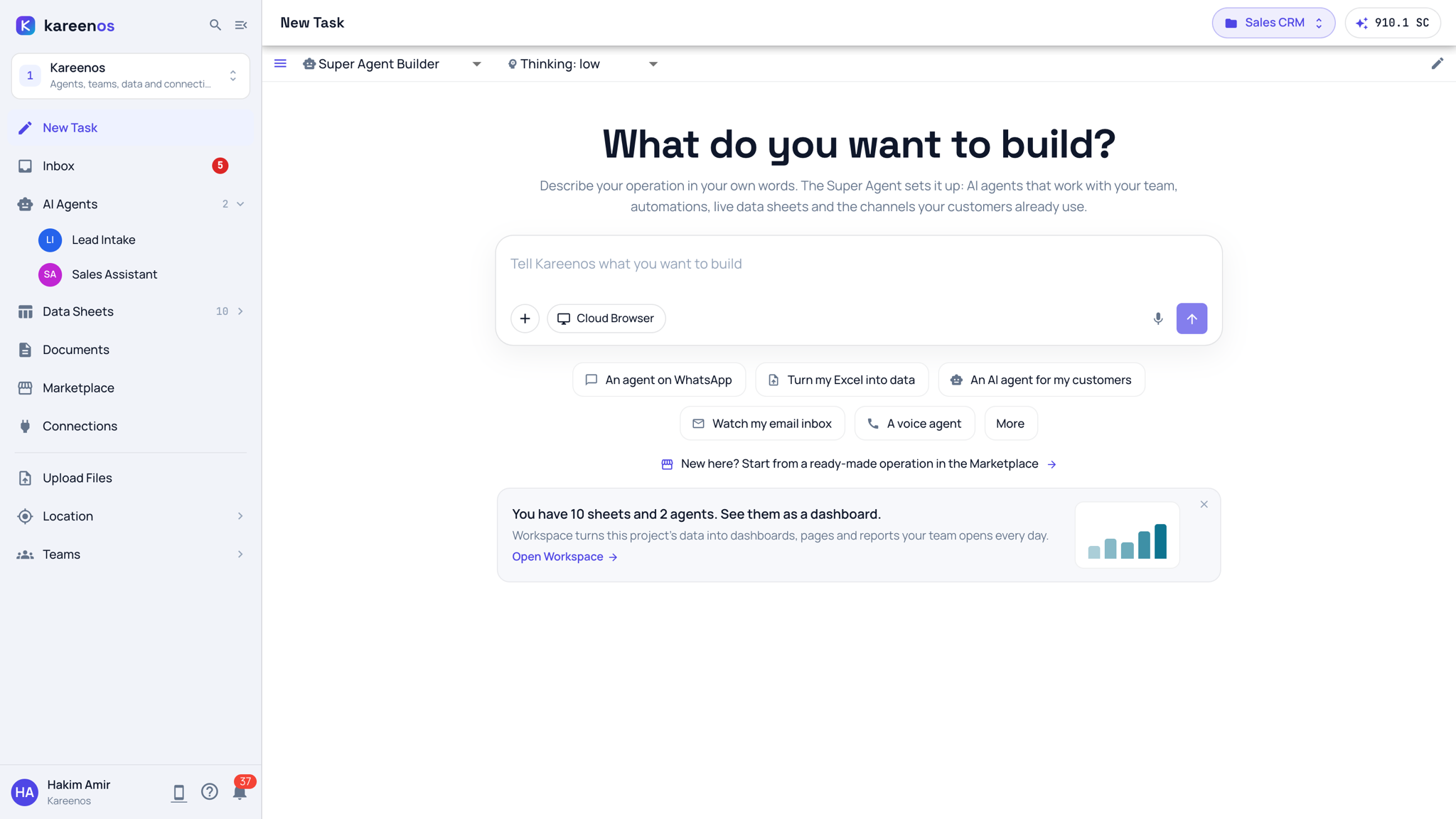
What is on the page
- The task box. Type what you need. The + attaches files, the Cloud Browser chip lets the task use a browser Kareenos runs for you, the microphone lets you dictate, and the round arrow sends.
- Example chips under the box pre-fill a complete sentence you can edit before sending. More shows further examples.
- New here? Start from a ready-made operation in the Marketplace, at level 1, opens the Marketplace.
- Cards under the box. A new project shows a getting-started checklist; once the project has data sheets, a quiet card offers to show them as a dashboard in the Workspace. Close it with the x if you do not need it.
- The bar above the chat: the menu button opens your chat history, the document icon opens the plan panel, Thinking chooses how much the Super Agent reasons before it answers, and the pen starts a fresh chat.
How a task goes
You write a paragraph about what you need. The Super Agent asks you back with one short multiple-choice form, so you are picking options rather than writing a specification. It then writes a plan and waits for you to approve it once. After that it builds and wires the parts together, and a plan panel beside the chat shows the Plan and a Todo list with live progress. When the Super Agent revises the plan or adds tasks to it, the panel opens again by itself on a wide screen, unless you closed it in this chat; then a red dot on the document icon marks the change. While the Super Agent is still working on a plan, the panel's Execute button stays off and reads "The Super Agent is already working on this plan", so the same plan is never started twice. The full walkthrough is in the Quick start.
What you can ask it to build
Everything below starts in the same box. Each level asks its own question, and the same Super Agent answers all three.
| You want | Ask at | For example |
|---|---|---|
| A new project | Level 1, or New project in the project selector | "WhatsApp orders from my grocery stores" |
| An AI agent | Level 1 | "An agent that answers customers on WhatsApp and books their visit" |
| An automation | Level 1 | "Every morning at 7, send me yesterday's orders by store" |
| A question for a person (an Action) | Level 1 | "Ask the sales manager to approve any quote above 5,000" |
| A widget or a dashboard | Level 2 | "A tile with today's late jobs by technician" |
| A page | Level 2 | "A page for my drivers with today's stops and a button to mark one done" |
| A change to anything already built | Any level | "The morning message should list late orders first" |
The pages under Advanced are for looking at what it built and checking it, not for building from nothing. The robot button on the Dashboard, Pages, Widgets, Automations and Projects opens the same Super Agent beside that screen, with what you are looking at already in front of it.
Step by step: asking for something
- Check the project in the top bar: the Super Agent works in that project. For a brand new operation, use New project in the project selector instead: it brings your sentence here and the Super Agent creates the project.
- Open New Task.
- Type the request, or press a chip and edit its sentence. Attach a file with the + if you are starting from a spreadsheet or a price list.
- Send, answer the form it sends back ("go with your recommendations" is a valid answer), and approve the plan.
- Follow the build in the plan panel. Leave the page if you like: open the history panel later and pick the chat to see where it got to.
- Ask for changes the same way, in plain words: "add a column for the driver", "make the morning message shorter".
What it is not
It is a builder you talk to, not something that reacts to events. It never wakes up on its own in the background. Work that has to happen automatically when a message arrives or a schedule fires belongs to an AI agent or an automation, which is exactly what the Super Agent builds for you.
Important
Super Agent work spends Super Agent credits (SC). One clear, complete description costs less than a long exploratory conversation.
Common mistakes
- Building into the wrong project because the top bar still shows the previous one.
- Approving a plan without reading it, then rebuilding later.
- Asking for one part at a time when a single description would have wired the whole thing together.
- Hunting for the right editor to build something by hand. Ask here first: the Super Agent keeps every part consistent with the others.