Cloud Browser
A Chrome Kareenos runs for you that stays signed in and works for agents while you are away, with a live view you can take over.
On this page
A Cloud Browser is a Chrome that Kareenos (or your own company's server) keeps for you, with the Kareenos extension already connected to one of your projects. Your agents use it exactly like your own browser, but it keeps working while your laptop is closed, and it is the only browser agents can use when you talk to them over WhatsApp, Telegram, SMS or voice.
Where to find it
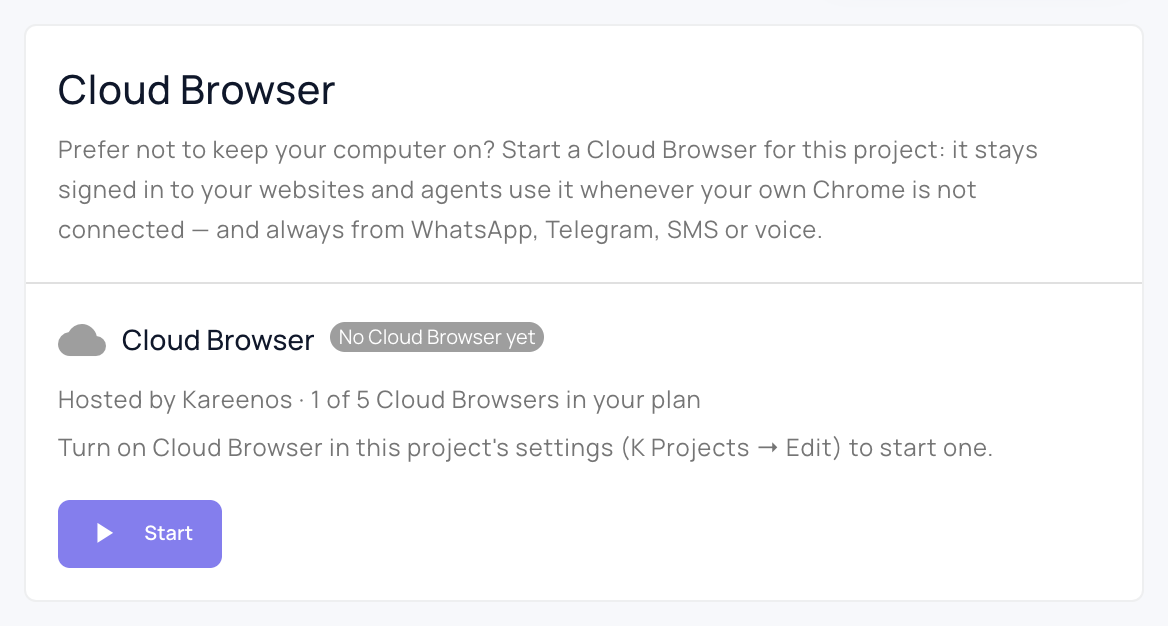
Open Connections and press + on the Cloud Browser card, or choose Manage connections, then Browsers. Press Open in Kareenos above. The Cloud Browser card sits under the browser extension card on the Browsers page. It is a builder page.
You never type a password to make it work: being signed in to Kareenos is enough. The only thing you type is your login to the sites the agents will use (LinkedIn, Gmail, a customer portal), once, inside the live view, exactly as on your own computer. Those sessions stay in the Cloud Browser's profile afterwards.
Start, pause, resume, delete
On the Browsers page, pick the project and click Start. Within a minute the status shows Running and the live view can be opened. You do not have to start it first: when an agent needs a browser and you have none yet in a project with the Cloud Browser on, the agent starts one for you. Pause frees the browser but keeps everything that makes it yours; Resume brings the same browser back in well under a minute. Delete destroys the browser and permanently wipes its profile and every website session in it.
A browser runs only while somebody is using it: you in the live view, or an agent in the middle of a task. The moment nobody holds it, it pauses by itself, so a paused browser is the normal state, not a problem.
Shared browsers: the line
Cloud Browsers share a pool. When every browser in it is taken, Start does not fail: you get a place in line and the card shows Waiting for a free browser · #3 in line. People who open the live view go first; agents wait behind them in arrival order. Your browser starts by itself when your turn comes and the card tells you it is ready. Cancel booking leaves the line.
Agents wait the same way: they are told they are in line, check back by themselves, and work the moment the browser is theirs. Then they release it so the next agent or person gets it.
Your live-view session
Opening the live view keeps the browser for you for a while; the length is a project setting (30 minutes in a new project). One minute before the end a banner asks Keep N more minutes: click it as often as you need while you are signing in to your sites. Do nothing and the browser pauses when the time is up; nothing is lost, and everything you signed in to is still there when it resumes. Pause now ends the session immediately.
The same countdown and Keep button sit in the bar of the live view itself, so a browser opened in its own window behaves the same way.
Watching and taking over
The live view streams the browser into Kareenos. You watch the agent work; when a page needs you (a login, a verification code, a CAPTCHA, a judgement call), click Take control, do it, then Hand back. While you hold control the agent waits, and it tells you so in the chat. While an agent is working the card says so, and its hold keeps the browser running even if your own session ends.
How agents choose a browser
Each project decides in its own settings: open the project selector, choose Manage projects, press the edit button in the project header and find Cloud Browser. A new project starts with the Cloud Browser on and set to Auto. Auto uses your own Chrome when it is connected and the Cloud Browser otherwise, Cloud Browser always uses the Cloud Browser, and Own computer only never does. From messaging channels only the Cloud Browser is ever used. On an agent's chat page, the Cloud chip in the bar above the chat lets you pin one run to the Cloud Browser regardless.
Your data and sessions
The profile, meaning the cookies and signed-in sessions, lives in the Cloud Browser only. While paused it is stored securely, and it is destroyed with the browser when you delete it, so nothing can be recovered afterwards. The live view can be opened only from your own Kareenos login; no password is ever stored or asked for.
Hosting it yourself
Companies can run the browsers on their own servers instead: an administrator adds the server under K-Desktop Hosts in Advanced. Browsers then run inside the company network, profiles never leave it, and everything still works from Kareenos exactly as in the cloud. The host page shows how many browsers the pool holds, which are in use and who is waiting.
Troubleshooting
- Agents report that the Cloud Browser is not enabled for this project. Turn it on in the project's settings, as described above.
- The card says Waiting for a free browser. Every browser in the pool is taken; you are in line and the browser starts by itself when your turn comes. A self-hosted account also needs its server online.
- An agent says it is queued or waking the browser up. It is waiting for its turn, or for the resume, and checks back by itself. Nothing to do.
- The browser paused while I was reading. The live-view session ran out. Reopen it and press Keep N more minutes when the banner appears.
- The live view says the link has expired. Reopen it from Kareenos; each link works once and only for a short time.