AI Agents
Your working agents: the ones that answer customers, watch for events and hand anything that needs a person to your team.
On this page
AI Agents are your working agents: the ones that do the job day to day once the Super Agent has built them. They answer customers, watch for events, keep your sheets current and hand anything that needs a person to your team's Inbox. The platform calls each one a K-Agent.
Where to find it
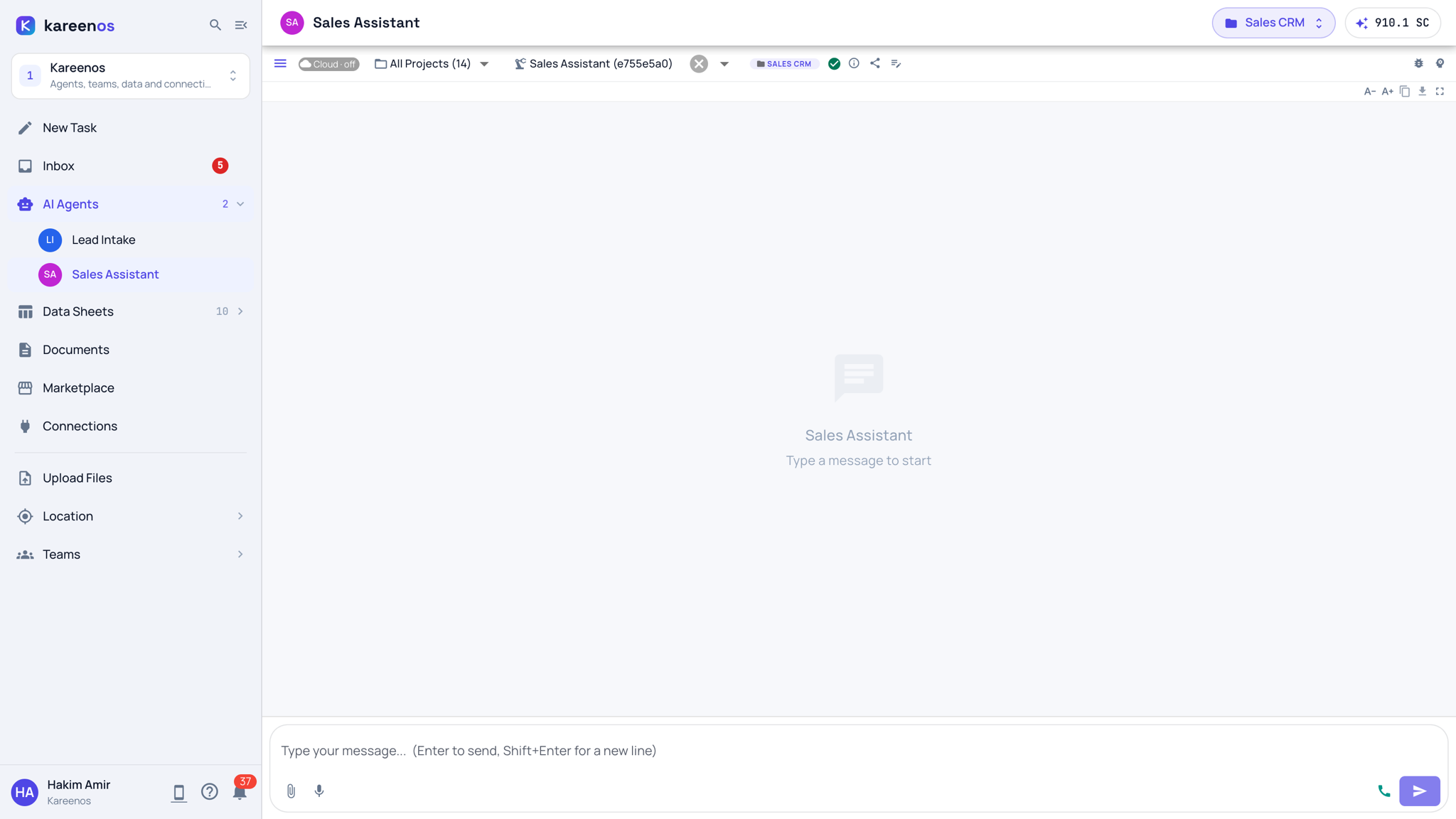
AI Agents is the third row of level 1. Click it to open the list of the current project's agents, each with its coloured initials, then click an agent to open its chat page; the top bar then shows the agent's name. Press Open in Kareenos above. Builders open agents here; team members open the agents their Team grants inside their Inbox.
What one agent is
Each agent belongs to a single project and has four things of its own: an explicit list of tools it may use, the events it listens for, instructions describing its role, and its own memory of what has happened before.
Some agents are conversational, answering customers or staff on WhatsApp, Telegram, Slack, the phone or this chat page. Others run silently in the background and only wake when something happens: a message arrives, a row changes in a sheet, a vehicle enters a zone, or a scheduled time passes.
Agents work as a team, with your team
Agents delegate rather than doing everything themselves. An entry agent handles the conversation and hands focused work to specialist skills, or to an automation when the work is fixed and needs no judgement. When a person has to decide, the agent raises an Action or a Task into that person's Inbox and waits.
Important
An agent can only do what it has been explicitly granted. No tool, no sheet and no channel arrives by default.
Building a new agent
Agents are not built on this page. Describe the agent to the Super Agent in New Task: what it should do, who it talks to, and what it may look at or change. The Super Agent writes its instructions, gives it only the tools the job needs, connects it to your sheets and channels, and adds it to the project in the top bar.
For example: "An agent that answers my customers on WhatsApp, takes their order and adds it to my orders sheet." Try this in New Task
Models for chat and for calls
An agent does its work with its main model: typed chat, messages on WhatsApp, Telegram or Slack (voice notes included), and everything it does in the background. Live calls can have a model of their own, because on a call a quick answer matters more than a long, polished one. That covers every live call: calls to a voice number, and calls started with the phone button on the agent's chat page or its shared link.
Both are chosen on the agent's Model tab: the main model at the top, Voice calls model at the bottom. Switch on Use a different model for calls and pick the model for calls; left off, calls use the main model. To open the tab, select the agent in the Agents editor and press the pencil, or ask for the change in New Task.
Step by step: talking to an agent
- Check the project in the top bar, then click AI Agents and pick the agent.
- Type in the message box at the bottom, the way you would message a colleague. Attach a file with the paper clip, press the microphone to dictate, or the phone to talk to it by voice.
- Read its answer, and follow up in the same chat.
- Use the menu button at the top left of the chat to open the history of past conversations with this agent.
- The share button in the agent bar publishes the agent as a link or a website chat; see Embeds.
- To change what an agent does, ask in New Task: "the Sales Assistant should hand quotes above 5,000 to me". To inspect its tools and the events that wake it, builders open the Agents editor in Advanced.
Common mistakes
- Giving one agent every tool. Narrow agents behave more predictably than broad ones.
- Using an agent for work that never varies. An automation is faster and cheaper for that.
- Expecting an agent to see a sheet or a channel it was never granted.
- Leaving calls on a slow main model, so callers wait in silence before every answer.