Messaging Monitor
Every conversation on your customer channels (WhatsApp, Telegram, Slack and phone) in one place.
On this page
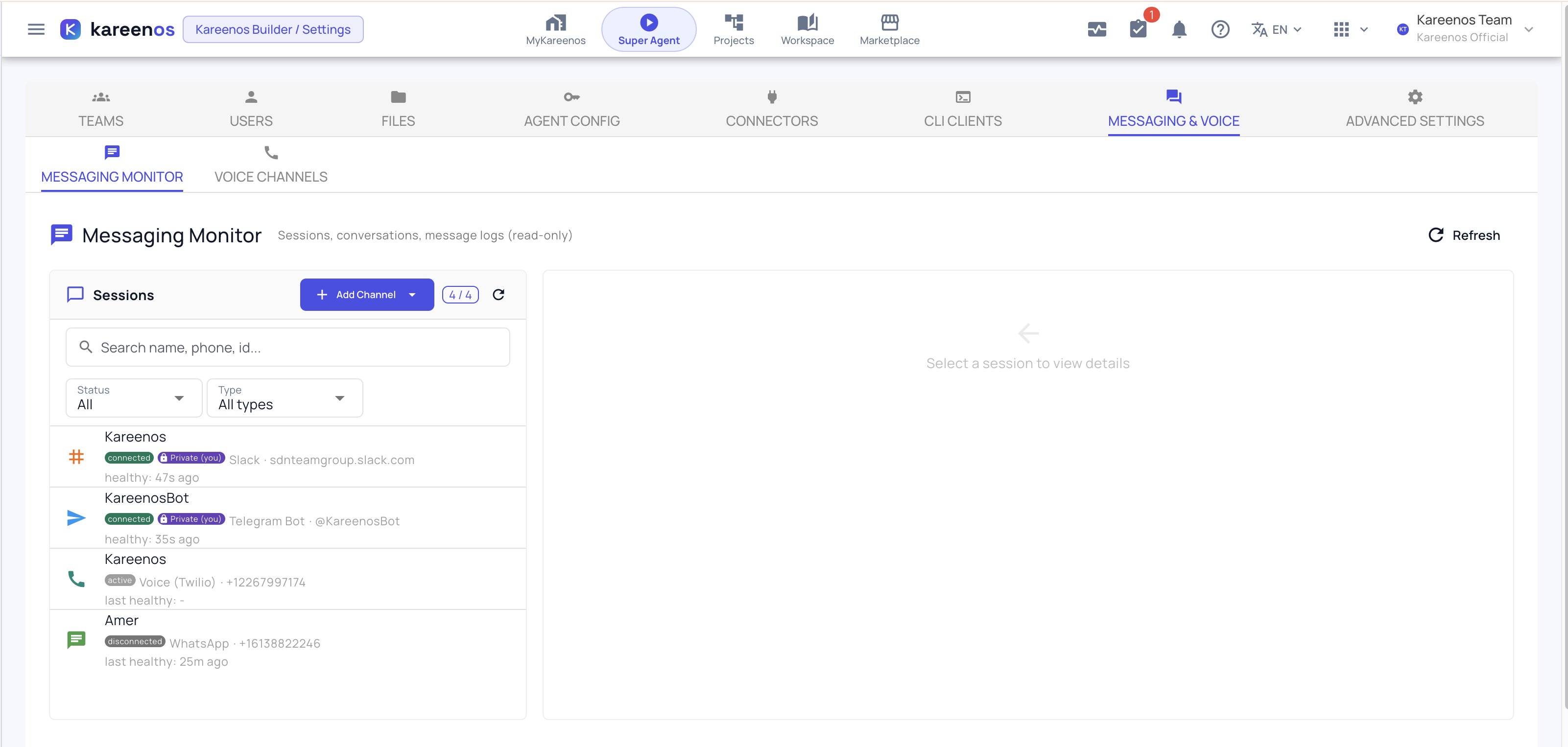
The Messaging Monitor shows everything happening on your customer-facing channels (WhatsApp, Telegram, Slack and phone) in one place.
Where to find it
Press Open in Kareenos above, or open Connections and choose Manage connections, then Messaging Monitor. It is for administrators, so if it is missing ask whoever manages your account. The same page is where channels are added; see Messaging channels.
When to use it
Use it to check whether a customer actually received a reply, whether a channel has quietly disconnected, and exactly what one of your agents said on a live conversation. It is the page you open when a customer says "nobody answered me".
What it shows
- Which channels are connected, and whether each one is healthy
- The conversations currently running on each channel, with the person on the other end
- The full message log for any conversation, in order, in both directions
- Phone calls alongside written messages, so one customer's history is in one place
Step by step: checking a conversation
- Open the Messaging Monitor and look at the channel list first: a disconnected channel explains most complaints on its own.
- Find the conversation, by channel or by the contact.
- Open it and read the message log from the top.
- Check that outgoing messages left, and when.
- If an agent replied badly, note the time and open K-Agent Sessions to see the reasoning behind that reply.
Important
A healthy channel and a delivered message are two different things. Confirm the channel first, then confirm the individual message, before concluding an agent stayed silent.
Common mistakes
- Reconnecting a channel before reading the log, which loses the evidence of what went wrong.
- Assuming silence means the agent failed, when the conversation was handed to a person and continued elsewhere.
- Editing an agent's instructions after one bad reply without reading the run behind it.