Data Sheets
Your data, spreadsheet-shaped: workbooks, sheets, typed columns and five ways to look at the same rows.
On this page
Data Sheets are where your operational data lives. Everything else in Kareenos reads from them and writes back to them: agents look up prices and customers, automations add rows, the Workspace turns them into dashboards. The platform calls them Live Workbooks: a workbook groups the sheets of one operation.
Where to find it
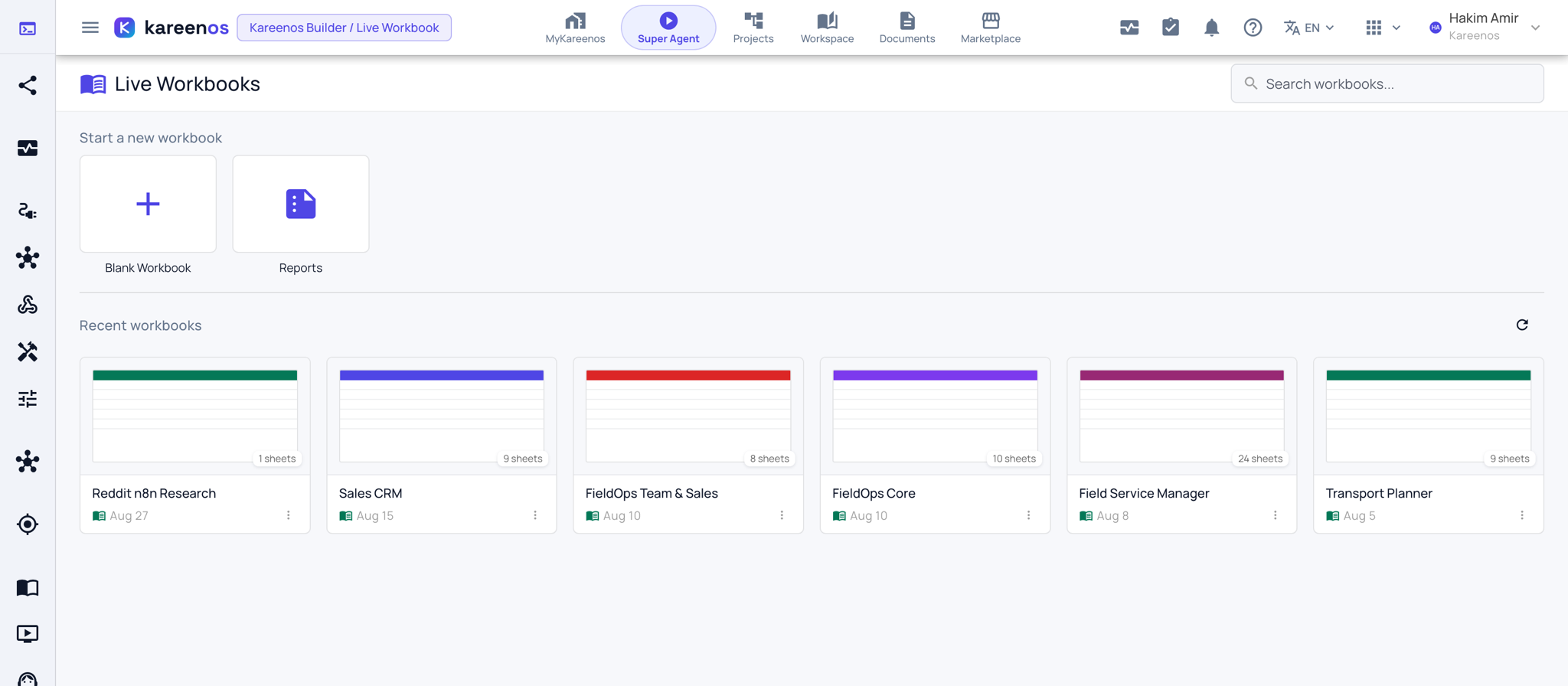
Data Sheets is the fourth row of level 1 (and of level 2). Click it to open the list of the current project's sheets, grouped by workbook, then click a sheet to open it. The small grid button that appears beside the row opens the Live Workbooks overview, where you start a new workbook or open one. Press Open in Kareenos above for the overview. Anyone in a Team granted the project can open its sheets; editing rows follows the same access.
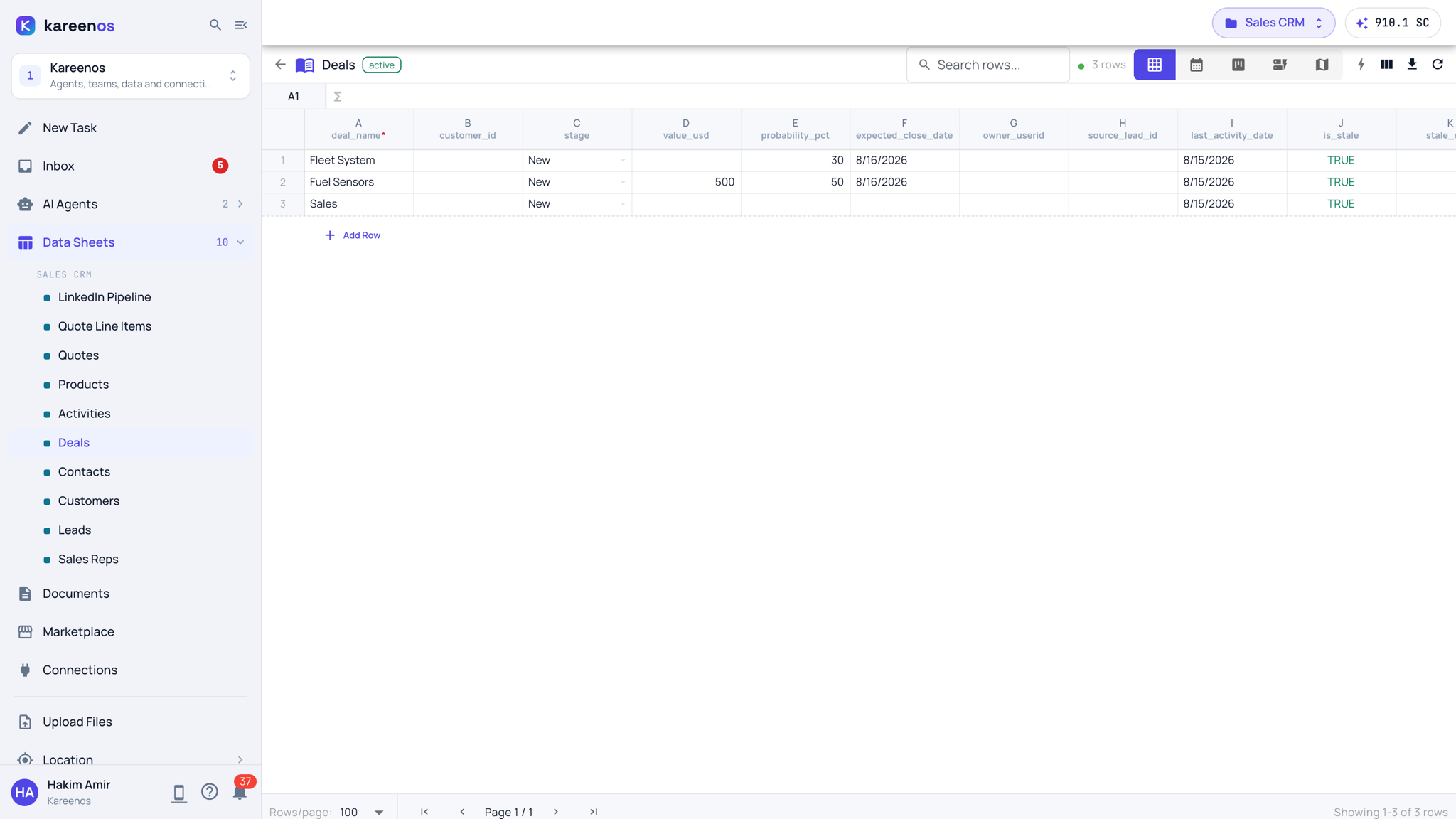
Workbooks, sheets, columns, rows
A workbook contains sheets. A sheet has columns and rows, much like a spreadsheet, but each column has a declared type so the platform knows what the data means: text, number, date, yes/no, dropdown, lookup to a row in another sheet, formula, map location, street address with autocomplete, uploaded file, QR code and barcode.
Typed columns are what let a map show your stops, a calendar show your bookings and an agent understand which value is a price.
Five ways to see the same sheet
The same rows can be viewed as a grid, a calendar, a kanban board, a form, or a map. You are not copying data between views, you are looking at one sheet through a different lens. The switcher is the row of view buttons at the top right of every sheet.
Step by step: opening a sheet and entering data
Check the project in the top bar, click Data Sheets and pick the sheet.
Read the columns. A red mark on a column name means it is required.
Press Add Row and fill in the cells. A new row is a draft on your screen until every required cell is valid; only then is it saved and visible to others.
Switch the view with the buttons at the top right: grid, calendar, kanban, form or map. Check the data reads well in each view your team will use.
To add a column, open the column header menu, choose the type deliberately, and mark it required if it must always be filled.
To start a new workbook, or to bring an Excel file in, open the overview with the grid button and use Blank Workbook, or ask in New Task: "turn my Excel into data".
Careful
Required columns are enforced on every write, by people and by agents alike. A new row in the grid is a draft on your screen until it is valid, so it is not saved and not visible to anyone else yet.
Long text in a cell
A grid cell shows one line. When a text cell holds more than fits, such as a post, a note or a translation:
- Hover over the cell to see the full text in a preview.
- Double-click the cell, or select it and press Enter, to open the text in a larger window. Read it, edit it, then press Save.
- Find inside that window: type a word to highlight every match, and move between them with the arrows. Aa matches upper and lower case exactly.
- Replace: open it with the small arrow to the left of Find, then replace one match or all of them. Undo works as it does anywhere else.
- If you can only view the sheet, the window opens for reading and searching.
Short values still edit right in the cell. To switch to the larger window while typing, press the small expand button at the right edge of the cell. Line breaks are kept, and Arabic and English paragraphs in the same text each read in their own direction.
What else lives in a workbook
- Several people at once: changes made by others, and by agents, appear as they happen.
- Automations menu: run the automations assigned to a sheet from one click in its toolbar.
- Exports: download a sheet from the toolbar.
Common mistakes
- Typing addresses or coordinates into a plain text column, which leaves them off the map.
- Repeating the same list in two sheets instead of using a lookup column.
- Marking everything required, which blocks partial data capture in the field.