Connectors
The page where your outside credentials live, and the rules that apply to every one of them.
On this page
Connectors is the one page where your organization's outside credentials live. Your mail server, your Google and Microsoft accounts, your social scheduling account, your code hosting: everything your agents reach out to from your name is set up here, once, by an administrator.
Where to find it
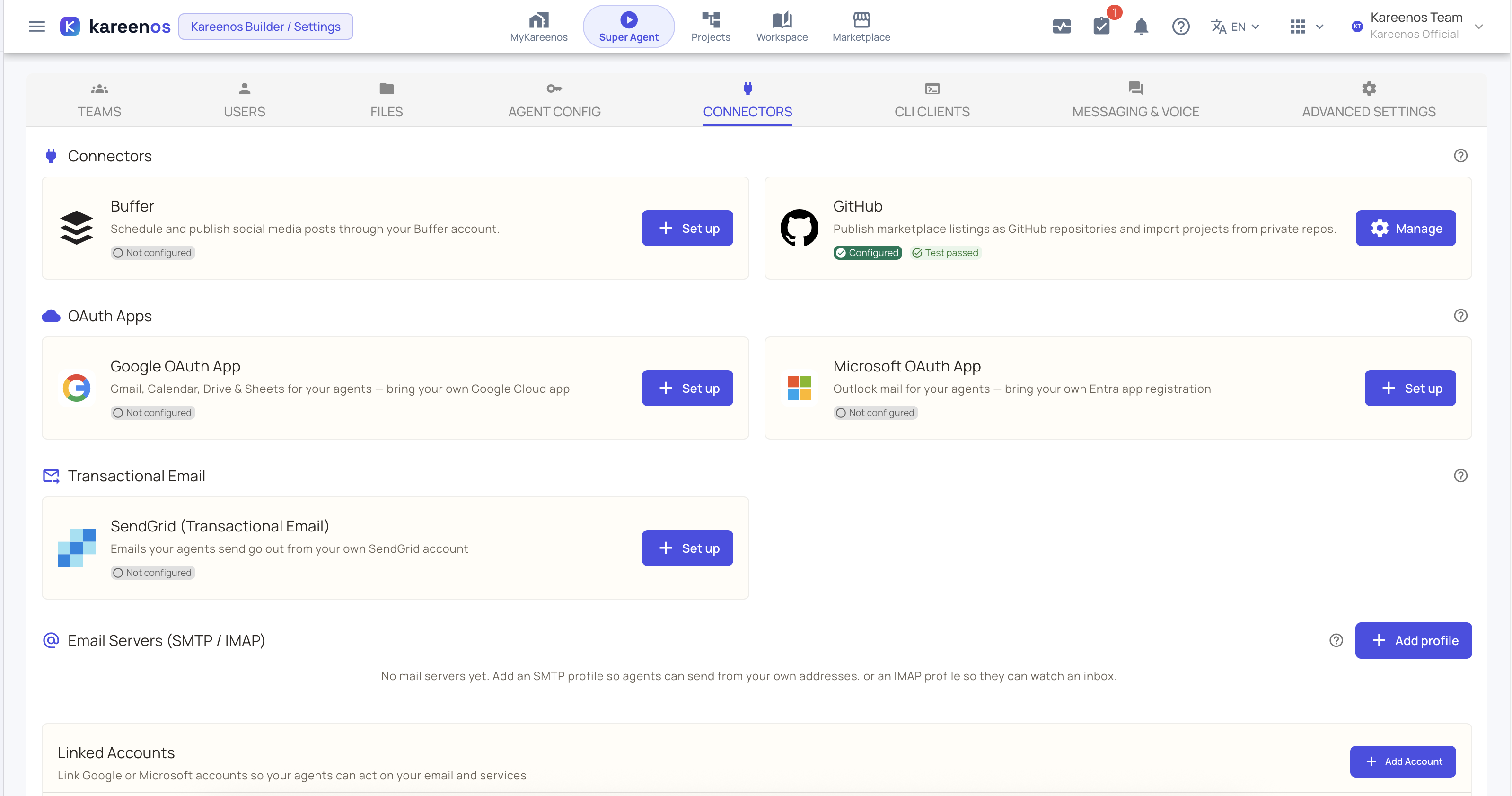
Open Connections, then Manage connections and Connectors and email, or press Open in Kareenos above. The + on the Gmail, Outlook, Buffer, GitHub and Email cards in Connections opens this page too, with the right dialog already open. Administrators only. It is one long page with five sections, and the guides below each walk one section step by step.
What you can connect
| Section | What it is for | Guide |
|---|---|---|
| Connectors | Ready-made bundles of agent abilities that switch on when you paste your own key. Buffer for social posting, GitHub for publishing and importing projects. | Buffer and GitHub |
| Google & Microsoft | Link a Gmail or Outlook account in one click with Connect. An organization that wants its own consent screen can add its own Google or Microsoft app here instead. | Google and Microsoft accounts |
| Transactional Email | The account your agents send customer email through, using your verified sending address. | Transactional email |
| Email Servers (SMTP / IMAP) | Your own mail servers, so agents can send from your addresses and watch an inbox for new mail. | Email servers |
| Linked Accounts | An individual person's Gmail or Outlook account, connected so agents can act on it for them. | Google and Microsoft accounts |
If you are not sure which of the email options you need, start at Choosing an email option. Conversation channels such as WhatsApp, Telegram, Slack and phone are not on this page. They live under Messaging channels and Voice channels.
Who can open it
Connectors is administrator only. If you cannot open the page, ask whoever manages your account to either set the connection up for you or move you into a team that has administrator access. See Teams and access.
Step by step: setting up any card
Every card on the page follows the same pattern, so learn it once.
Open Connectors and find the card. It shows Not configured until you set it up.
Press Set up (or Manage on a card that is already configured). A dialog opens with a Setup guide telling you where to get the credential, and the fields to paste it into.
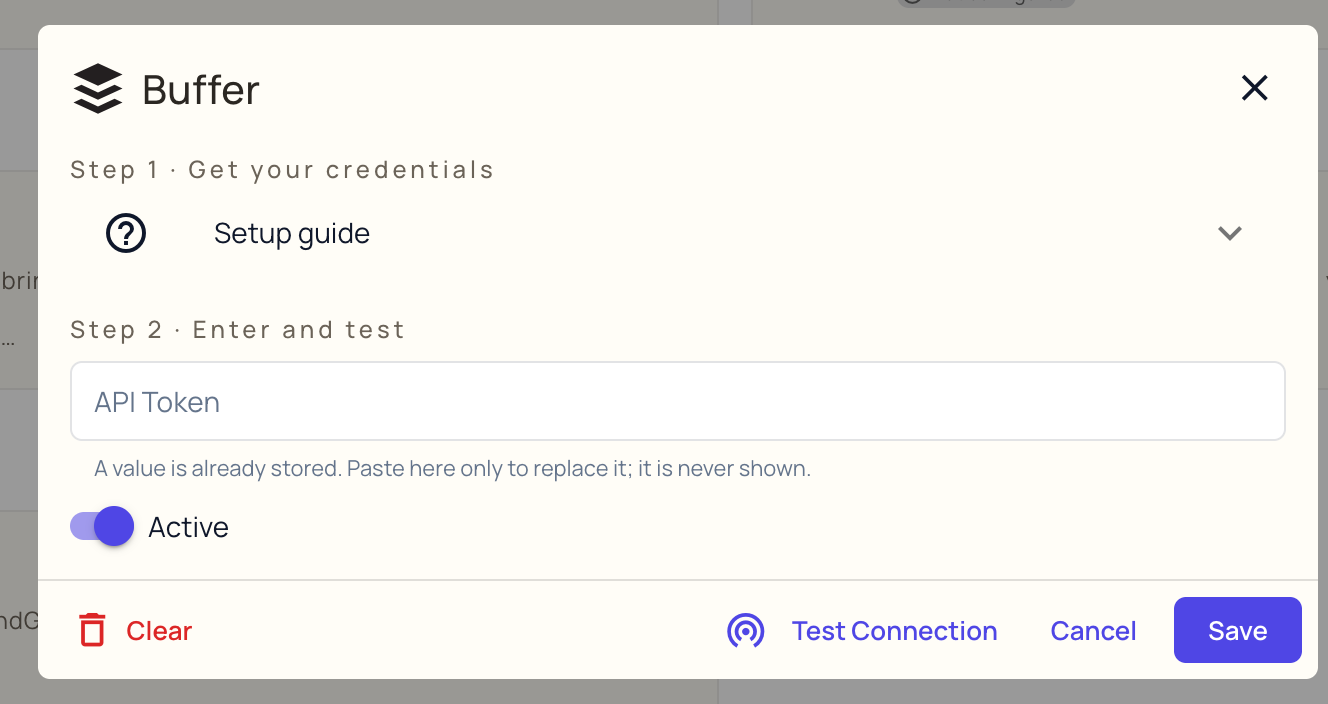
Paste the credential. The box is always empty when you open it, even when a value is stored; leaving it blank keeps what is stored.
Press Test Connection where the dialog has one. It tests with what you just typed, before anything is written.
Leave Active on and press Save. The status chip on the card tells you where you stand: Not configured, Configured or Inactive, plus Test passed or Test failed after a test.
The Google and Microsoft cards are the one exception. They have a Connect button that links an account at once, and they show how many accounts are connected. The dialog described above is behind Use your own app on those two cards.
How every credential box behaves
- The box is always empty when you open it. A stored value is never shown back to you, not to an administrator and not to an agent. If a key is already saved you will see a placeholder saying so.
- Leaving it blank keeps what is stored. You can change a sending address, a port or the Active switch without retyping the secret. Only type in the box when you want to replace the value.
- Test before you save, where there is a button for it. Connectors and email profiles both test with whatever you have just typed, before anything is written, so a bad paste fails cleanly instead of half configuring the service.
- Active is a real switch. A saved but inactive connection behaves exactly like one that was never set up.
- Clear removes the credential entirely, and the abilities that depend on it go back to reporting the connector as not set up.
Careful
Never paste an API key, a token or a password into a chat with an agent, even if the agent asks for one. Credentials belong on this page. Anything typed into a conversation becomes part of that conversation's history.
Nothing is borrowed from anybody else
If a service is not set up, agents do not quietly borrow somebody else's. They report that the service has not been configured and stop, and they will keep reporting the same thing until an administrator sets it up. That is deliberate: your customers should never receive mail from an address you do not own, and your posts should never go out through an account you did not connect.
Linking a Google or Microsoft account in one click follows the same rule. Connect asks the owner of the mailbox for access on Google's or Microsoft's own screen, and only the account that person approved is linked, to the project it was linked from. No mailbox is ever shared between organizations.
The practical consequence is that a build can look finished and still be unable to email anyone. Work through the connections your project actually needs as part of Your first day checklist.
Common mistakes
- Setting up a connection but leaving Active switched off, then wondering why agents still report it missing.
- Saving a service without pressing Test Connection first, so a mistyped key only surfaces days later on a real customer send.
- Setting up your own Google or Microsoft app and stopping there. The app on its own gives nobody access to any mailbox. Each person still has to link their own account.
- Assuming a colleague can open the page. Most people cannot, by design.