Inbox
Everything your agents need from a person: approvals, short forms and tracked tasks, on the web and in the myKareenos app.
On this page
The Inbox is where your team meets your agents: one list holding everything the agents need from a person. It is the home page of every team member, on the web and in the myKareenos app.
Where to find it
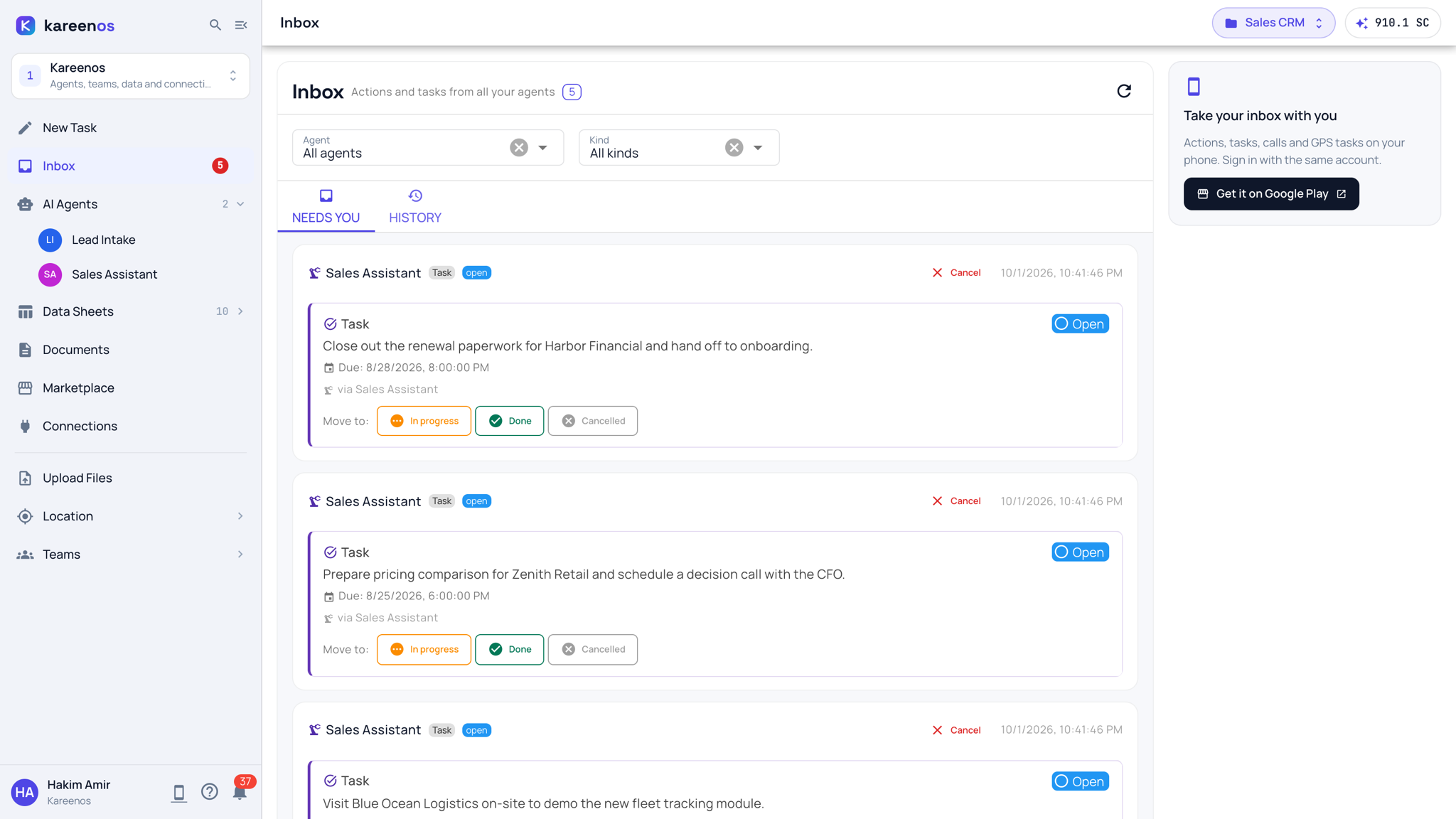
Inbox is the second row of level 1. The red number beside it counts what needs you now. Press Open in Kareenos above. Every member can open it, whatever their access level, and it is the page they land on after signing in.
What lands in your Inbox
Two kinds of item arrive, and the difference matters.
An Action is a short ask. An agent needs you to approve something, confirm a detail, or fill in a small form. You answer it and it is gone.
A Task is tracked work with a life of its own. It moves from open to in progress to done, and it can carry much more than a question: a multi-stop trip with check-in and check-out at each stop, delivery photos, QR or NFC scans, a captured signature, and a list of what was loaded or delivered.
Step by step: working the Inbox
- Open the Inbox. Needs You lists everything waiting on you; History holds what you already answered.
- Use the Agent and Kind filters at the top when the list is long.
- Answer an Action, and it leaves the list.
- On a Task, read what it asks and its due date, then move it on with In progress and Done, or Cancelled if it no longer applies. Open it to see its stops, checklist and the evidence it needs.
- To talk to one of your agents, open it from AI Agents in the sidebar and ask in plain language, the same way you would message a colleague.
Your agents, and starting a request yourself
The agents your Team gives you are listed under AI Agents in the sidebar. For a team member they open right here in the Inbox, with a way back to the list at the top. Where your administrator has built action menus for your Team, a button in the Inbox header lets you start a request yourself instead of waiting to be asked.
On a phone
The myKareenos app for Android mirrors the same Inbox and the same tasks, so field staff get their work, their stops and their evidence capture on a phone. The Take your inbox with you card on the right, the phone icon at the bottom of the sidebar, and myKareenos for Android in the account menu all open it on Google Play. Sign in with the same account.
Tip
If a request you expect never arrives, check with your administrator that your Team has been granted the agent. Nothing is visible by default.
Common mistakes
- Treating a Task like an Action. Tasks stay open until every stop and every piece of evidence is complete.
- Answering on the web and then again on the phone. It is the same Inbox.
- Expecting to see another person's tasks. The Inbox shows what is assigned to you.