Upload Files
Drop files and photos into a channel so the agents and automations attached to it process them on arrival.
Upload Files sends files and photos to your agents and automations to process: drop a batch of invoices, delivery notes or site photos into a channel, and whatever is attached to that channel picks them up on arrival.
Where to find it
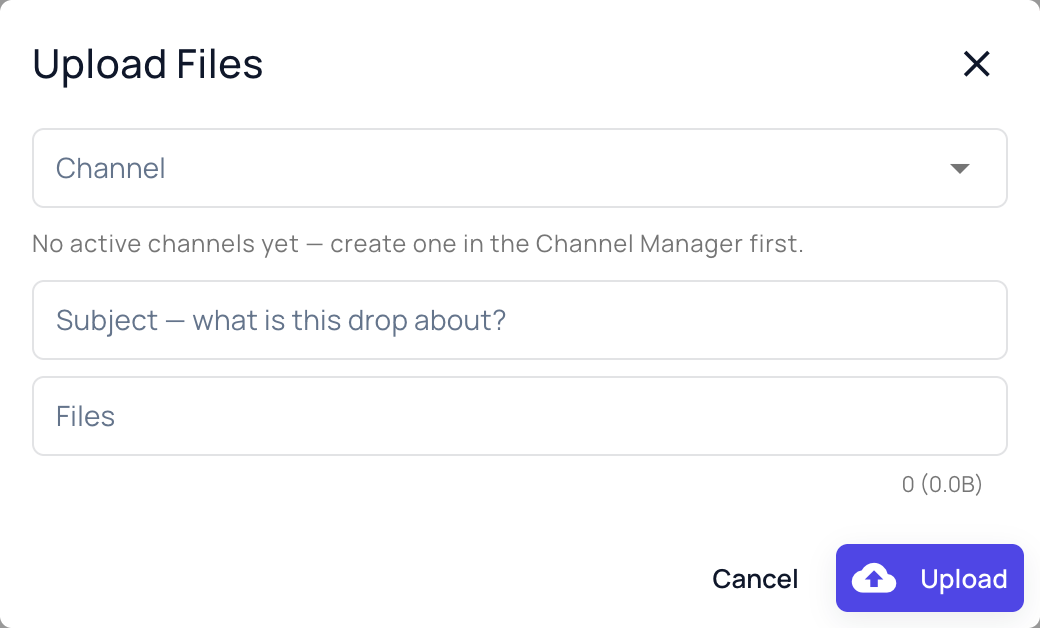
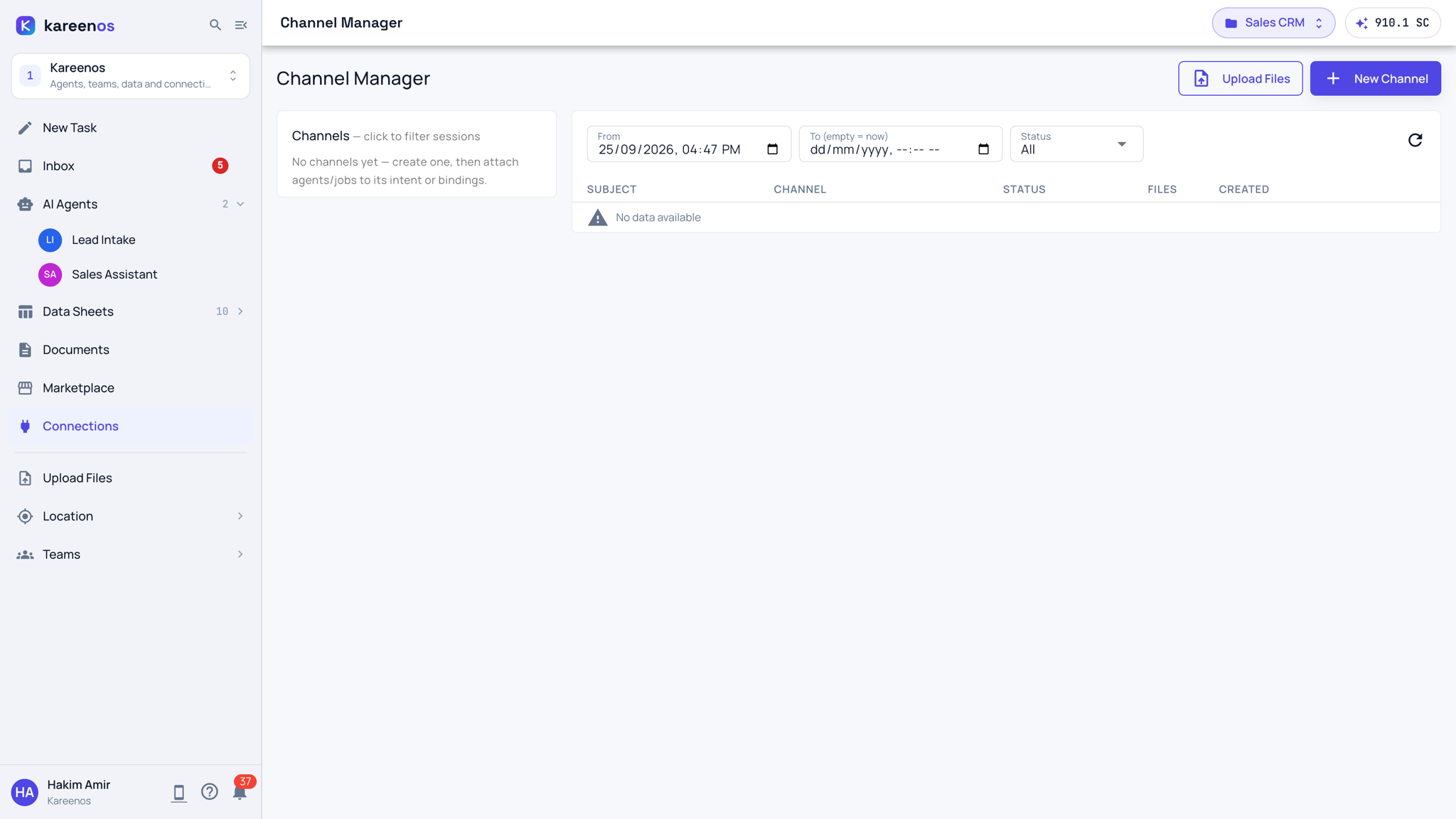
Upload Files sits under the line at the bottom of level 1. It opens a small upload window over whatever page you are on. The channels it uploads into are managed on the Channel Manager page, which the Upload channels card in Connections opens. Press Open in Kareenos above for the Channel Manager; it is a builder page.
Channels
A channel is a kind of thing your team drops in, such as Supplier Invoices, Delivery Notes or Site Photos, together with what should happen to it: the automation or agent that processes each file. Every upload into a channel is grouped as one drop with a subject, so the processors know the files belong together.
Some channels start processing the moment the upload lands. The window says so under the Files field when the channel you picked does.
Step by step: your first upload
- If the Channel picker says there are no active channels yet, open the Channel Manager and press New Channel, or ask in New Task: "create an upload channel for supplier invoices and file each one into my Invoices sheet".
- Click Upload Files in the sidebar.
- Pick the Channel, write a Subject that says what the drop is about, and add the Files.
- Press Upload and watch the percentage. Keep the tab open until it finishes.
- Open the drop in the Channel Manager to follow each file from uploaded to queued, processing and done, with a progress bar per file.
Tip
One subject per drop. A single upload mixing invoices and site photos gives every processor a muddled picture.
Common mistakes
- Closing the tab during the upload, which leaves the drop unfinished.
- Uploading into a channel with nothing attached to it, so nothing happens to the files.
- Using Upload Files for photos and voice notes from the field. Those belong to Vision Manager capture sessions in the mobile app.