Email servers (SMTP and IMAP)
Connect your own mail server so agents can send from your addresses and react to mail arriving in a shared inbox.
On this page
An email profile connects Kareenos to one mailbox on your own mail server. An SMTP profile lets agents send from that address. An IMAP profile watches that mailbox and wakes an agent whenever new mail arrives. You can add as many of each as you need, and you name every one of them, because that name is how an agent asks for it.
Where to find it
Press Open in Kareenos above to open the Connectors tab, then scroll to the Email Servers (SMTP / IMAP) section, or open the avatar menu, choose Settings, then Connectors. Administrators only.
Name profiles the way you would label a drawer
Agents choose a profile by name, so the name is functional, not decorative. Good names describe the mailbox and what it is for: support-mailbox, billing-sender, orders-inbox. If you only have one active profile of a kind, agents will use it without being told which. Once you have several, the name is the only way anyone can be precise.
The profile name cannot be changed after you create it, and neither can the protocol. Pick both deliberately.
Step by step: adding a profile
Open Connectors and press Add profile in the Email Servers section.
Choose the protocol at the top of the dialog: SMTP, send email or IMAP, watch an inbox.
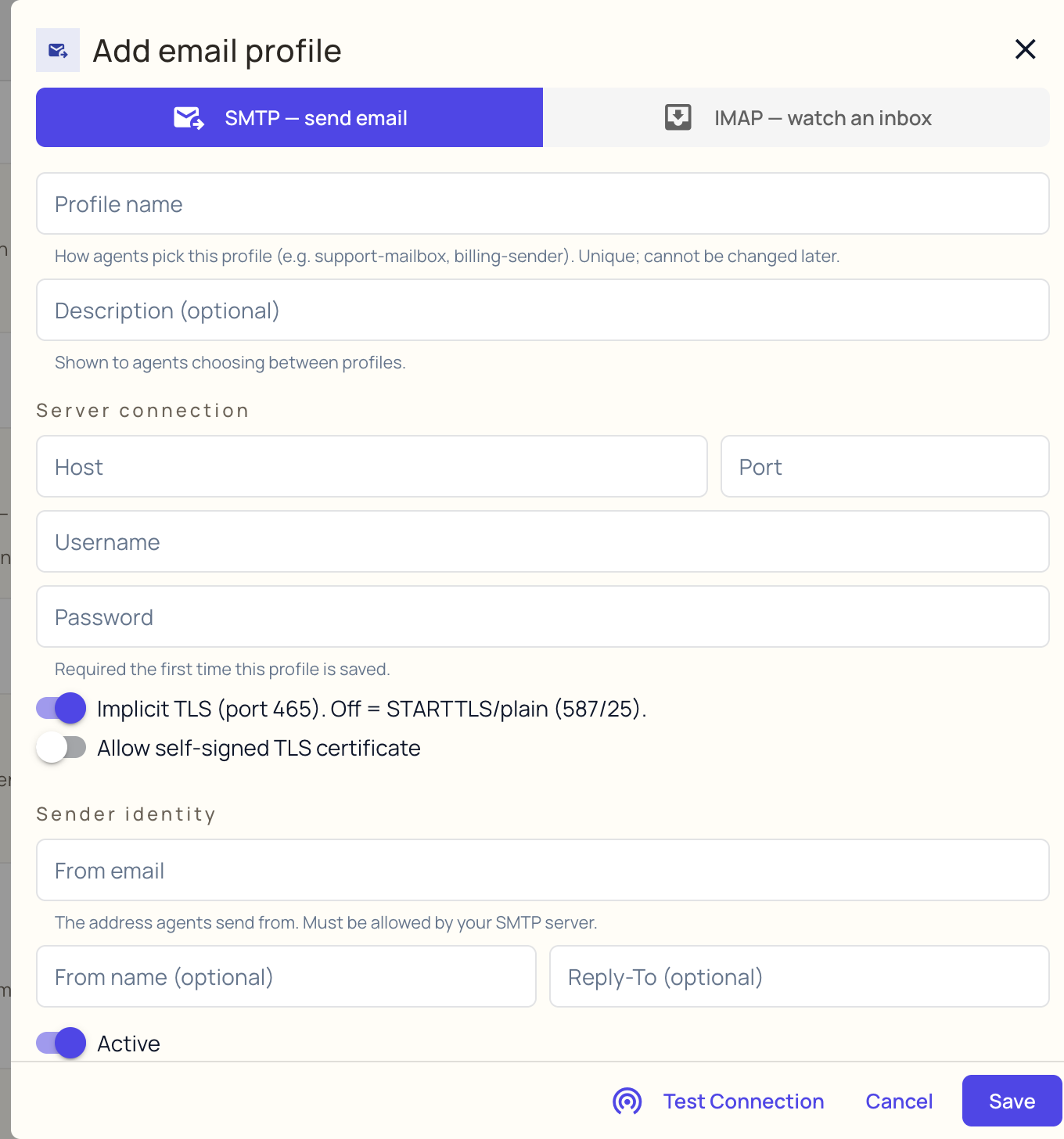
Fill in the Profile name and, optionally, a Description. The description is shown to agents when they are choosing between profiles, so write it for them.
Fill in the server connection: Host, Port, Username and Password.
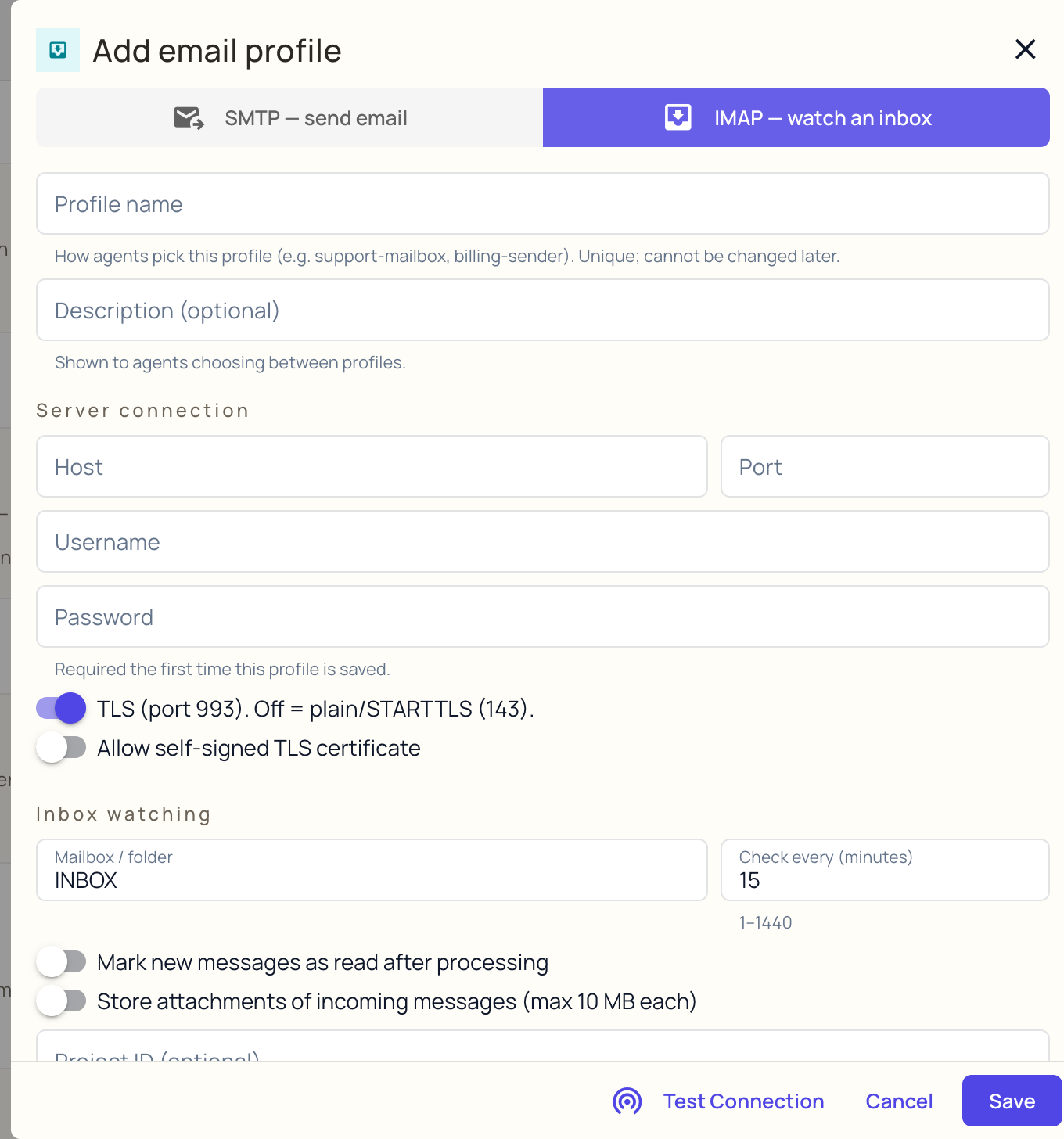
Set the encryption toggle. For SMTP it is implicit TLS on port 465, or off for STARTTLS on port 587 or plain on 25. For IMAP it is TLS on port 993, or off for plain or STARTTLS on 143.
Fill in the fields specific to the protocol, described below.
Press Test Connection. This works before you save, using whatever you have just typed.
Leave Active switched on and press Save.
SMTP profiles
An SMTP profile adds a sender identity on top of the server connection.
| Field | What it is |
|---|---|
| From email | The address agents send from. Your mail server has to allow this mailbox to send as that address, or every send is rejected. |
| From name | The display name recipients see. Optional. |
| Reply-To | Where replies should go, if that is a different address. Optional. |
Agents sending through an SMTP profile can reply inside an existing thread, so the customer sees one continuous conversation in their mail client rather than a series of unconnected messages.
IMAP profiles
An IMAP profile adds the watching behaviour.
| Field | What it is |
|---|---|
| Mailbox / folder | Which folder to watch. INBOX unless you sort incoming mail into a subfolder. |
| Check every (minutes) | How often to look, from 1 to 1440. Fifteen is a sensible starting point. Checking every minute is only worth it when somebody is waiting on the answer. |
| Mark new messages as read after processing | Flags each message as read once an agent has been woken for it. Useful when a person also watches the same inbox and needs to see what has been handled. |
| Store attachments of incoming messages | Keeps attachments so agents can open them. Leave this off if the inbox receives large files an agent will never need. |
| Project ID | Restricts incoming mail to one project. Leave it empty and the whole account can react. |
Important
Watching starts from the moment you switch the profile on. Mail already sitting in the mailbox is left alone, and no agent is woken for it. This is deliberate, so that connecting a mailbox with ten years of history does not set off tens of thousands of agent runs at once. If you need older mail handled, forward it into the mailbox after the profile is active.
Allowing a self signed certificate
There is a toggle for mail servers using a certificate that is not publicly trusted. Only use it for an internal server you run and can vouch for. On any server reachable from the internet, a certificate warning is information you want, not noise to switch off.
What happens after you save
Sending has a daily ceiling for the whole organization, so a misbehaving agent cannot burn through your mail server's sending reputation overnight. Agents are told when they hit it and stop rather than retrying.
If an inbox check fails, because the password changed or the server moved, the profile shows a failure marker on its tile with the reason. Check the tab when incoming mail stops producing any reaction.
Microsoft 365
Email profiles sign in with a username and password. Microsoft is withdrawing password based sending from business mailboxes in stages, so for a Microsoft 365 mailbox the durable route is a linked account, which uses Microsoft's normal sign in.
If you still want a profile, the settings are:
| Server | Port | Encryption | |
|---|---|---|---|
| Sending (SMTP) | smtp.office365.com | 587 | STARTTLS, so leave the TLS toggle off |
| Watching (IMAP) | outlook.office365.com | 993 | TLS, so leave the TLS toggle on |
Two things have to be true on the Microsoft side first, and both are administrator jobs in the Microsoft 365 admin center:
- Authenticated SMTP must be switched on for that specific mailbox, under Users, Active users, the user, Mail, Manage email apps. It is off by default in most tenants.
- IMAP must be switched on for the mailbox in the same place.
A personal Outlook.com address is different from a Microsoft 365 business mailbox and no longer accepts a normal password for mail clients at all.
Microsoft's own pages: Enable or disable SMTP AUTH in Exchange Online, POP, IMAP and SMTP settings, and the announcement about retiring password based sending.
Google Workspace and Gmail
The same reasoning applies. Google also prefers its own sign in and describes app passwords as a fallback rather than a recommendation, so a linked account is the better long term choice for a Gmail mailbox.
If you want a profile, the settings are:
| Server | Port | Encryption | |
|---|---|---|---|
| Sending (SMTP) | smtp.gmail.com | 465 | SSL, so leave the TLS toggle on |
| Watching (IMAP) | imap.gmail.com | 993 | SSL, so leave the TLS toggle on |
Port 587 with STARTTLS also works for sending if your network blocks 465.
On the Google side, the account needs 2-Step Verification switched on, and you then generate an app password and paste that into the Password field instead of the normal account password. IMAP no longer needs to be enabled separately in Gmail. If you are on Google Workspace, your administrator can block app passwords for the whole organization, in which case a linked account is your only route.
Google's own pages: Sign in with app passwords and Add Gmail to another email client.
Any other mail server
Everything else works the same way. Take the incoming and outgoing server details from your hosting provider or your IT team, use the standard ports above as a starting point, and let Test Connection confirm the combination before you save. A mail server you run yourself, a hosting provider's mailbox and an on premises Exchange server are all straightforward, and are the case these profiles were built for.
Common mistakes
- Using the mailbox's display address as the username. Most servers want the full address, some want just the account name. Test both.
- Setting a From email the mailbox is not allowed to send as. The connection test passes and real sends still bounce.
- Switching a profile on and expecting the existing backlog to be processed.
- Leaving the check interval at one minute on a quiet mailbox, which achieves nothing except constant polling.
- Changing the mailbox password later and forgetting the profile. The tile will show the failure, but only if somebody looks.