Projects
The container for one business operation. Everything you build belongs to a project and stays inside it.
On this page
A Project is the container for one business operation. Everything you build lives inside one.
Where to find it
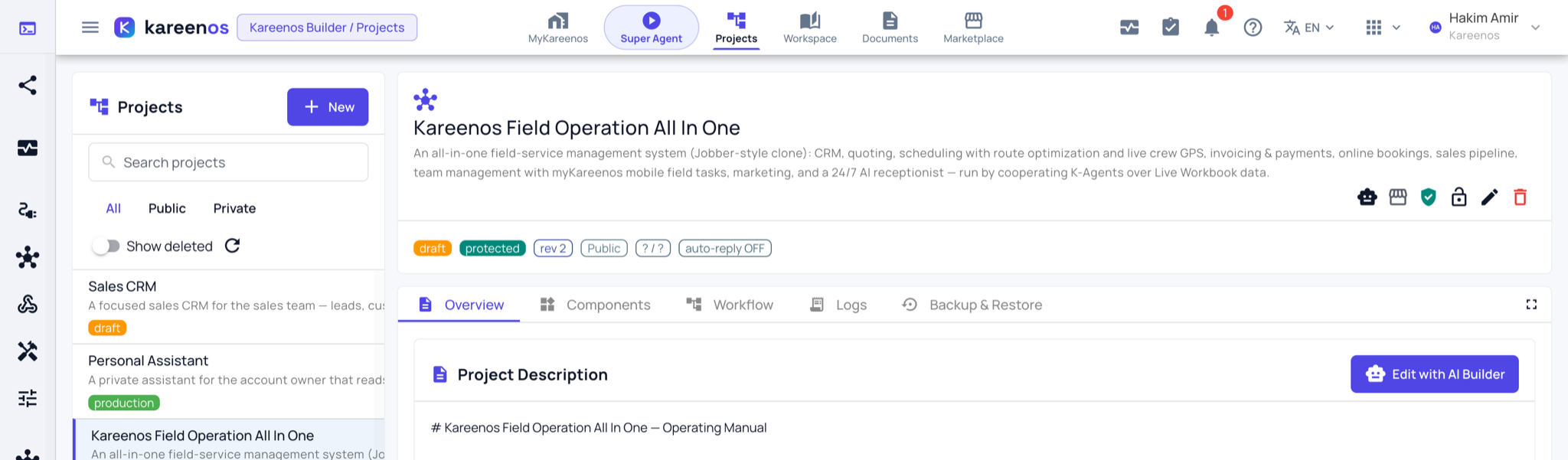
Press Open in Kareenos above, or choose Projects in the top bar. The page is for builders: the list on the left holds every project you can reach, and selecting one fills the tabs on the right. Most other builder pages show the parts of whichever project is selected here, so this is the first stop when a page looks empty.
The company metaphor
Think of a project as a small firm. The project is the company itself, the agents are the staff, and the project description is the org chart and the operating manual rolled into one: it tells everyone inside what the operation is for and how it is meant to run.
Things inside a project only talk to each other. That boundary is what stops two operations, say deliveries and recruitment, from bleeding into one another.
The five tabs
- Overview: the description and the people who are members of it.
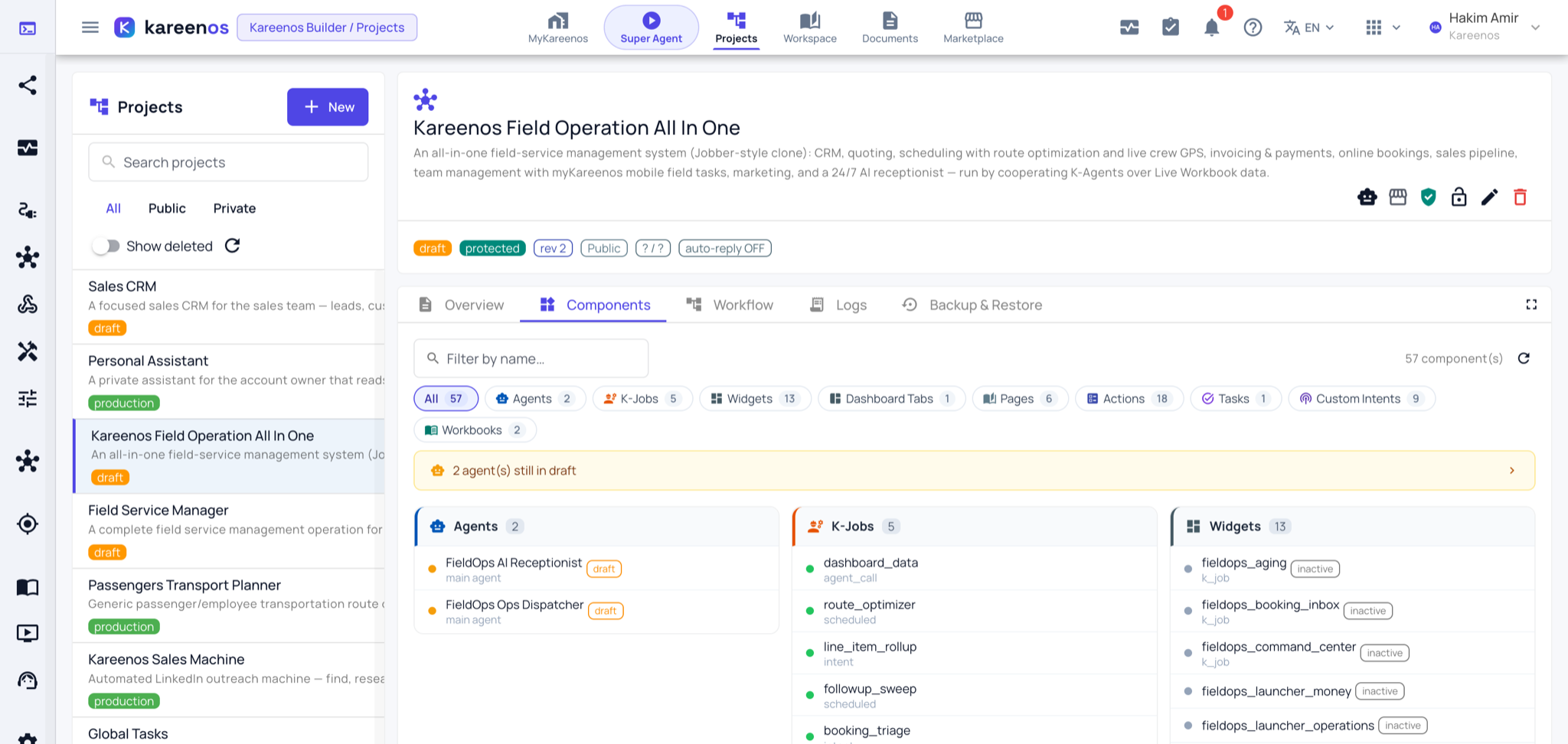
- Components: a full inventory of every part (agents, jobs, workbooks, pages, widgets, actions, reports, documents). Each row opens in place, so you edit without leaving the cockpit.
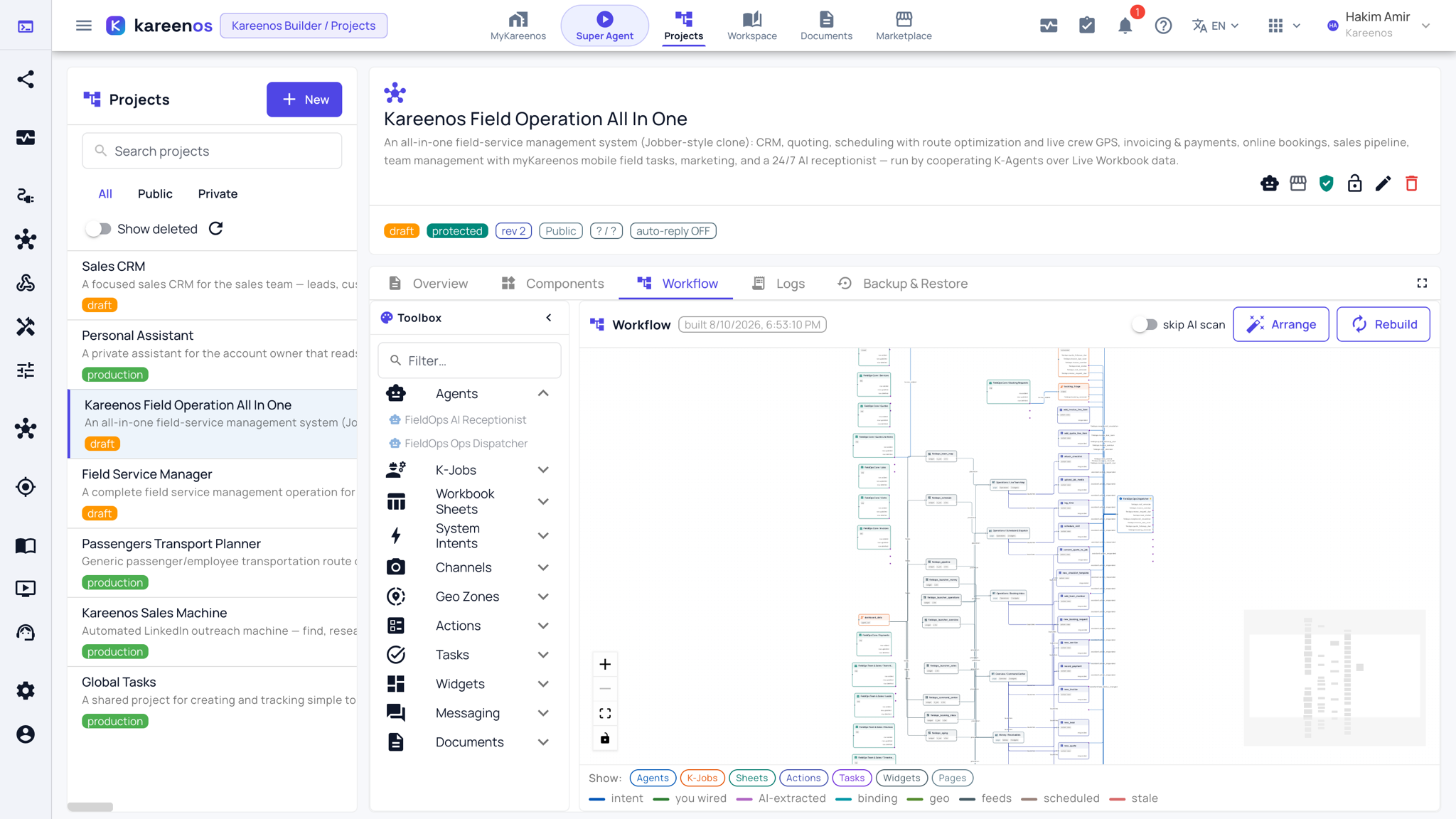
- Workflow: a visual map of what triggers what. Dragging a wire between two things does not draw a picture, it registers the real connection.
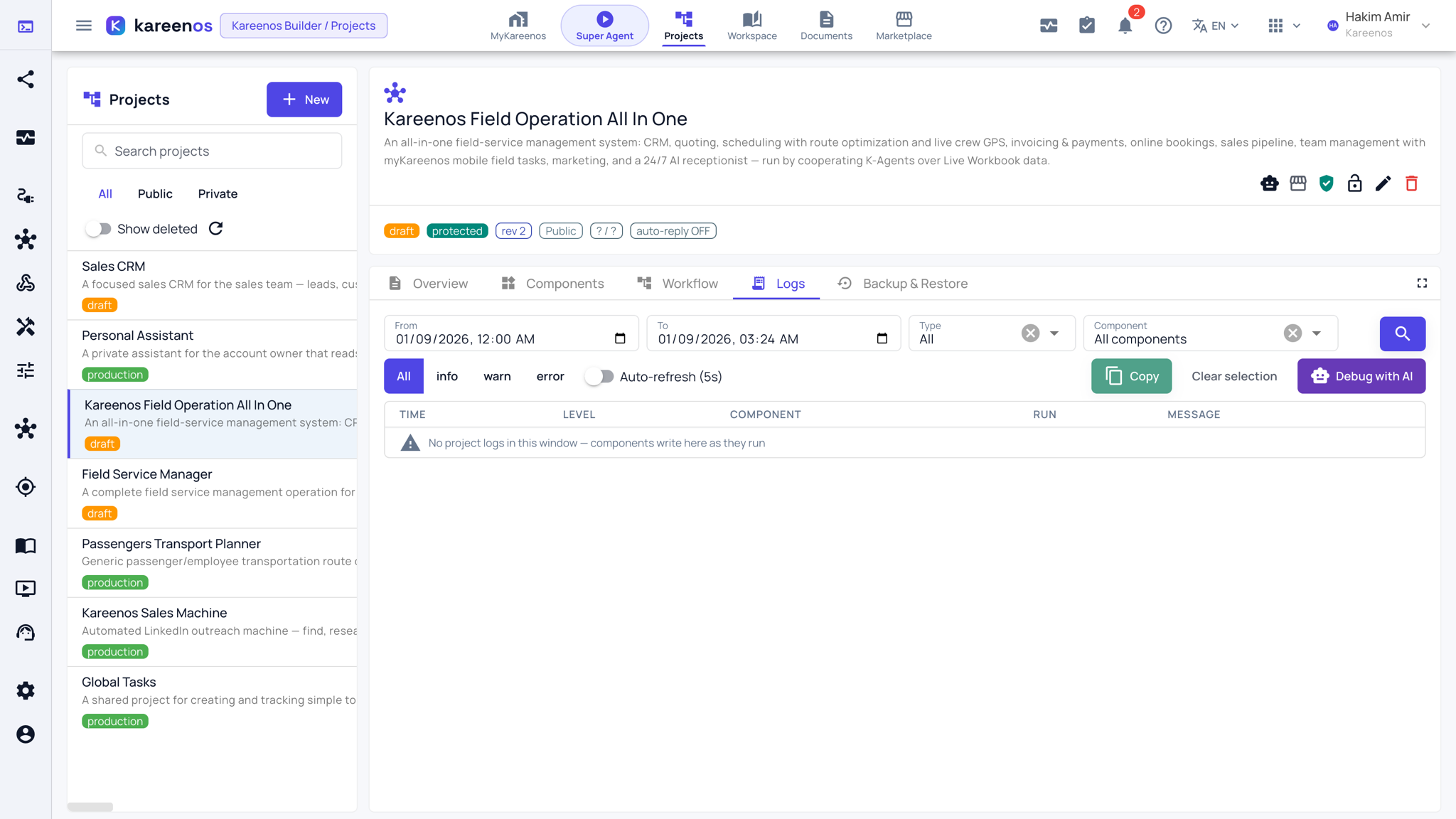
- Logs: what ran and what failed, with a Debug with AI button on a failure.
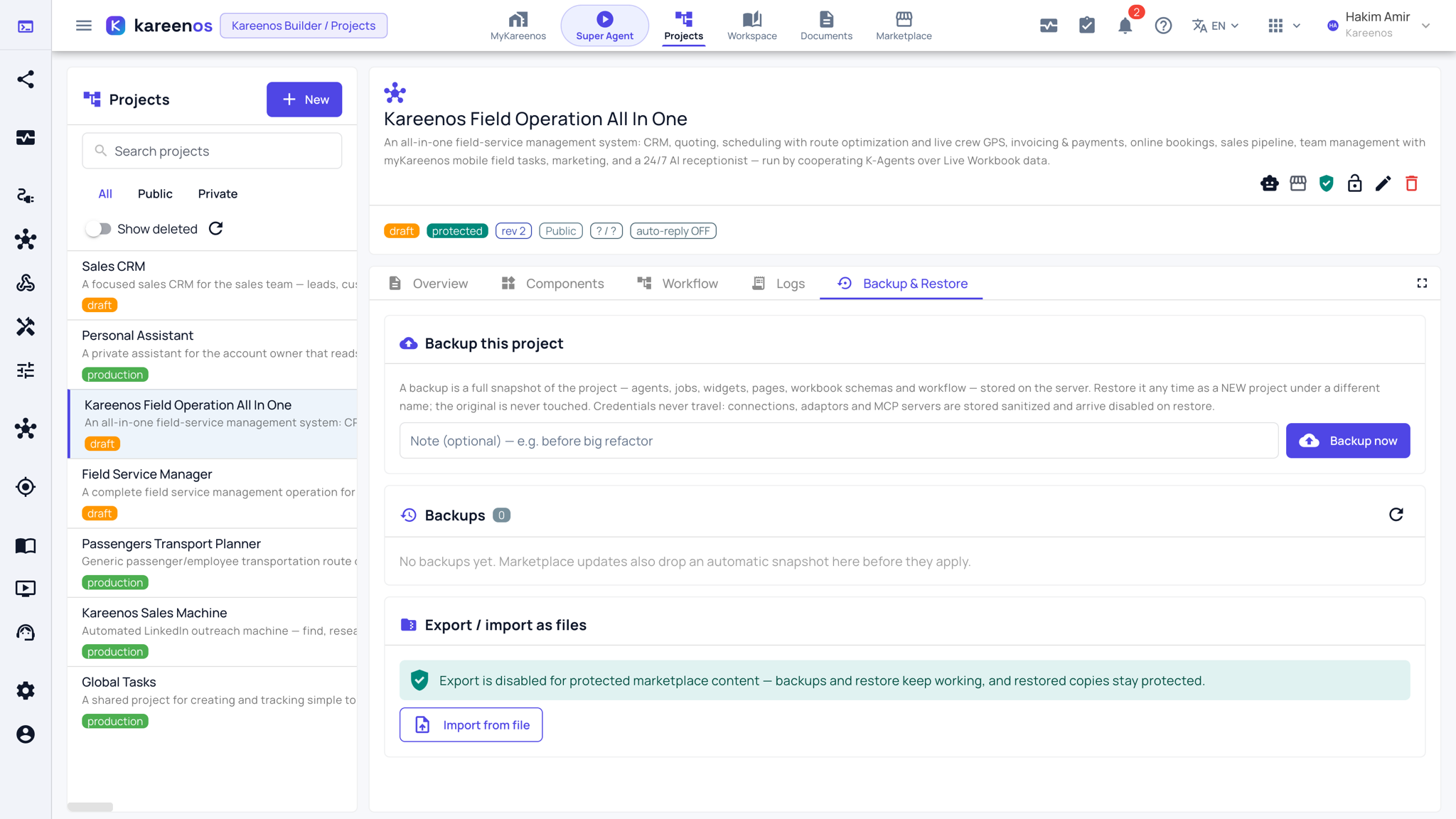
- Backup & Restore: snapshots of the whole project, and export or import as a file.
The AI builder sits docked in a drawer beside all five tabs, so it always has the project in front of it while you talk to it.
Step by step: creating and running a project
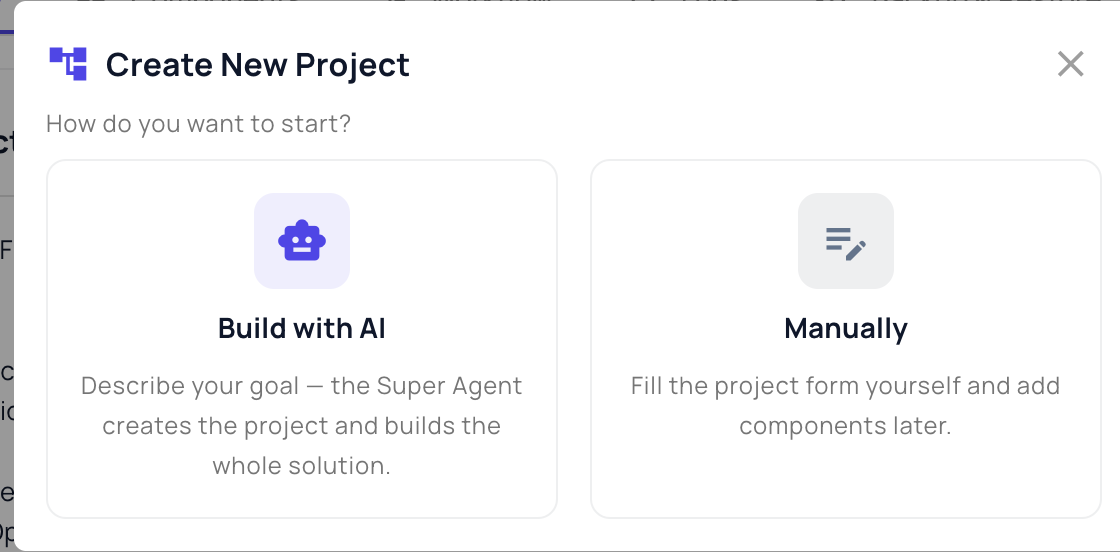
Open Projects and press New. Choose Build with AI to describe the operation and let the Super Agent plan and build it, or Manually to fill in the form yourself and add parts later. The AI route is walked through in Quick start.
Select the new project in the list. Its name, description and the row of action buttons appear at the top: the AI builder, publish to Marketplace, protection, the padlock, edit and delete.

Open the Components tab and review the inventory. Each card opens its part in place.
Open the Workflow tab to confirm the wiring matches your intent.
Add members and grant the right Teams access.
Open the Logs tab for the first few live days. Filter by level and component, and press Debug with AI on anything that failed.
Backing up and locking a live project
The Backup & Restore tab takes a full snapshot of the project on demand. A restore always creates a new project under a different name, so the original is never touched, and credentials never travel with a backup.
Once an operation is live you can lock the project with the padlock in the header. The design freezes while everything keeps running, and agents cannot bypass the lock either.
Careful
A locked project blocks structural changes for everyone. Unlock it deliberately, make the change, then lock it again.
Common mistakes
- Writing a thin project description. It is the operating manual the agents work from.
- Building one giant project for several unrelated operations.
- Assuming a wire on the Workflow map is decorative. It is the live connection.