Messaging channels
Connect WhatsApp, Telegram and Slack so customers and colleagues reach your agents in the app they already use.
On this page
A messaging channel is how customers and colleagues reach your agents in the app they already use. Kareenos connects three: WhatsApp, Telegram and Slack. Connecting one takes a couple of minutes, and from that moment messages arriving there wake your agents and their replies go back out the same way.
Where to find it
Press Open in Kareenos above, or open the avatar menu, choose Settings, then the Messaging & Voice tab; channels are on the Messaging Monitor sub-tab. Administrators only. Phone calls are on the other sub-tab and are covered in Voice channels.
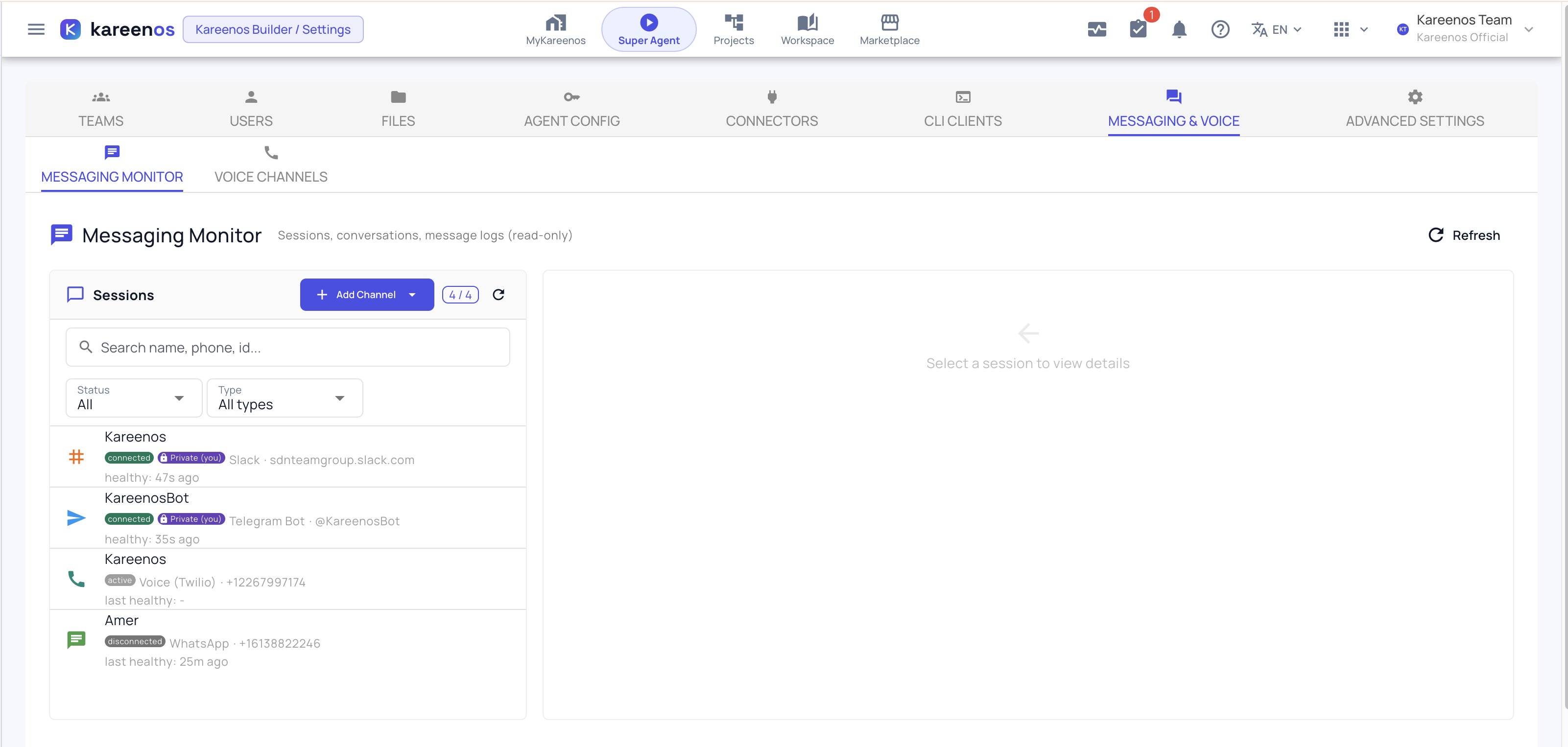
Step by step: adding a channel
Open the Messaging Monitor, press Add Channel and pick the one you want.
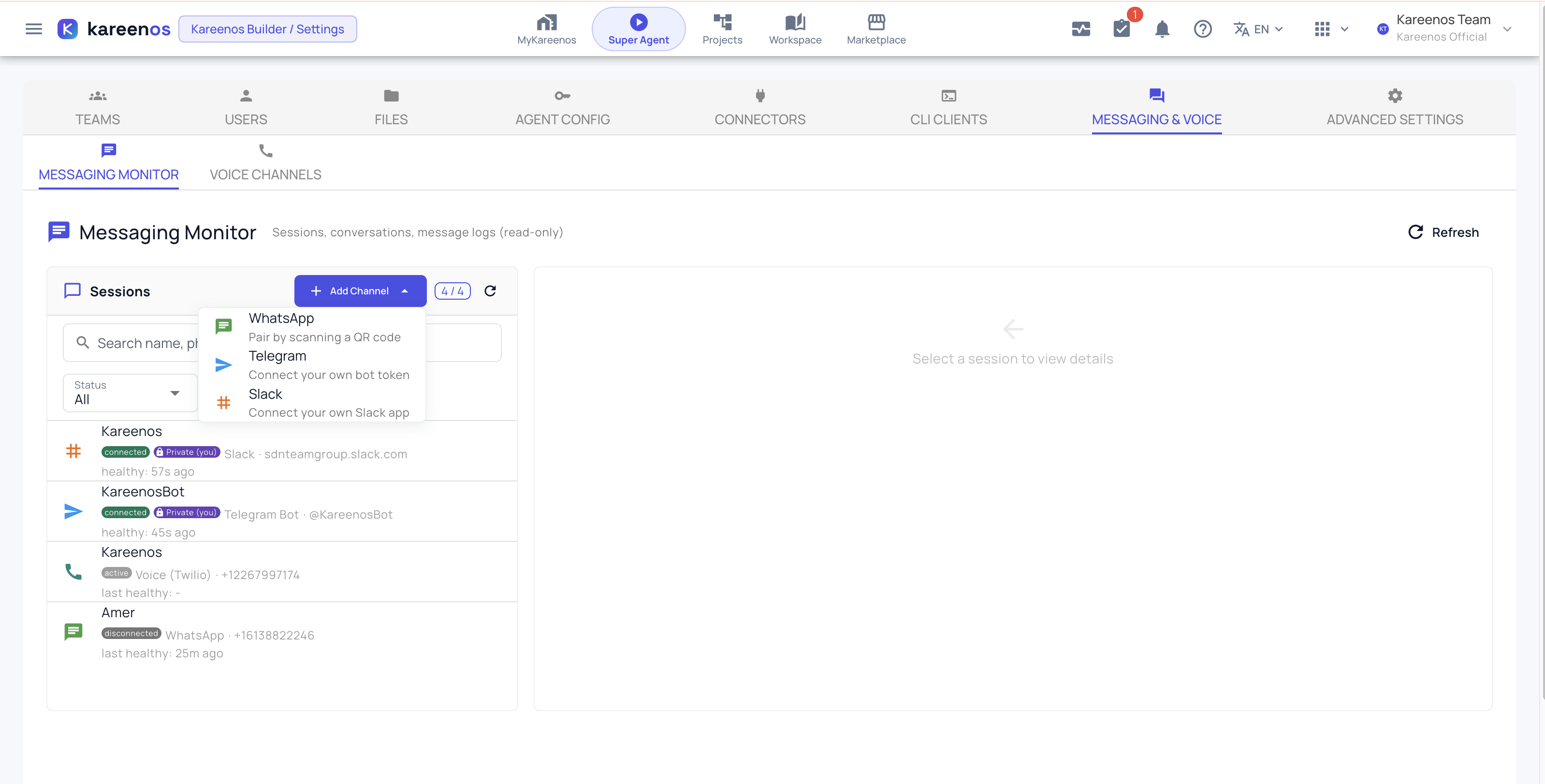
Three fields are the same whichever you choose.
- Display Name is what the channel is called in this list. Name it after its job, such as Sales Line or Support Bot, not after the technology.
- Project is required. Every channel belongs to one project, and only agents in that project handle its messages.
- Description is optional and is worth filling in once you have more than a couple of channels.
Below them is the privacy toggle, which decides who answers.
- Public means every agent in your organization can handle messages from this channel. This is what you want for a customer facing line.
- Private means only your own private agents handle them. Use it for a channel that is genuinely yours, such as a bot you are testing. If the project itself is private the channel has to be private too.
The list shows Private (you) on channels you linked yourself, and Private on a colleague's.
WhatsApp connects by pairing with a phone, the same way WhatsApp Web does.
- Press Add Channel, then WhatsApp.
- Fill in the name, project and privacy, then press Create.
- A QR code appears within a few seconds. On the phone holding that WhatsApp number, open WhatsApp, go to Settings, then Linked Devices, then Link a Device, and scan the code.
- The row turns connected once the phone confirms.
If the pairing ever drops, open the channel and press Re-link. That produces a fresh code to scan and keeps all the conversation history.
WhatsApp's own page on this: About linked devices.
Telegram
Telegram uses a bot you create yourself, which takes about a minute and needs no phone number and no approval.
- In Telegram, message @BotFather.
- Send /newbot and follow the prompts to name it. BotFather replies with a token.
- In Kareenos press Add Channel, then Telegram, and paste the token into Bot Token.
- Fill in the project and privacy, then press Create.
The token is checked against Telegram before anything is saved, so a wrong paste fails cleanly and leaves nothing behind.
Two things people miss:
- Group chats. By default a bot only sees messages that mention it. To let it work properly inside a group, message BotFather again, send /mybots, choose your bot, then Bot Settings, then Group Privacy, and turn it off.
- How customers reach you. They open your bot's link, which the channel's detail panel shows along with a QR code of it. Put that link or code wherever your customers already look.
Slack
Slack is the one that needs a few minutes of setup in Slack's own admin screens, because you create your own Slack app rather than installing a shared one.
- Create an app at api.slack.com/apps.
- Turn Socket Mode on. This is also what produces the app level token you will need in a moment, so do it before anything else.
- Under Event Subscriptions, subscribe to these five events: message.im, message.channels, message.groups, message.mpim and app_mention.
- Under OAuth and Permissions, add these bot scopes: chat:write, im:history, channels:history, groups:history, mpim:history, files:read, files:write and users:read.
- Install the app to your workspace.
- In Kareenos press Add Channel, then Slack, and paste both tokens. The Bot User OAuth Token starts with xoxb and comes from the OAuth and Permissions page. The App-Level Token starts with xapp and comes from Basic Information, App-Level Tokens.
- Fill in the project and privacy, then press Create.
Both tokens are checked against Slack before anything is saved, and the second check is also what proves Socket Mode is genuinely switched on, which is the most common thing to get wrong.
Important
Two Slack behaviours catch almost everyone. Adding a scope after you have installed the app does not grant it until you reinstall the app. And the bot only sees channels it has been invited to, so run an invite for the bot in each channel it should handle. Direct messages work without an invite.
Reading channel status
The list shows a status on every channel.
| Status | What it means |
|---|---|
| Connected | Working and recently confirmed as working |
| Connecting | Starting up or reconnecting, usually for a few seconds |
| Pending link | Waiting for you to scan a WhatsApp code |
| Disconnected | Not currently handling messages |
| Error | Stopped for a reason worth reading, usually a credential that no longer works |
A channel that has not checked in recently is shown as disconnected on purpose, even if it has not formally reported a failure. The page would rather tell you it cannot confirm health than claim health it does not have.
To read the actual conversations on a connected channel, see Messaging Monitor.
Changing or removing a channel
Open a channel from the list. Edit changes the name, description and privacy. For Telegram and Slack, Change Token replaces the credential and Reconnect restarts the channel. For WhatsApp, Re-link produces a new pairing code. Delete removes the channel and its stored credentials, so use it only when you are done with that number, bot or workspace.
Common mistakes
- Connecting a channel and never sending a test message to it. Send yourself one on every channel you connect.
- Creating a Telegram bot for group use and leaving Group Privacy on, so it appears to ignore everything.
- Adding a Slack scope without reinstalling the app.
- Forgetting to invite the Slack bot into the channel it is meant to watch.
- Choosing the wrong project, so the channel is connected and no agent in that project is listening.
- Marking a customer facing channel as private, which limits it to your own agents.