Getting help
Where to look first when something is not working, and how to reach a human with the right detail.
On this page
When something is not working, four screens will usually tell you what happened before you need to ask anyone. When they do not, a support ticket reaches a real person from inside the app.
Where to find it
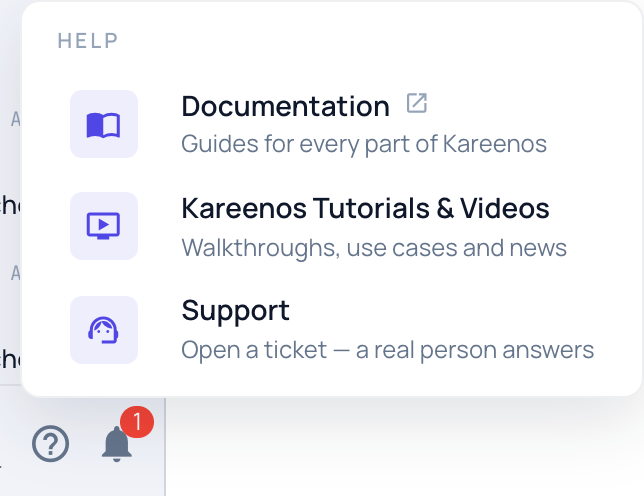
Press the ? at the bottom of the sidebar. It offers Documentation (this site), Kareenos Tutorials & Videos and Support. Press Open in Kareenos above to go straight to Support. Every signed-in member can open a ticket.
Start with the project's Logs
Open the project selector, choose Manage projects, and open the project's Logs tab on the Projects page. This is the running record of everything that project did: which jobs ran, which agents were woken, and what failed. Filter to errors and set the time window to when the problem happened.
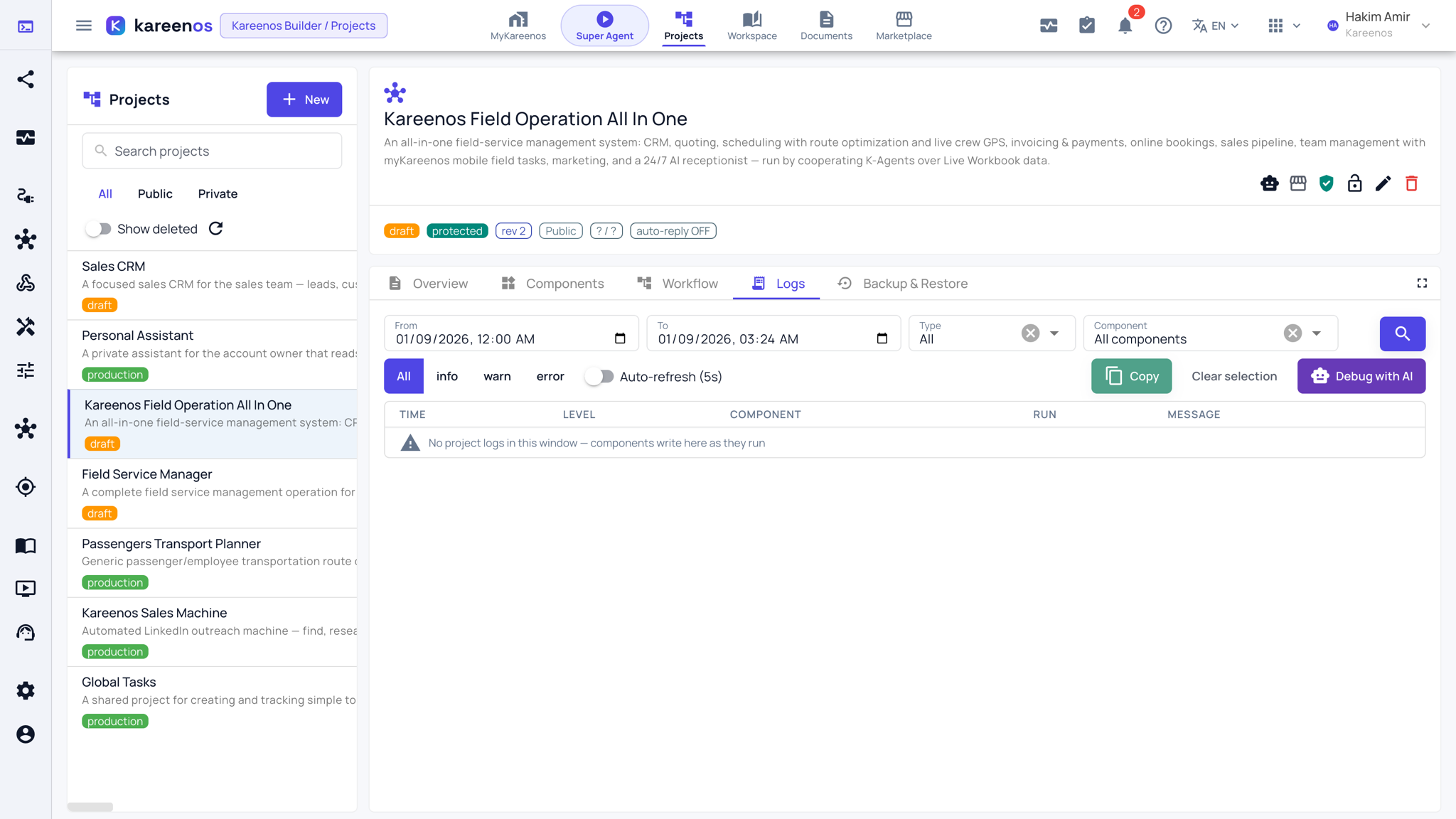
Select the lines that look wrong and press Debug with AI. The Super Agent reads them, works out the cause and proposes a fix, which is often faster than describing the symptom yourself.
Check whether anything ran at all
If the Logs tab is empty, open Task Manager. It shows everything running across your account right now and everything that finished recently. Nothing listed at the time in question means the work never started, which is a different problem from work that started and failed.
Replay what an agent did
K-Agent Sessions records every agent run, step by step: what it was asked, what it looked up, what it decided and what it answered. Use this when an agent replied but gave the wrong answer.
Check customer conversations
If a customer says they got no reply, open the Messaging Monitor to see whether the message arrived, which conversation it joined and whether a reply was sent.
Tip
Three causes account for most "nothing is happening" reports: an automation that was built but never approved, a person who is not in a Team, and an empty credit balance.
Step by step: opening a support ticket
Open Support from the ? at the bottom of the sidebar. The Open and Closed tabs list your tickets.
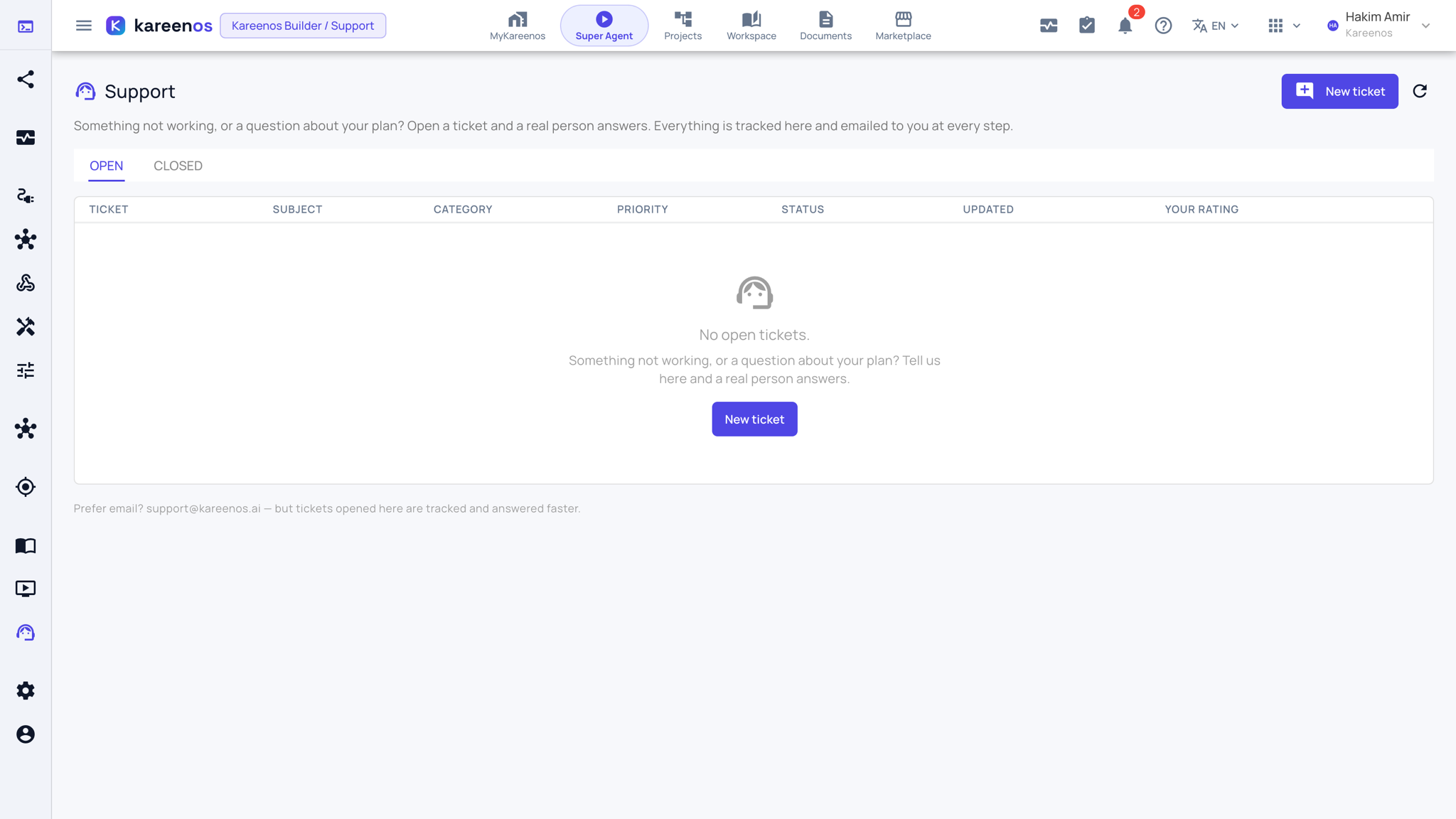
Press New ticket.
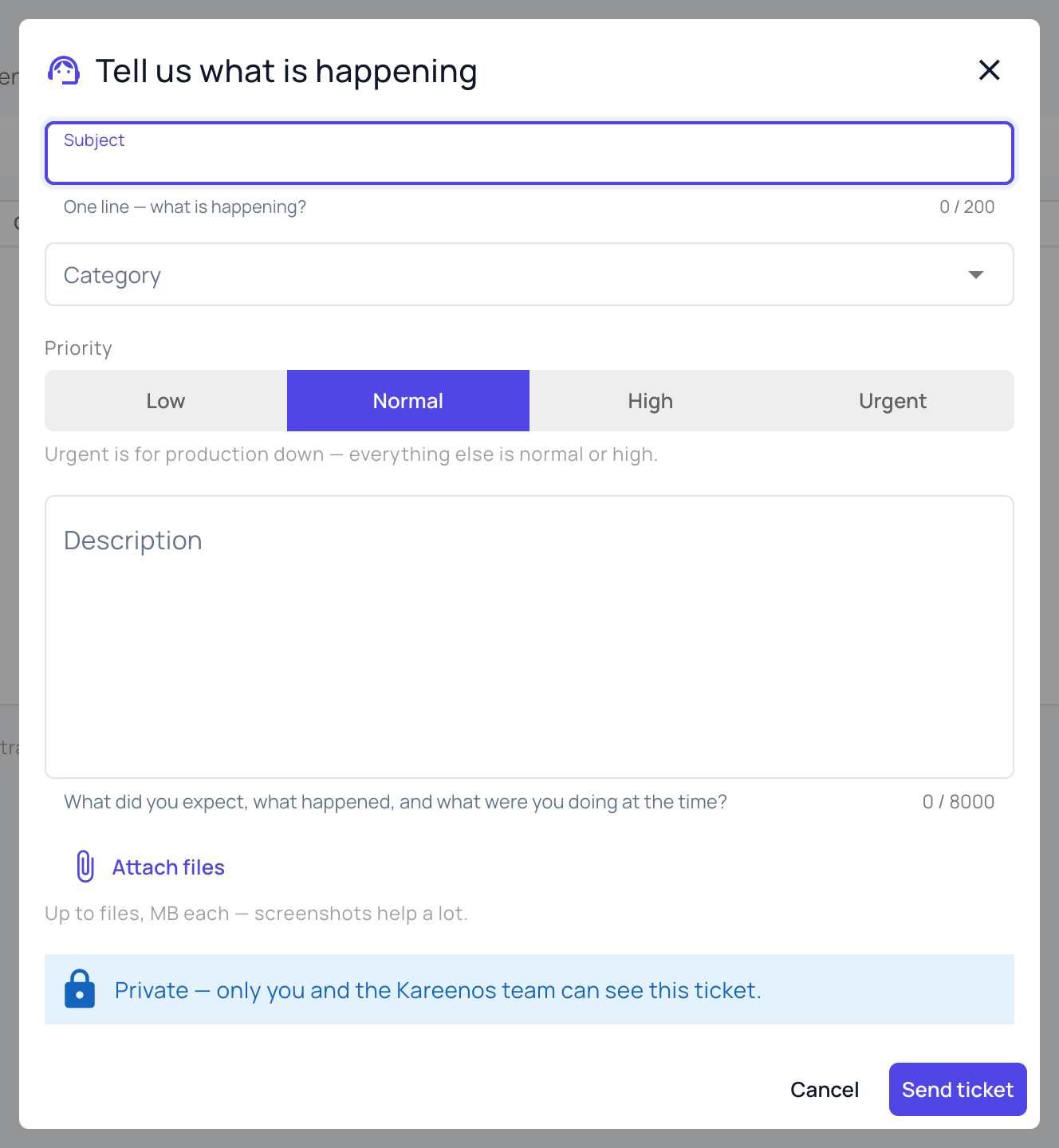
Write a one-line Subject, choose a Category and a Priority. Urgent is for production down; everything else is normal or high.
In Description say what you expected to happen, what happened instead, the name of the Project involved, roughly when it happened with the time zone, and whether it ever worked and what changed if so.
Press Attach files to add screenshots, then Send ticket. Only you and the Kareenos team can see it.
Every reply lands in the ticket and is emailed to you; when it is resolved you are asked to rate the answer.
You can also write to us through kareenos.com/en/support without signing in.