Browser extension
Install the Kareenos Chrome extension from the zip, turn on Developer mode, load it unpacked, then sign in and link it to a project so agents can act in your own browser.
On this page
The Kareenos browser extension lets your agents work inside your own signed-in Chrome: open pages, read them, click, fill forms, upload files and take screenshots, all in a background tab while you carry on. You are always present and in control. The extension never learns your passwords, it simply borrows the sessions you already have open, and anything that changes something on a page can be held for your approval.
You need it only if an agent has to act on a website that requires you to be logged in, such as LinkedIn, a supplier portal or your bank's business console. Agents that work with data, documents, email and messaging channels do not need it.
Installing takes about five minutes and you do it once per computer. After that the extension stays connected on its own, through browser restarts, laptop sleep and dropped Wi-Fi, until you sign it out.
Where to find it
The extension is installed from the Downloads page on the website, and linked to your account from the Connect Browser Extension page inside the app. Press Open in Kareenos above to open that page once the extension is installed; it is a builder page. The steps below take you through both halves.
Before you start
- Google Chrome, updated in the last couple of years. Other Chromium browsers such as Microsoft Edge and Brave load the same file the same way, but this guide shows Chrome.
- A Kareenos login and at least one project. The extension is linked to one project at a time, and only agents in that project can use it.
- On a company-managed computer, the ability to turn on Chrome's Developer mode. If the switch is greyed out, see Troubleshooting.
Download the extension
Get the current release from kareenos.com/en/resources/downloads. The file is a small zip archive named kareenos-extension-latest.zip.
Chrome does not install extensions from a zip directly. You extract it to a folder and then point Chrome at that folder. Chrome keeps loading the extension from that folder from then on, so put it somewhere permanent, not in Downloads and not on the Desktop where it may be tidied away later.
Extract the zip
On Windows
- Move the zip to a permanent place, for example
Documents\Kareenos. - Right-click it and choose Extract All..., then Extract.
- You now have a folder called kareenos-extension-latest. Open it and check it contains a file named
manifest.json. If you only see another folder inside, open that one: the folder Chrome needs is the one wheremanifest.jsonsits.
On a Mac
- Move the zip to a permanent place, for example
Documents/Kareenos. - Double-click it. macOS creates a folder with the same name next to it.
- Open the folder and check it contains
manifest.json, exactly as above.
You can delete the zip afterwards. Do not move, rename or delete the extracted folder while the extension is installed.
Turn on Developer mode in Chrome
Chrome only offers the Load unpacked button, which is what installs a folder rather than a store listing, while Developer mode is switched on.
- In Chrome, type
chrome://extensionsinto the address bar and press Enter. You can also get there from the Chrome menu (the three dots) under Extensions, then Manage Extensions. - Find the Developer mode switch in the top right corner of the page and turn it on.
- Three new buttons appear at the top left: Load unpacked, Pack extension and Update.
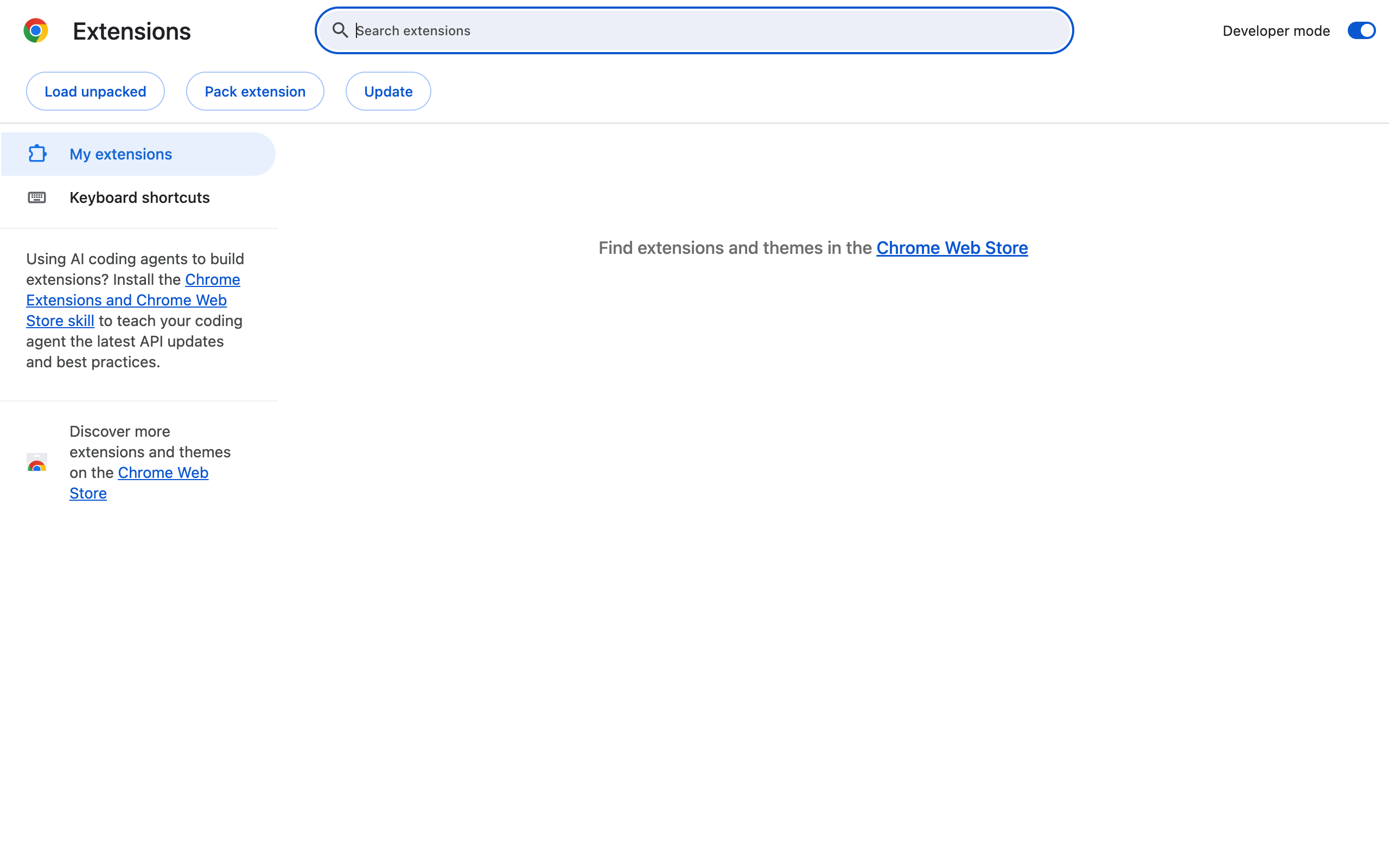
Developer mode changes nothing else about Chrome. It stays on, which is what you want: if it is ever turned off again, Chrome disables every unpacked extension until it is turned back on.
Note
Some versions of Chrome show a small reminder about developer mode extensions the next time the browser starts. Close it. The extension keeps working, and the reminder stops appearing.
Load the unpacked extension
- On the same
chrome://extensionspage, press Load unpacked. - In the folder picker, select the extracted folder, the one that contains
manifest.json, and confirm. - A card named Kareenos Extension appears in the list with its switch turned on.
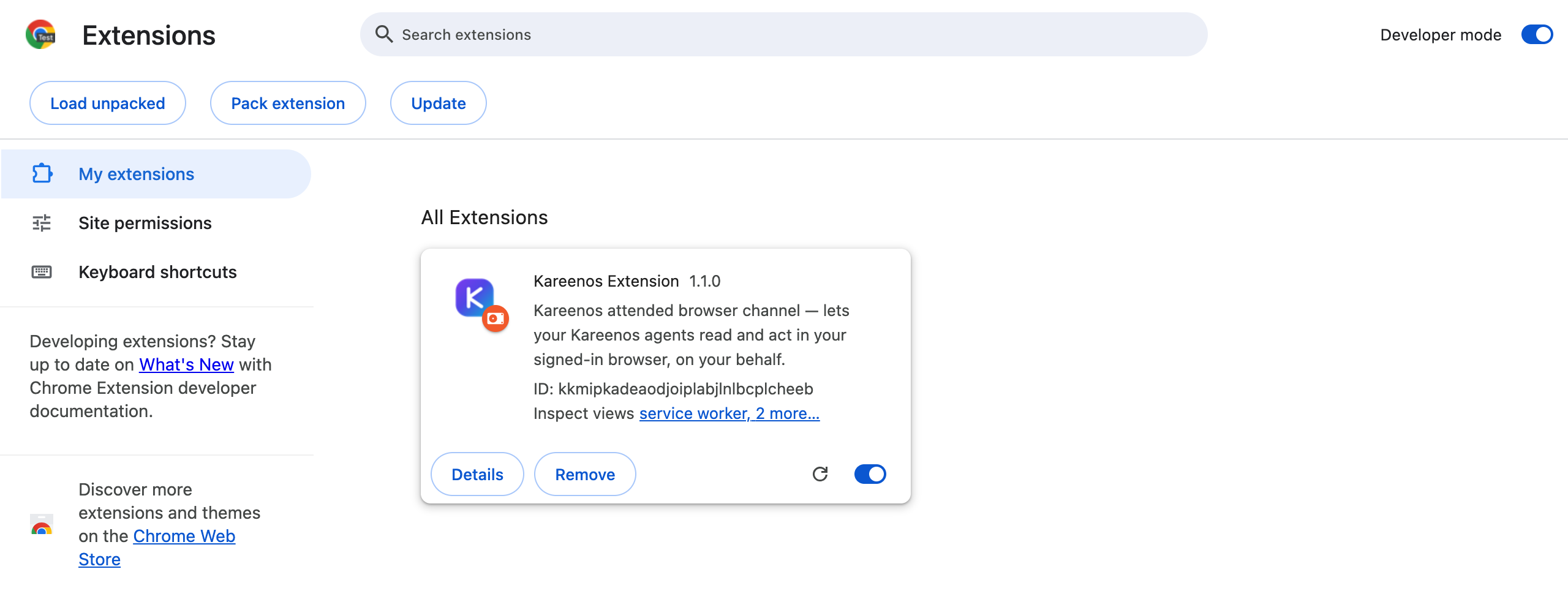
Now pin it so you can always see its status. Press the puzzle piece icon to the right of Chrome's address bar, find Kareenos Extension in the list and press the pin next to it. A K icon appears in the toolbar.
Chrome may also open a welcome tab from the extension itself. It walks through the same steps as the next section, so you can follow either.
Sign in and link a project
Installing puts the extension in Chrome. Signing in tells Kareenos whose browser this is and which project it works in.
- Press the K icon in the toolbar. The popup shows the status Signed out. Press Sign in.
- A Kareenos tab opens on the Connect Browser Extension page. If you are not logged in to Kareenos in this browser, log in first; the page appears once you have.
- Choose the Project the extension should work in.
- Press Connect this browser. A small window opens, confirms Signed in, and closes itself. The page then shows Extension connected.
- Press the K icon again. The status is now Connected, and the popup shows your account, the project and your name.
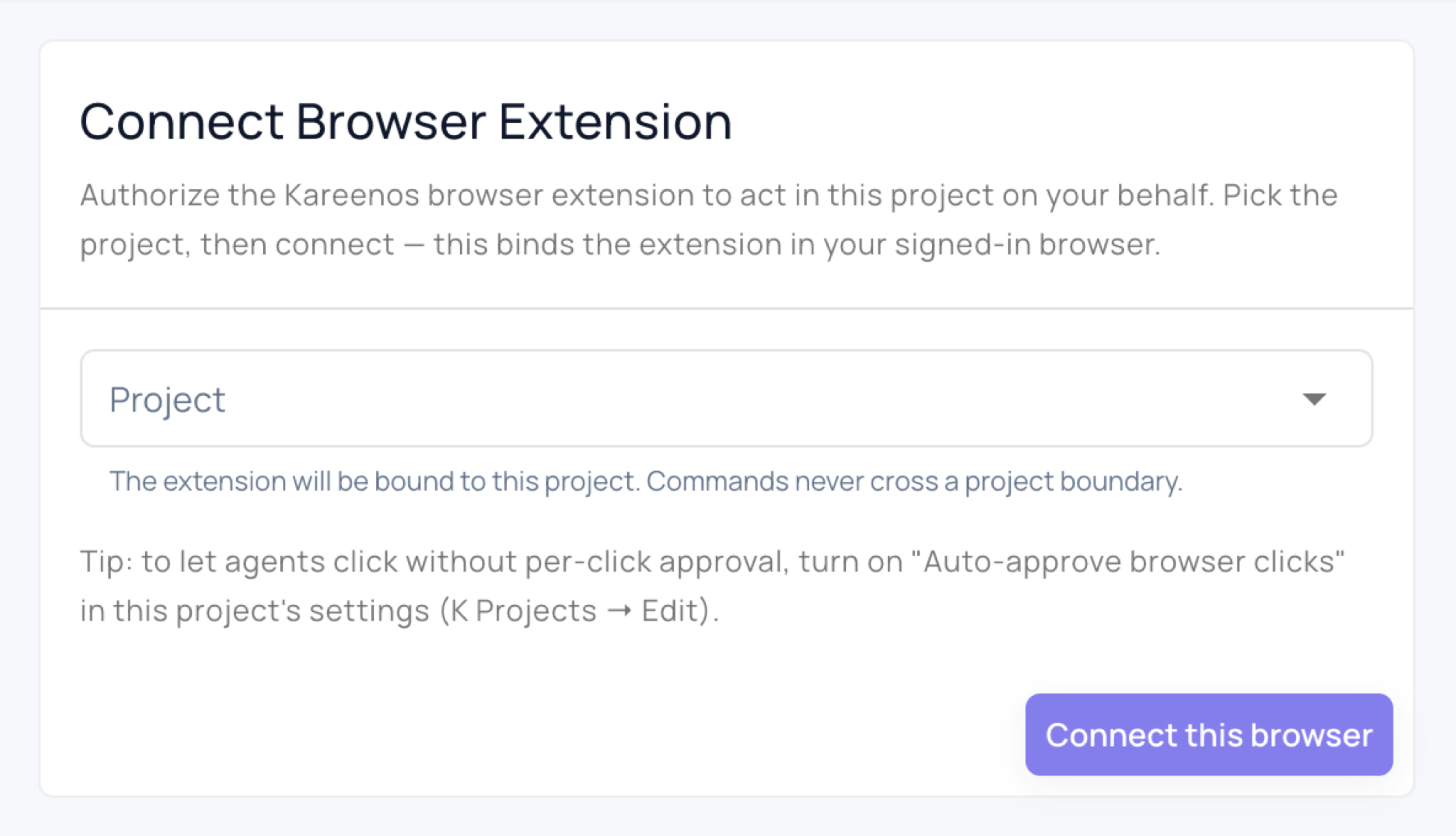
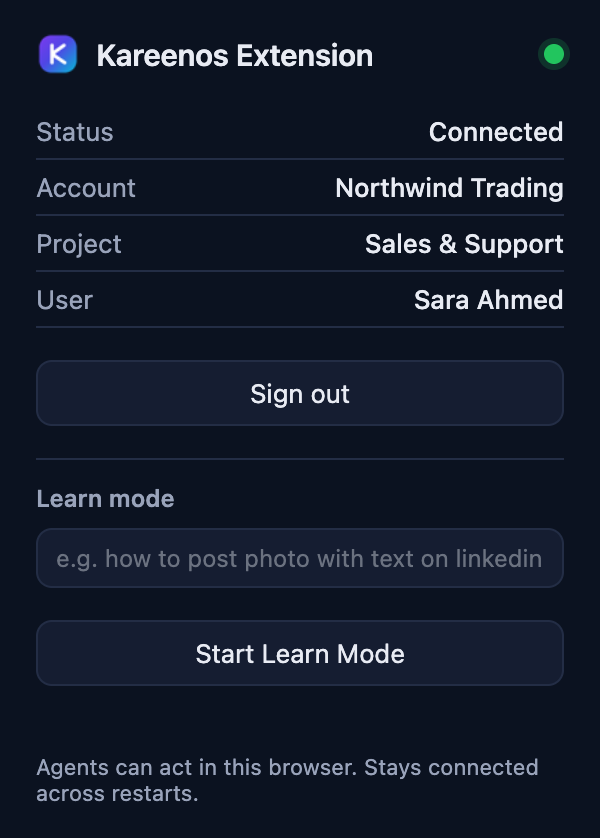
That is the whole setup. From now on any agent that you run in that project can ask the extension to act in this browser.
Two rules worth knowing, because they explain most surprises later:
- The extension acts only for you. An agent uses the browser of the person running it, never someone else's, even when the agent is shared.
- The extension acts only in the project it is linked to. An agent in another project sees no browser at all until you link the extension to that project instead.
Staying connected
You do not need to do anything day to day. The popup tells you where things stand:
- Connected: agents can act in this browser right now.
- Reconnecting: you are signed in and the extension is re-establishing its link, for example just after the laptop woke up or the network came back. It sorts itself out within moments. If Chrome was closed, it reconnects a few seconds after Chrome starts.
- Signed out: there is no active sign-in. Press Sign in. This is where you land after pressing Sign out, and, rarely, after a very long time without opening Chrome at all.
- Another browser took over: you signed in on a second computer or Chrome profile with the same project. Only one browser holds a project at a time. Press Use this browser to bring it back here.
While the popup says Connected, an agent asked to use the browser will find it. If an agent reports that your browser is offline, the message says why: open Chrome, check the popup, and retry. You do not need to sign in again.
Letting agents click without asking
Reading a page, scrolling and taking screenshots never need approval. Anything that changes something, such as clicking a button or uploading a file, is held back unless the project allows it.
To let agents in a project click freely, open K Projects, press Edit on the project, and turn on Auto-approve browser clicks. This is a per-project choice: turn it on for a project you trust to act on your behalf, leave it off for one you are still testing.
Switching projects or computers
- A different project. Press Sign in in the popup again and choose the new project. The extension moves to it and leaves the old one.
- A second computer. Install and sign in there in the same way. The first computer's popup changes to Another browser took over, and stays parked until you press Use this browser on it. The two never fight over the connection.
- A colleague's computer. Do not sign in there with your account. Have them install the extension and sign in as themselves, then run the agent themselves.
Signing out
Press the K icon, then Sign out. The extension forgets the sign-in immediately, and the sign-in is also cancelled on the Kareenos side so it cannot be used again, even if the browser was offline when you pressed it. Sign in again whenever you want to reconnect.
Removing the extension from chrome://extensions with Remove signs it out as well.
Updating the extension
When a new version is published on the downloads page:
- Download the new zip and extract it.
- Replace the contents of the folder Chrome loads from with the new files, keeping the folder in the same place.
- Open
chrome://extensionsand press the round reload arrow on the Kareenos Extension card.
Your sign-in is kept, and the popup shows Connected again within a few seconds. If the version number on the card does not change after reloading, Chrome is still pointing at the old files: press Remove, then Load unpacked on the new folder, and sign in once more.
Troubleshooting
There is no Load unpacked button. Developer mode is off. Turn on the switch in the top right corner of chrome://extensions.
Chrome says the manifest file is missing or unreadable. You picked the wrong folder. Go one level deeper: the folder Chrome needs is the one that directly contains manifest.json.
The Developer mode switch is greyed out. Your company manages this Chrome and has blocked it. Ask your IT team to allow developer mode for your account, or to install the extension centrally for you.
Pressing Connect this browser does nothing. The extension is not installed in the Chrome profile you are using. Chrome profiles are separate: check that the K icon is in this window's toolbar, and that you are on kareenos.com and not a bookmark of an older address.
The popup says Connected but an agent says the browser is not connected. The agent is running in a different project from the one the popup shows. Either run the agent in that project, or press Sign in and link the extension to the agent's project.
The extension disappeared after Chrome restarted. Chrome could not find the folder, usually because it was moved, renamed or deleted. Extract the zip again into a permanent place and load it unpacked once more.
The card shows an Errors button. Press it, take a screenshot of what it shows, and send it to support. Errors here never affect the rest of Chrome.