Buffer and GitHub
Two ready-made connectors: social posting through your Buffer account, and publishing or importing projects through your GitHub.
On this page
A connector is a ready made bundle of abilities for one outside service. The work of building it is already done, so switching it on is a single paste of your own credential in the Connectors section of the Connectors tab. Your agents can then use that service straight away, with no building and nothing to host.
Two are available today: Buffer for social posting, and GitHub for publishing and importing projects.
Where to find it
Press Open in Kareenos above to open the Connectors tab; the two cards are in the first section, Connectors. Administrators only.
How a connector card works
Every card behaves the same way. It shows Not configured until you set it up, and then Configured. Pressing Set up or Manage opens a dialog in two steps: a setup guide telling you where to get the credential, and the fields to paste it into. Press Test Connection before Save, so a bad paste fails against the real service instead of being discovered later by an agent.
If a connector is not set up, agents holding its abilities say so plainly and stop. They do not attempt to reach the service another way, and they do not ask you for a token in chat.
Step by step: Buffer
Buffer schedules and publishes social media posts. With it connected, agents can list the channels on your Buffer account, add a post to a queue or schedule it for a specific time, list what is scheduled or already sent, delete a scheduled post, and save an idea to your content backlog.
Log in to Buffer and open Settings, then API.
Create or copy your personal API token. It reaches every organization and channel on your Buffer account, so treat it as an account level credential.
Open Connectors, press Set up on the Buffer card, and paste the token into the API Token field.
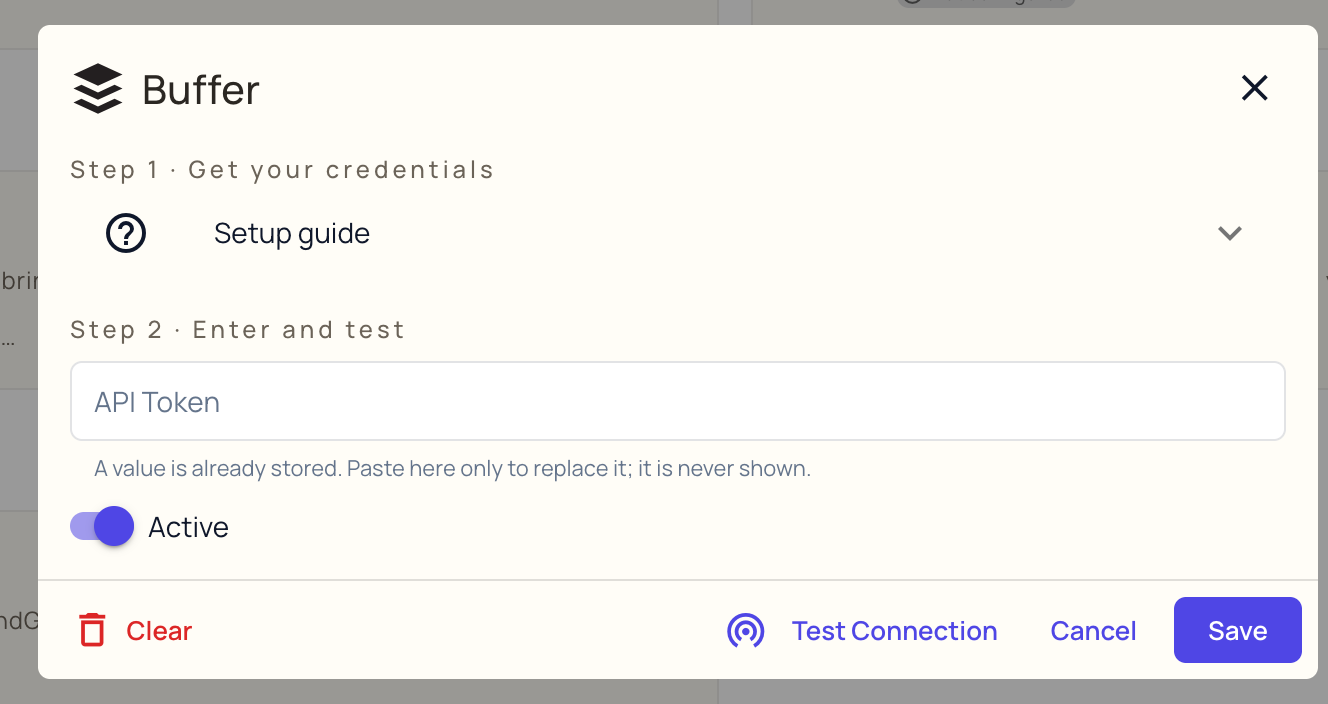
Press Test Connection. A successful test lists the Buffer organizations it can see, which is also a quick sanity check that you pasted the right account's token.
Press Save.
Buffer's own developer page: buffer.com/developers.
Tip
Images work differently from what people expect. Buffer does not take a copy of the picture when the post is created. It fetches the image itself at the moment of publishing, which can be days later, so the link has to still work then. Agents handle this by passing a shareable link to a file stored in Kareenos. If a post is ever rejected for an unreachable image, that is worth reporting rather than solving by uploading the picture again.
Step by step: GitHub
The GitHub connector lets you publish a marketplace listing as a repository on your own GitHub account, and import a project back from a private repository. See Marketplace for what that is for.
- On GitHub open Settings, then Developer settings, then Personal access tokens.
- Create a fine grained token with Repository permissions, Contents set to read and write on the repositories you will export to. Add Administration read and write as well if Kareenos should be able to create new repositories for you. A classic token with the repo scope also works.
- Open Connectors, press Set up on the GitHub card, and paste it into the Personal Access Token field.
- Fill in Default owner / organization if exports should go to an organization rather than your personal account. Leave it blank for your personal account.
- Press Test Connection, then Save.
A successful test names the GitHub user it authenticated as, and the organization exports will go to.
Getting the owner right
The Default owner is the login from the profile web address, the part after github.com, and not the display name shown on the page. These are often different. An organization displayed as "Acme.ai" is usually the login "Acme-ai", because a GitHub login cannot contain a dot. Getting this wrong is the most common failure on this connector, and the error message will tell you the value was not a valid owner login.
Open the organization's GitHub page and read the address bar. Whatever comes after github.com is the value to use.
Changing or removing a credential
Reopen the card and paste the new value over the old one. The field is empty when it opens, which is normal, and leaving it empty keeps what is stored, so you can change the default owner without finding the token again. Clear removes the credentials, and the abilities that depend on them go back to reporting the connector as not set up.
Common mistakes
- Pasting a token from the wrong account. The connection test names what it found, so read it.
- Giving GitHub a token without Contents write permission on the target repositories. Reading works, publishing does not.
- Using an organization's display name as the default owner.
- Saving without pressing Test Connection, so a truncated paste is only discovered when an agent tries to use it.