Marketplace
Browse complete ready-made projects, import one into your account, or publish your own.
On this page
The Marketplace is a storefront of complete, ready-made Projects you can bring into your own account.
Where to find it
Press Open in Kareenos above, or choose Marketplace in the top bar. Every member can browse. Importing, publishing and rating need an active subscription, and publishing needs builder access to the project you are publishing.
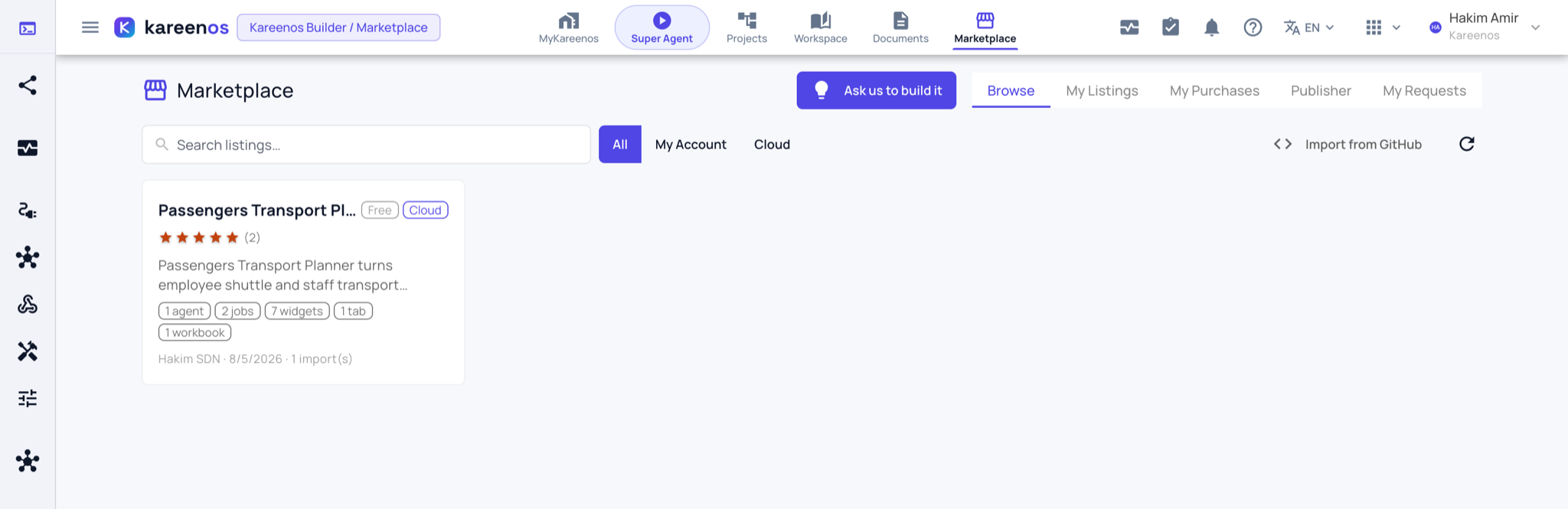
Browsing a listing
Every listing shows more than a name. You get a full written description of what the operation does, a components inventory listing every part that ships with it (agents, workbooks, pages, jobs, reports), and a workflow picture showing how those parts trigger one another. You can rate a listing and leave a comment for other buyers.
Step by step: importing a project
Open the Marketplace on the Browse tab. Search, or switch between All, My Account and Cloud listings.
Click a card to open the listing. Read the description, then the Components and Workflow tabs to see exactly what ships.

Press Import. A new project is created in your account with every part of the listing inside it; the listing then shows Open project.
Open the project in Projects and review the Components tab.
Approve the imported jobs in Advanced Editors, Jobs and add any credentials they need under Settings, Connectors.
Grant the right Teams access and go live.
Important
Imported jobs arrive needing approval, exactly like any other job. Nothing runs until a person approves it.
Publishing your own
You can publish a project you built: open it in Projects and press the storefront button in the project header. You choose exactly which components ship, so private or client-specific parts stay behind, and whether the listing is visible to your own account only or offered at cloud level, which waits for approval. Once approved you can also share it as a public link. Your published listings and their revisions are on the My Listings and Publisher tabs.
Updates from the publisher
When a publisher releases a revision, the listing tells you. You review what changed and apply the update to your copy selectively, part by part, rather than being forced to take all of it. Changes you made to your own copy are yours to keep.
Ask us to build it
If the operation you need is not published by anyone, press Ask us to build it at the top of the page and describe the idea. Your requests are listed on the My Requests tab.
Common mistakes
- Importing and expecting it to run immediately, before jobs are approved.
- Publishing without reviewing which components are included.
- Applying every revision without reading it, over the top of your own changes.