Find your way around
The sidebar, the level menu, the project selector, the account menu and help: the frame every Kareenos page shares.
On this page
Every screen in Kareenos has the same frame: a sidebar on the left, a top bar above the page, and the page itself. Learn the frame once and every page reads the same way.
The screen at a glance
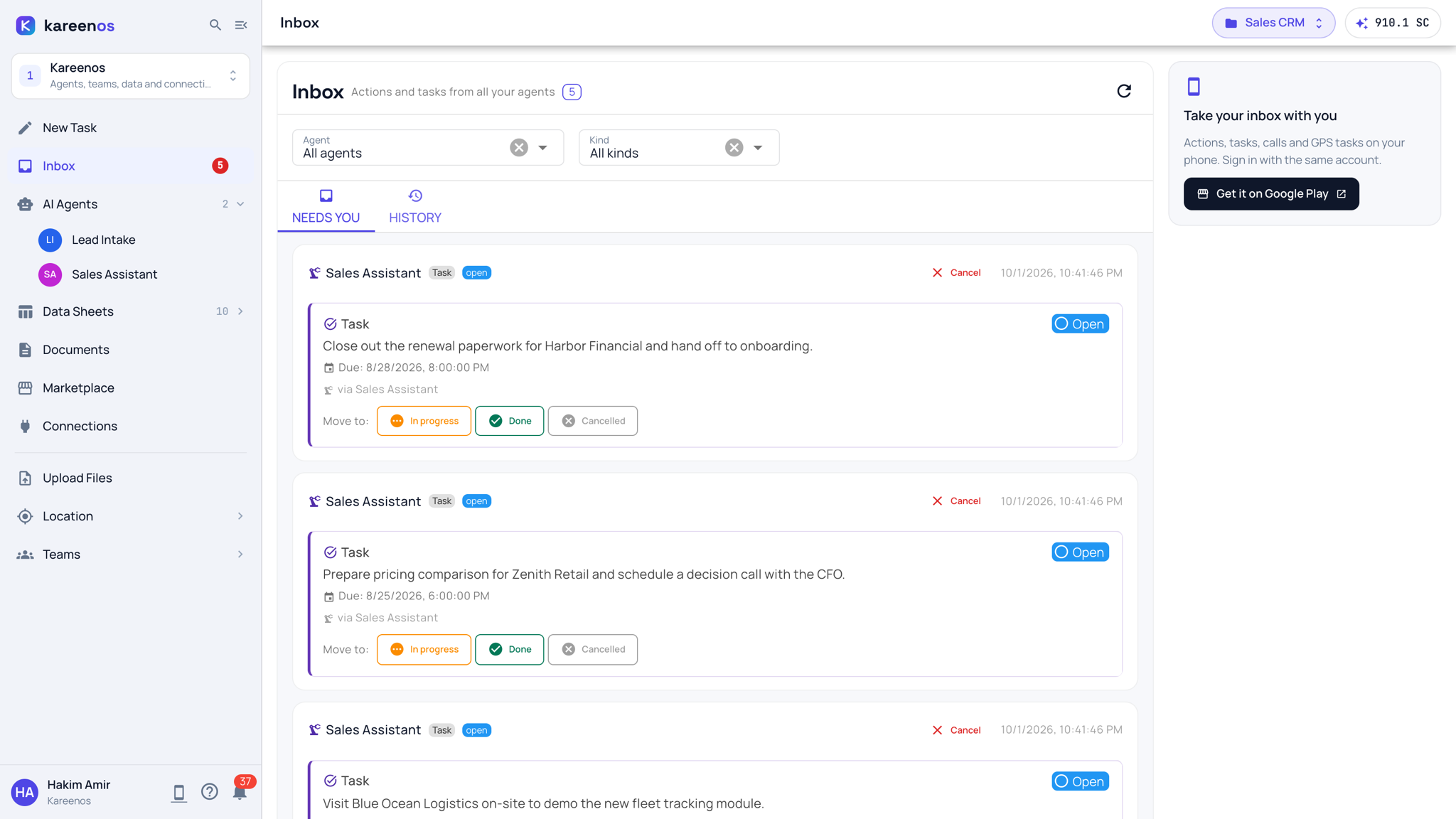
- The sidebar, on the left: the logo, search, the button that collapses the sidebar to a narrow rail, the level menu, the rows of the level you are in, and at the bottom your name, the myKareenos app, Help and notifications.
- The top bar: the title of the page you are on, the project selector, and your Super Agent credit balance.
- The page: whatever the row you chose opens. Every row opens exactly one page.
The level menu
The box at the top of the sidebar shows the level you are in. Click it to switch.
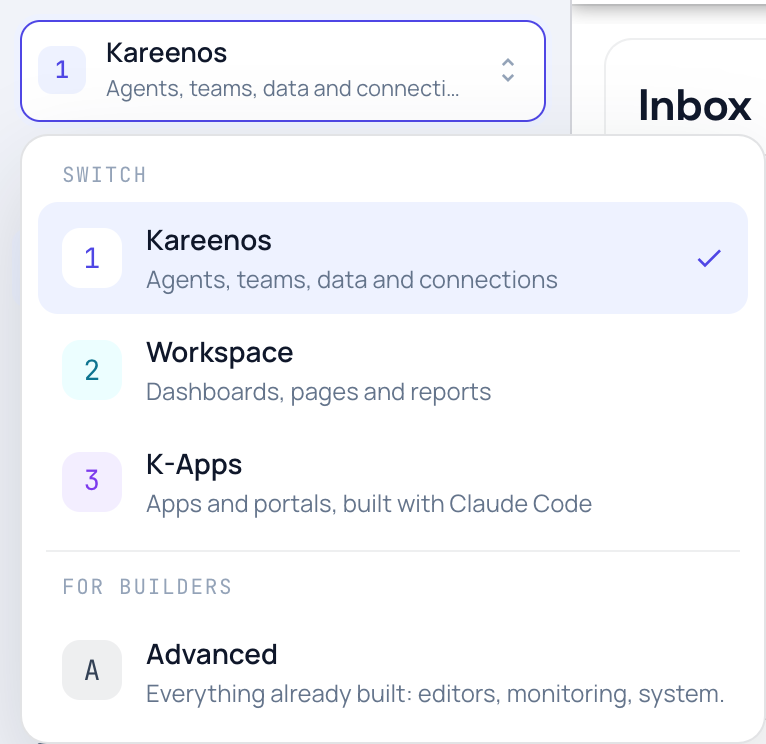
- 1 · Kareenos: agents, teams, data and connections. This is where you start.
- 2 · Workspace: dashboards, pages and reports.
- 3 · K-Apps: apps and portals, built with Claude Code.
- Advanced, for builders: the editors, monitoring and system pages.
Opening a page that belongs to one level moves the sidebar to that level, so a link from these docs always shows you the right rows.
The rows of each level
| Level | Rows |
|---|---|
| 1 · Kareenos | New Task, Inbox, AI Agents, Data Sheets, Documents, Marketplace, Connections, then Upload Files, Location and Teams below the line |
| 2 · Workspace | New Task, Dashboard, Pages, Data Sheets, Reports, then Widgets for builders |
| 3 · K-Apps | New Task, Apps, Embeds, Publish to Marketplace, then Claude Code Setup |
| Advanced | New Task. Editors: Agents editor, Automations, Actions. Monitoring: Agent Talks, Task Manager, K-Agent Sessions, Scheduled Callbacks, Agent Memory. System: Projects, CLI Clients, Agent Config, K-Desktop Hosts, Files, Advanced Settings |
Some rows open a list rather than a page. AI Agents lists the agents of the current project, Data Sheets its sheets grouped by workbook, Pages its sections and pages, and Location has Live Map, Playback and Geofences. Click the row to open or close its list, then click an item to open it. A grey number beside a row is a count, and the red number beside Inbox is what needs you now. Hover over Data Sheets for the small grid button that opens the Live Workbooks overview.
Search, the magnifier beside the logo, looks across every level, not only the one you are in. Type "voice" or "geofence" and open the result; the sidebar moves to the level it belongs to.
The project selector
Almost everything you build belongs to a project, and most pages show the project chosen in the top bar. Click it to switch.
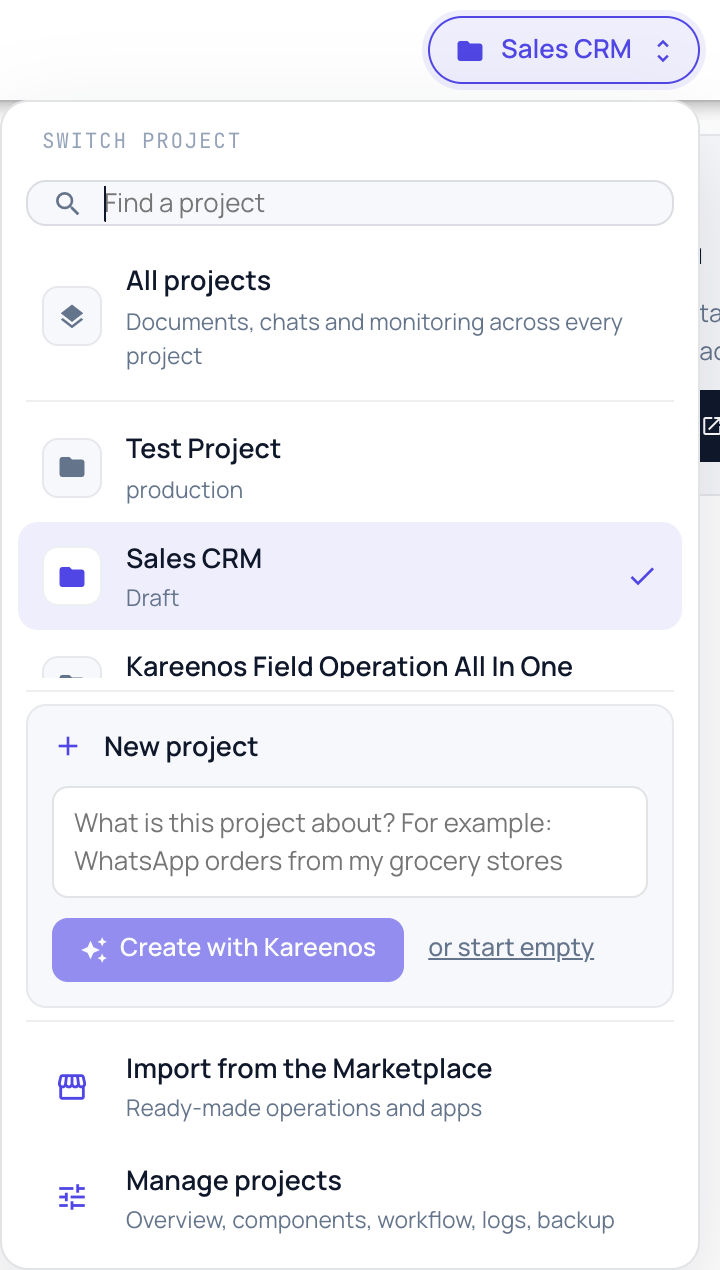
- All projects shows documents, chats and monitoring across every project at once.
- New project: describe the operation in a sentence and press Create with Kareenos. New Task opens with your sentence ready, and the Super Agent creates the project and everything in it. or start empty opens the Projects page to create an empty one by hand.
- Import from the Marketplace opens ready-made operations and apps.
- Manage projects opens the Projects page, where each project's parts, wiring, logs and backups live.
Tip
When a page looks empty, check the project in the top bar first. An empty page is usually the wrong project, not an empty account.
The account menu
Click your name at the bottom of the sidebar.
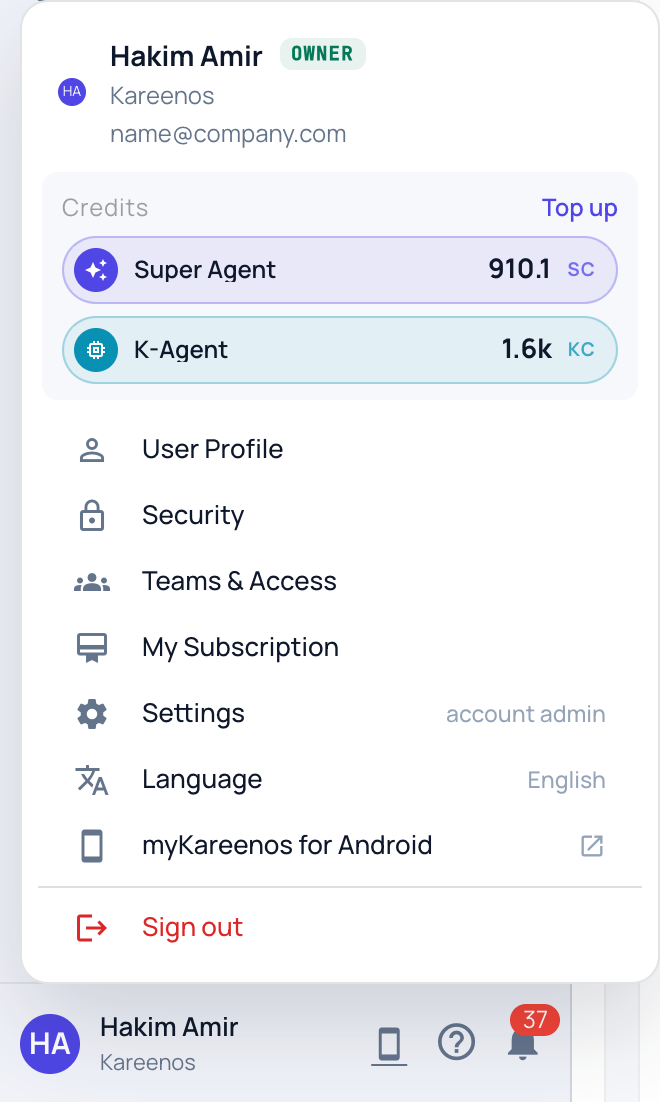
It holds your credit balances with Top up, then User Profile, Security, Teams & Access (what you can reach), My Subscription, Settings for administrators, Language, myKareenos for Android, Switch account when your email belongs to more than one account, and Sign out.
Help, notifications and the phone app
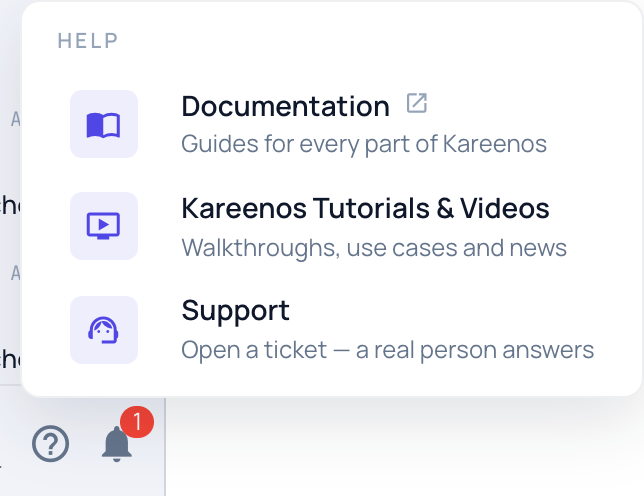
Beside your name sit three small buttons. The phone opens the myKareenos app on Google Play, the app your team uses for the Inbox in the field. The question mark opens Help: these docs, Kareenos Tutorials & Videos and Support. The bell opens your notifications.
What a team member sees
People who use the system rather than build it see a shorter sidebar. Their Inbox is their home page, their agents are listed under AI Agents and open inside the Inbox, and they see the rows their Teams grant them. New Task, Connections, Advanced and the credit balance are for builders.
On a phone, the menu button in the top bar opens the sidebar, and the project selector stays in the top bar.