Dashboard
The first screen of the Workspace: live tiles that sum up the project at a glance, built from the sheets you already have.
The Dashboard is the first screen of the Workspace: live tiles that sum up the project at a glance, such as open deals, today's orders or a pipeline board. It is built from the data sheets and agents you already have, and it follows them as they change.
Where to find it
Open the level menu at the top of the sidebar and choose 2 · Workspace, then Dashboard. Press Open in Kareenos above. Every member whose Team includes the Workspace can open it; changing it is for builders.
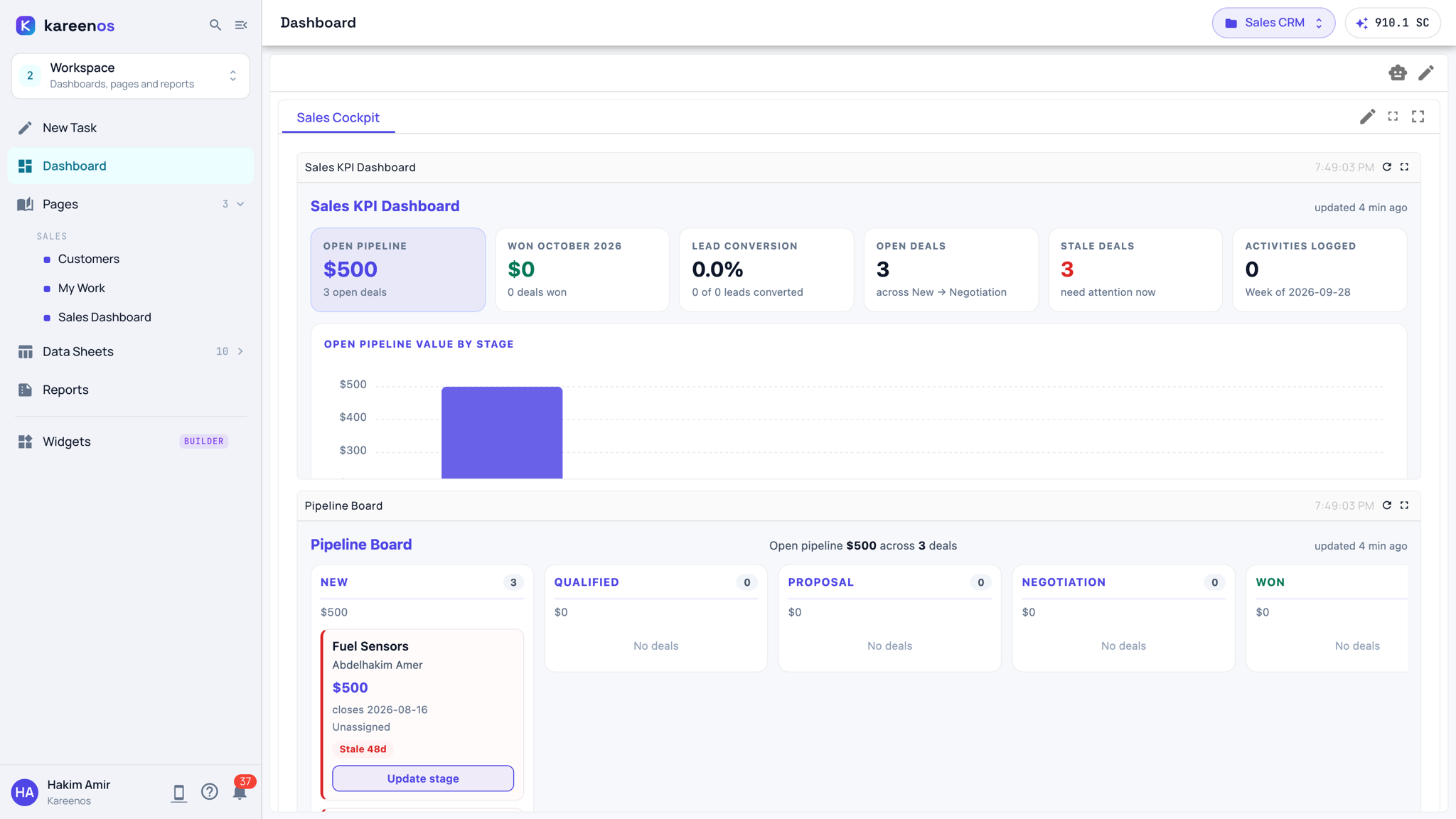
Tabs and tiles
A dashboard has one or more tabs across the top. Each tab holds tiles, called widgets: headline numbers, charts, boards, lists and maps, each fed by your sheets. Every tile shows when it last updated and carries its own refresh and full-screen buttons. A tile can also hold buttons that act, such as moving a deal to its next stage.
Step by step: your first dashboard
Check the project in the top bar.
Open the level menu, choose 2 · Workspace, then New Task. At this level it asks "What do you want to see?".
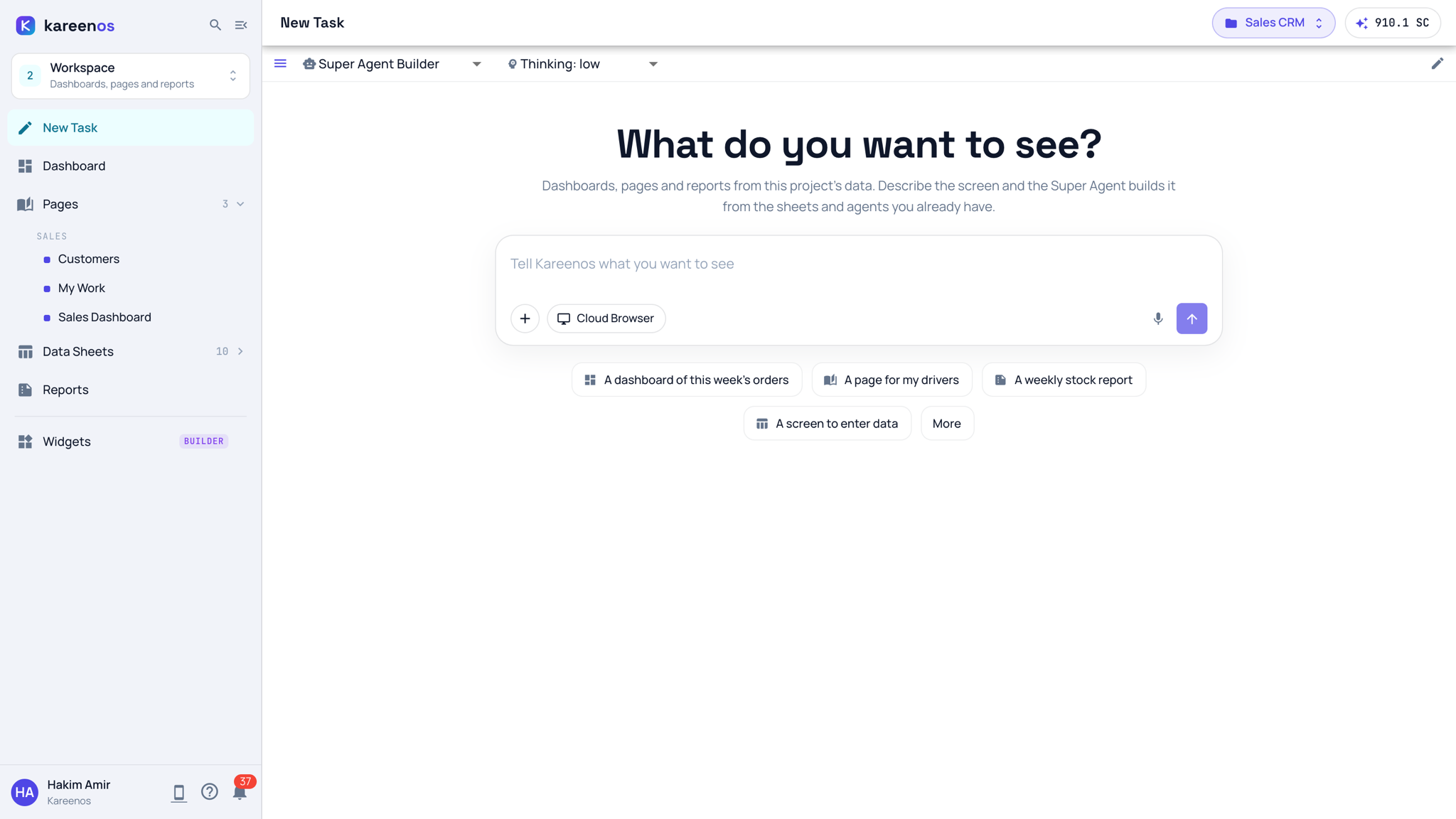
Describe the screen, or press a chip such as A dashboard of this week's orders and edit its sentence. The Super Agent builds the tiles from the sheets and agents the project already has.
Open Dashboard and check the numbers against your sheets.
To change a tile, ask in New Task ("add a tile with stale deals by owner"), press the robot button at the top right of the dashboard for the AI Builder (the same Super Agent, opened beside the dashboard), or the pencil to edit by hand.
If the project has no dashboard and no pages yet, the Workspace opens on a first-visit screen, "Nothing to see yet", with example chips and a New Task button.
Tip
Level 1 offers the step up when it makes sense: once a project has data sheets, a quiet card under the New Task box suggests seeing them as a dashboard. It opens right here.
Common mistakes
- Building a dashboard in the wrong project because the top bar still shows another one.
- Putting data entry on the dashboard. Entry belongs in a form opened from a page; the dashboard is for reading.
- Correcting a number on a tile instead of the row behind it. Fix the sheet and the tile follows.