Publish to the Marketplace
Turn a project you built into a listing other businesses can import, and choose exactly what ships with it.
Publishing turns a project you built into a Marketplace listing that other businesses can import: the agents, sheets, automations and screens, with a description and a guide for after the import. You choose exactly what ships.
Where to find it
Publish to Marketplace is a row of level 3 (K-Apps). It opens the Marketplace with the publish form for the project in the top bar; the Publish a project button on the Marketplace page opens the same form. Press Open in Kareenos above. Publishing needs builder access to the project and an active subscription.
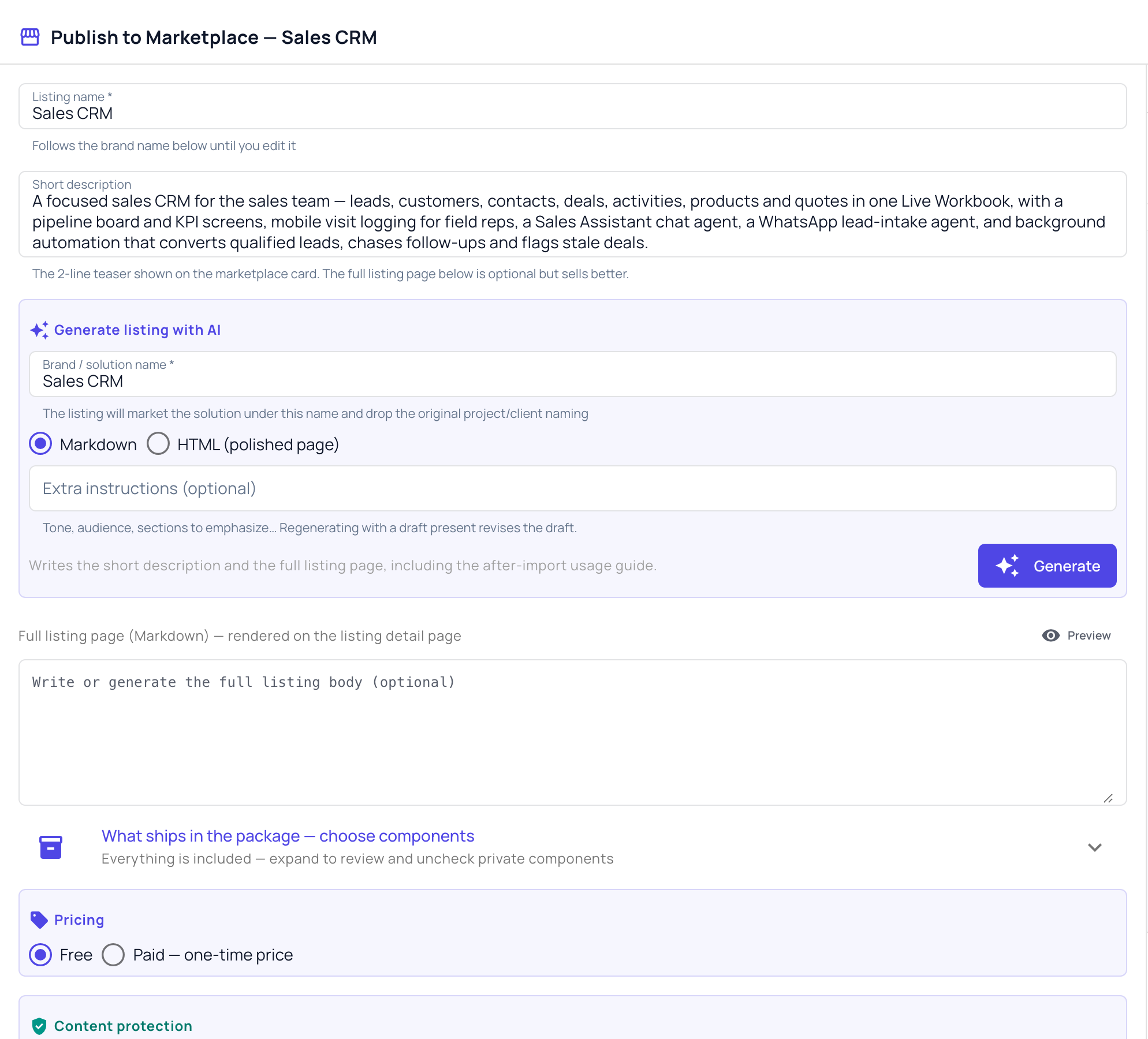
Step by step: publishing a project
- Choose the project in the top bar, then click Publish to Marketplace.
- Fill in the Listing name and the Short description, the two-line teaser shown on the Marketplace card.
- Under Generate listing with AI, give the Brand / solution name the listing should use, pick Markdown or HTML (polished page), add any extra instructions, and press Generate. It writes the short description and the full listing page, including the guide buyers follow after importing. The AI Builder beside the form reviews the listing with you; Preview shows the page as buyers will see it.
- Open What ships in the package and untick anything private or client-specific. Everything is included until you do.
- Under Pricing, choose Free or Paid with a one-time price, then set the content protection.
- Choose who sees it, your own account only or the cloud level, which waits for approval, and publish. The Marketplace then opens on My Listings.
Important
A listing carries the design, never the secrets. Credentials, connections and personal data stay in your account; buyers connect their own after importing.
After publishing
- My Listings holds your listings and their revisions. When you improve the project, publish a new revision: buyers are told and choose what to apply.
- Publisher holds your publisher profile and what your listings earn.
- An approved listing can be shared as a public link.
- With the GitHub connector set up, a listing can be exported to a repository of yours. See Buffer and GitHub.
- If the app inside the project is open source, buyers can continue it from its source: see Continue an imported Web-App.
How publishers are paid, and the business model behind it, is explained on the website at kareenos.com/en/for-builders.
Common mistakes
- Publishing without reviewing What ships in the package, so a client-specific sheet or agent goes out with the listing.
- Publishing the wrong project because the top bar still shows another one.
- Leaving the short description generic. It is the first thing a buyer reads on the card.