Widgets
The live tiles behind every dashboard and page: the ones that present information and the ones that collect it.
On this page
A widget is a live tile, the building block of every dashboard and page. Some widgets present information, others collect it.
Where to find it
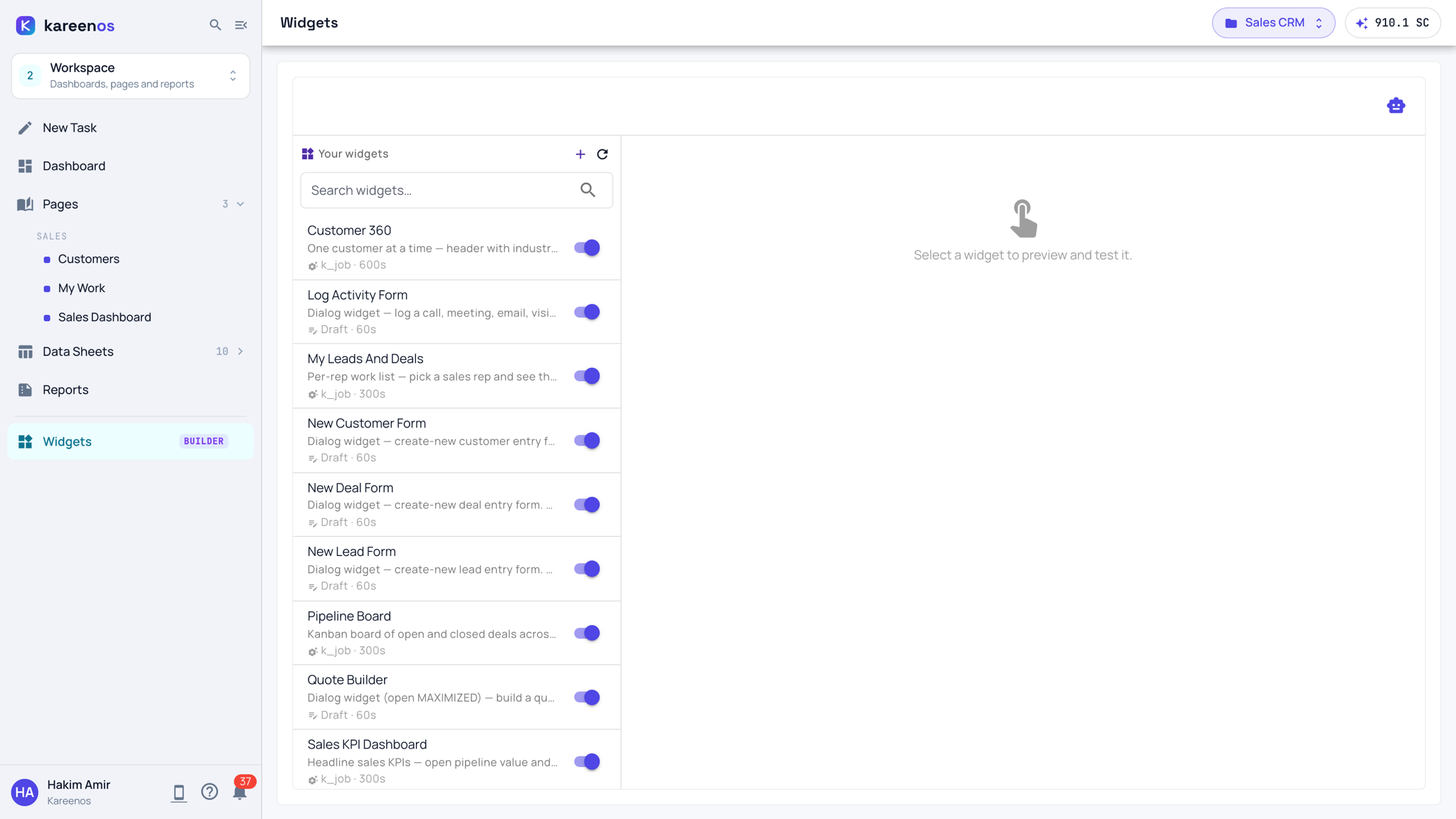
Widgets sits under the line at the bottom of level 2 (Workspace), tagged BUILDER. Press Open in Kareenos above. It is for builders with edit rights, and lists the widgets of the project in the top bar.
Two kinds of widget
Presenting widgets show information: a headline number, a table, a chart, a board, a map. Each is fed by a small automation or an agent that produces the figures behind it, and refreshes on its own schedule or when the data changes.
Input widgets collect information: a form, or an editable grid that writes straight back into a sheet. Day-to-day data entry belongs here, opened as a dialog from a button on a page.
Where a widget appears
Every widget must end up placed somewhere a person can reach: on a page, on a dashboard tab, on a view inside a workbook, or behind a button that opens it as a dialog. A widget that is built but never placed is invisible.
Building a widget
Widgets are built by the Super Agent. Open the level menu, choose 2 · Workspace, then New Task, where it asks "What do you want to see?", and describe the tile and where it should appear. The Super Agent builds the widget and what feeds it, and places it on the page or dashboard you named, so it never ends up invisible.
For example: "A tile with today's late jobs by technician on the dashboard." Try this in New Task
Step by step: checking a widget
- Open Widgets and click the widget in the list. Its live preview appears on the right, exactly as a person sees it.
- Read what feeds it and how often it refreshes, under its name.
- Use its switch to take it out of use without deleting it.
- To change it, describe the change in New Task, or press the robot button at the top right for the AI Builder: the same Super Agent, opened beside the widget. It keeps the widget, its feed and the pages that show it consistent.
Common mistakes
- Leaving a widget unplaced, so the build looks finished but nothing appears for the team.
- Putting long data entry on a presenting tile instead of an input widget behind a dialog.
- Editing a widget by hand and leaving its description saying something else.