Claude Code Setup
Create a tools-mode exposure, add the Kareenos connector to Claude Code, and make the first call.
On this page
Claude Code is a coding assistant that runs in your terminal. Connected to Kareenos through the MCP standard, it can build complete solutions in your account: sheets, automated jobs, agents, widgets, pages, and whole web applications hosted on Kareenos. This page connects the two.
Where to find it
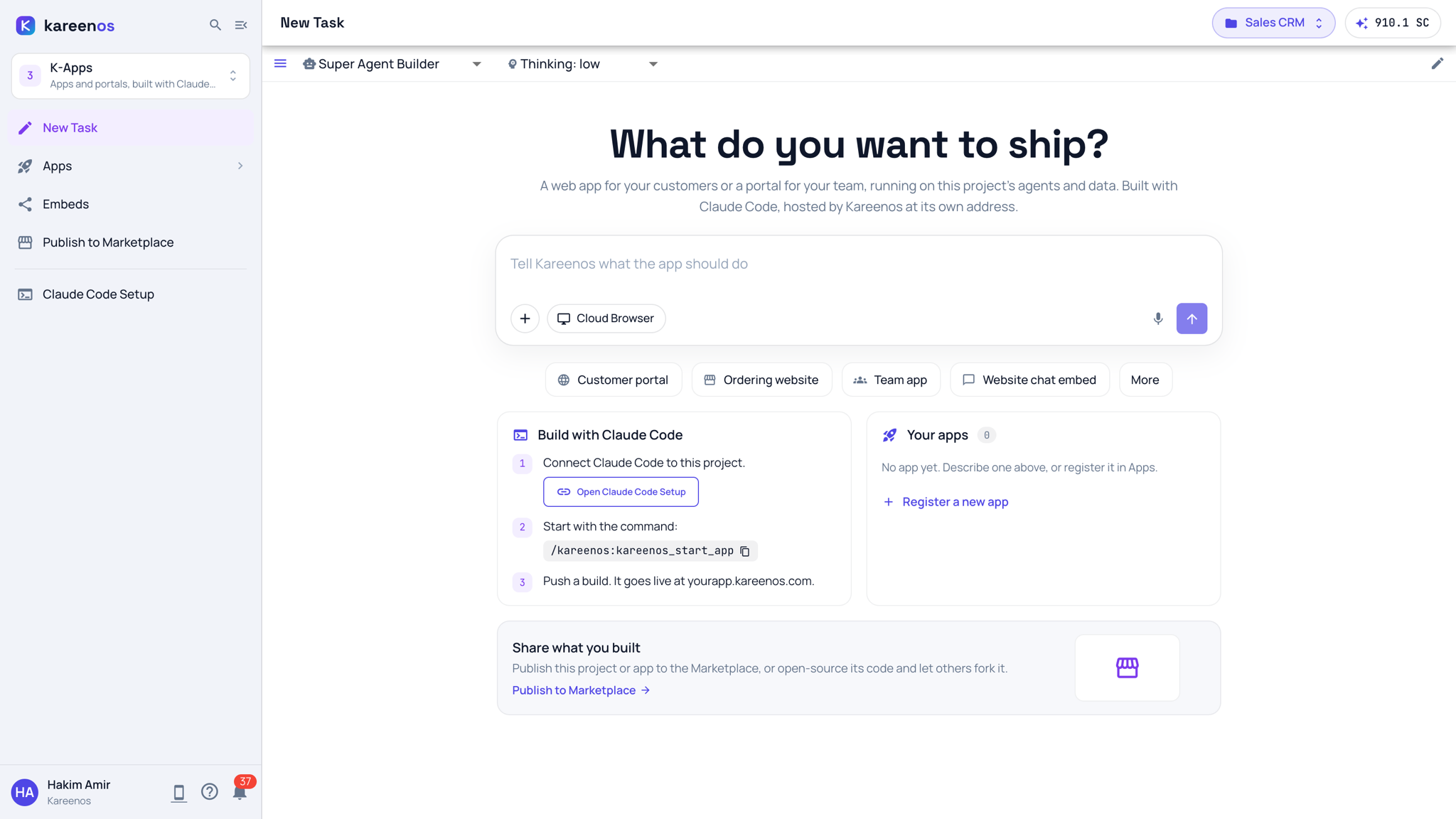
Claude Code Setup sits under the line at the bottom of level 3 (K-Apps). Press Open in Kareenos above. The K-Apps New Task page has the same way in: its Build with Claude Code card carries Open Claude Code Setup and the start command, ready to copy.
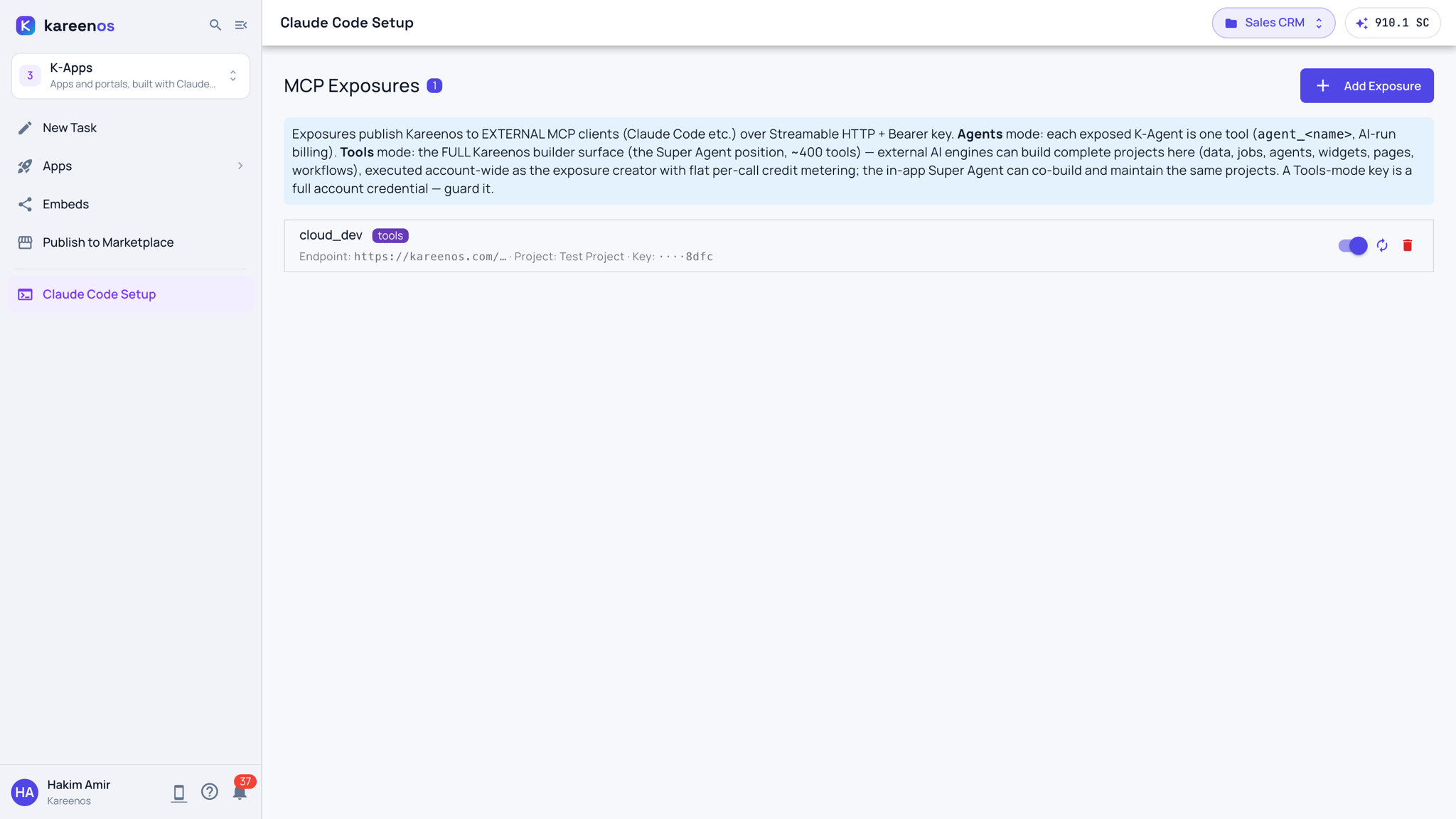
The page lists your account's exposures. An exposure is a key that lets an outside tool act inside your account. Creating one is an administrator's job.
When to use it
Use it when a developer (or you, with Claude Code) will build for your account from a terminal rather than through the in-app Super Agent. Both can work on the same project: what Claude Code builds, the Super Agent can open, extend and maintain, and the other way round.
Step by step: connecting Claude Code
Open Claude Code Setup and press Add Exposure.
Choose the tools mode, give it a name, and pick the project Claude Code should work in by default.
Save and copy the key. It is shown once. Keep it like a password: anyone holding it can act in your account.
On the developer's computer, add the connector to Claude Code. The address must be the full one shown in the exposure panel:
claude mcp add --transport http kareenos <the endpoint address> \
  --header "Authorization: Bearer <the key>"
Start a new Claude Code session. Type
/kareenos:kareenos_start_appand describe what you want built. It works out whether you want a Kareenos Agentic Web-App (for your own customers, hosted at its own address) or a Kareenos Agentic Business Project (the operation your team runs inside Kareenos), then hands Claude Code the platform's own guide, including how to build and publish a web application. You can also simply describe the app: the connector tells Claude Code where to look on its own.
Important
Every call the connector makes is billed to your account's credits, and the key gives full builder access. Rotate the key from the same panel if it ever leaks, and delete the exposure when the work is done.
When the build is done: the Agentic Operations Phase
A working app is the start of the next step, not the end. When the build works, Claude Code offers the Agentic Operations Phase once. Say yes and it writes a briefing of what was built, then opens Kareenos on New Task in level 1, on that project, with the Super Agent already reading it. Level 1 is where the agents it builds will work, beside your team's Inbox. The Super Agent studies how your operation runs and proposes a few AI Agents that could take work off your team: for each one, what it watches, what it decides, what it does, where it talks to people and who it hands hard cases to. Each proposal is tied to your own sheets and automated tools. You pick in one form, and the Super Agent builds and wires the agents you chose.
You can start it later too: type /kareenos:kareenos_agentic_operations in Claude Code, or ask the Super Agent in New Task: What AI Agents could run this? While a project has data sheets and no agent yet, the same question waits under AI Agents in the sidebar. The link Claude Code opens works once and only for your account; if you are signed in to another account, the page offers to switch.
Common mistakes
- A relative address. The
claude mcp addcommand stores the address exactly as typed and never connects if it is not a full address starting withhttps://. - An old session. Claude Code reads its connectors when a session starts. After adding one, start a new session.
- Building in the wrong project. The exposure's default project is where new work lands unless the developer names another one. Set it deliberately.