Pages
The screens your team opens every day: live tiles that show your data, and buttons that open forms to collect it.
On this page
Pages are the screens your team opens every day: named views made of live tiles that show your data and, where you need it, buttons that open forms to collect it.
Where to find it
Pages is a row of level 2 (Workspace). It opens on its own, listing the project's sections and the pages inside them; click a page to open it. Press Open in Kareenos above. Every member whose Team includes the Workspace sees it, and which sections and pages appear depends on the Teams they belong to. The robot and pencil buttons at the top right of a page are for builders.
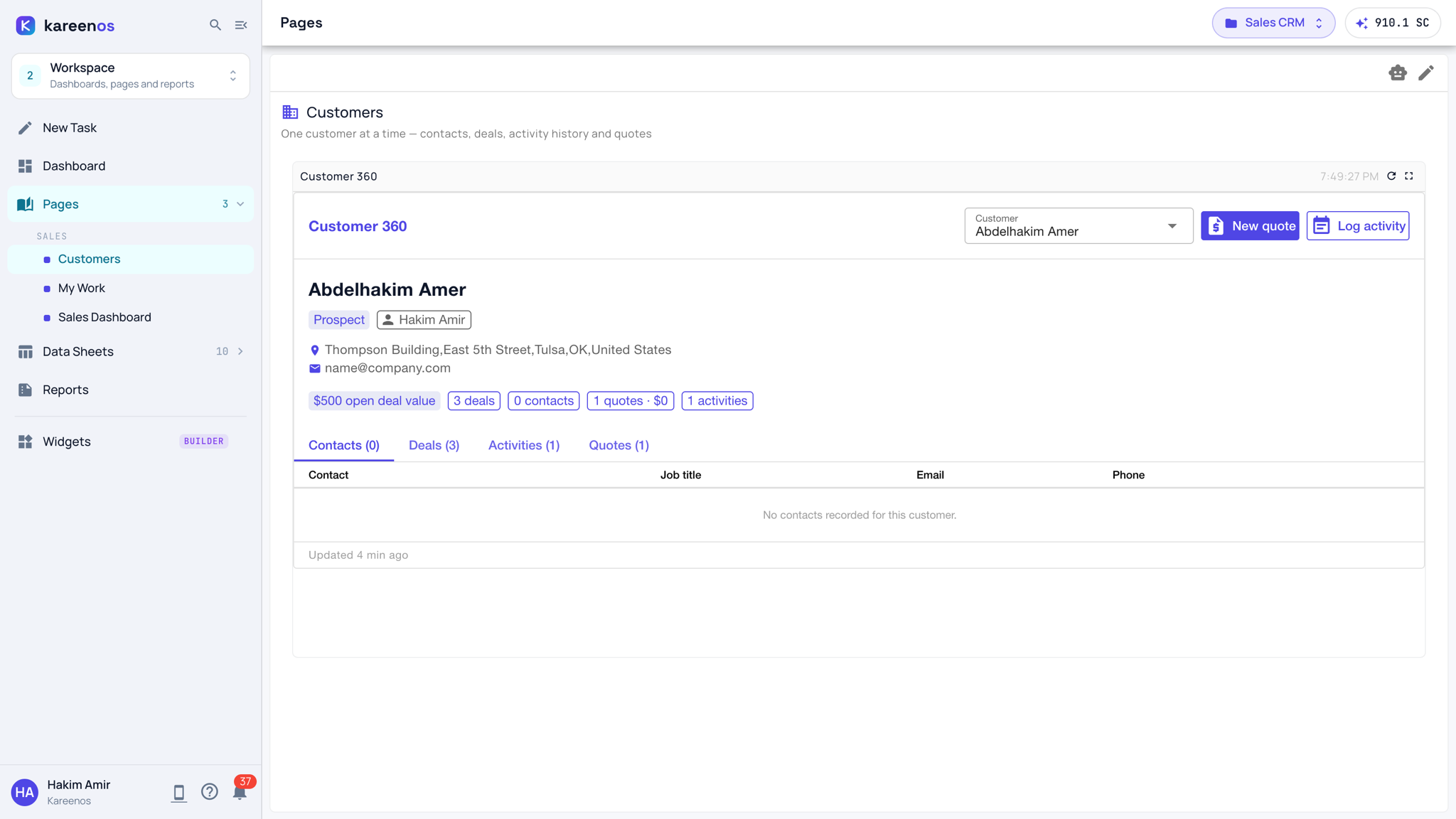
How pages are organised
Sections hold pages, and the sidebar lists both under Pages. Every page carries a plain-English description under its name, written for the person reading it, so nobody has to guess what "Fleet status" actually contains.
A page is built from widgets: live tiles fed by your Data Sheets. A tile can be a chart, a table, a counter, a map or a small summary, and it refreshes as the underlying data changes.
Showing and collecting
Pages present. When a person needs to type something, a button on a tile opens a dialog: an entry form, a search screen, or an Action that asks a short question. Buttons on a tile can also run an automation.
The rule of thumb is worth memorising:
Note
Pages present, dialogs edit, actions ask.
Step by step: building a page with the Super Agent
Check the project in the top bar, open the level menu, choose 2 · Workspace, then New Task.
Describe the screen in words: "a Customers page showing open deals by stage and a button to add a lead". The Super Agent creates the section, the page and its widgets, and the sidebar refreshes when it finishes. Try this in New Task
To add to a page you are looking at, press the robot button at the top right of that page instead. The AI Builder panel is the same Super Agent, opened on the right with the project and the page already in view.
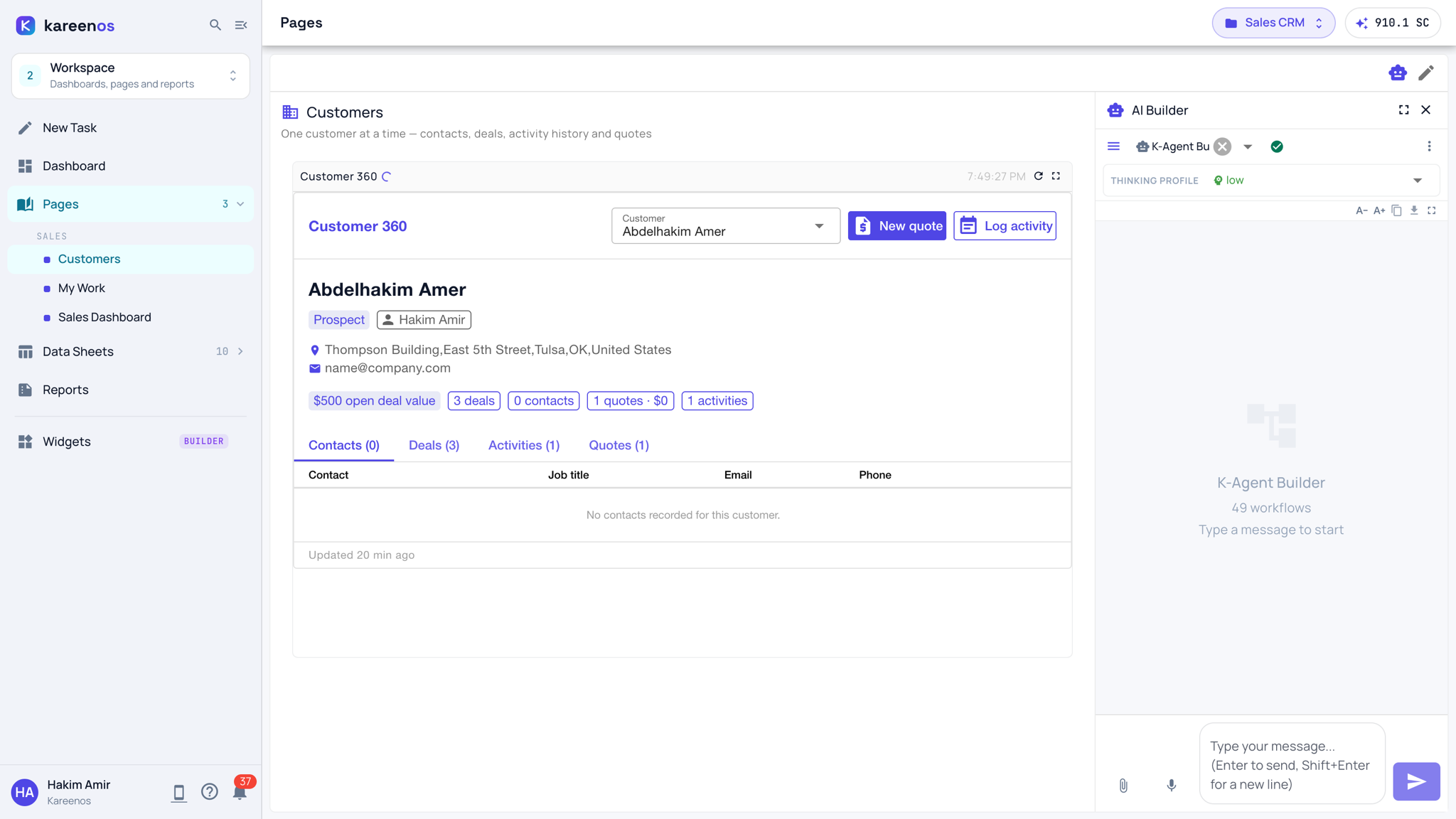
Open the new page and read the description under its name. Change it if it does not say what the page is for.
The pencil edits by hand, for small fixes. In edit mode, Add section and Add page appear.
Grant the section to the Teams that should see it, in Teams.
Common mistakes
- Putting long forms directly on a page. Entry belongs in a dialog opened from a button.
- Leaving the description blank, which makes the page list unreadable to anyone new.
- Forgetting Team access, so the page exists but nobody can open it.