Apps and K-APIs
Register an application, choose who signs in, give it routes backed by your automations, and manage its users and its published versions.
On this page
An App is an application your own team builds outside the Kareenos screens: a Kareenos Agentic Web-App today, a Kareenos Agentic Mobile-App later. Its K-APIs are the routes that application calls to read or write your data. Each route runs an automated job you own. If the application is a web application, Kareenos can also host it at its own address.
Every application has an authentication mode that says who signs in: your own customers, who register in the application and are kept for you as app accounts, or your own team, who sign in with the same email, password and verification they use for Kareenos itself.
Where to find it
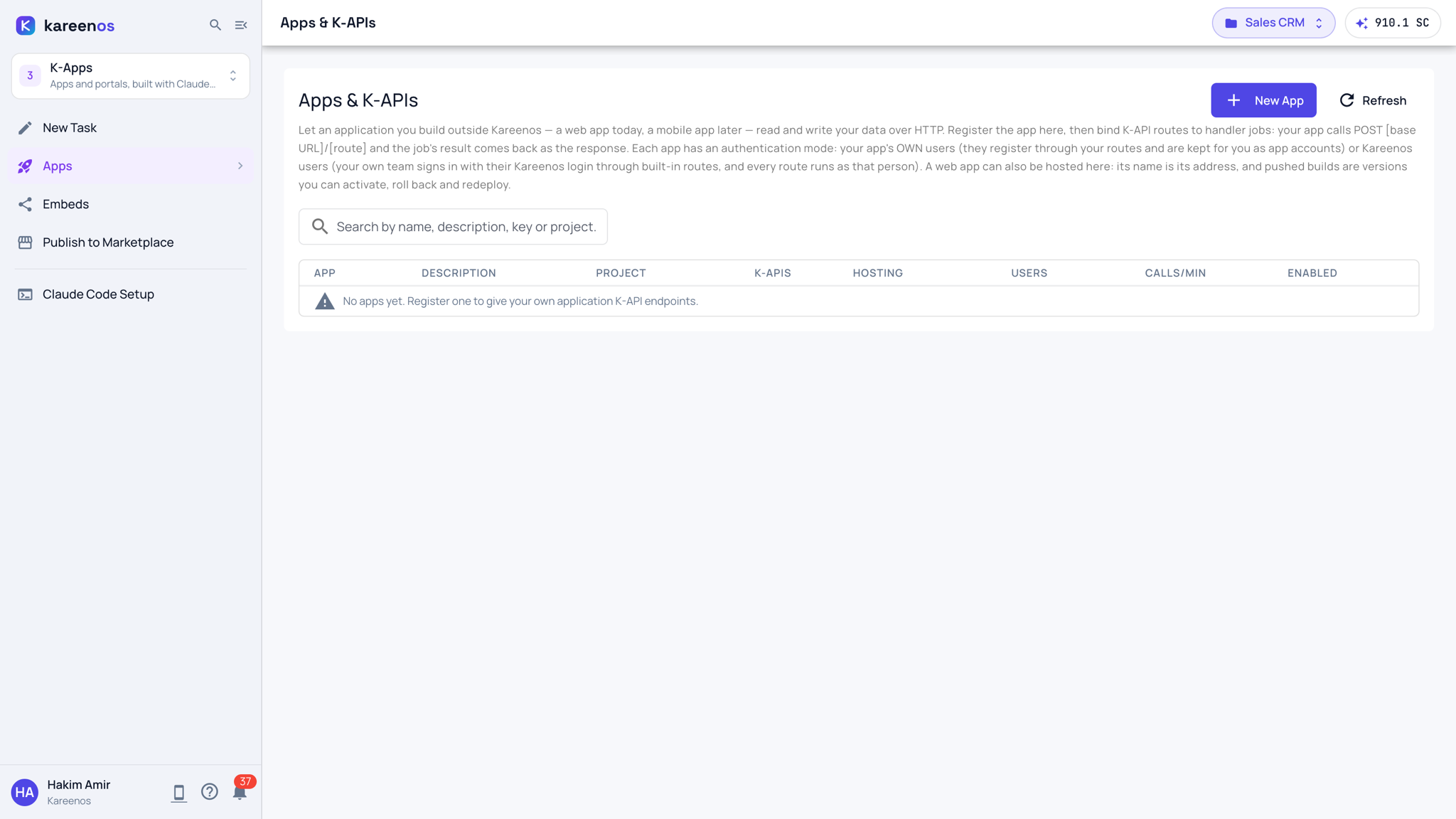
Apps is a row of level 3 (K-Apps). Click it to open the Apps & K-APIs page; the arrow beside it lists the current project's apps. Press Open in Kareenos above. It needs an account administrator.
When to use it
Use it when your customers, drivers, members or partners should use an application of yours rather than the Kareenos screens, and that application should read and write the same data your team works with. Typical routes are sign up, sign in, "my profile", "my orders", "place an order".
Step by step: registering an application
- Press New App. Give it a name (this becomes the address
https://<name>.kareenos.com: lowercase letters, digits and hyphens, free across the platform), a description, the project whose jobs will serve it, and the authentication mode: Your app's own users (customers, members or partners register in the application) or Kareenos users (your team signs in with their Kareenos login). Pick the mode before the developer builds anything; changing it later signs everyone out. - Press Create and show secret. The dialog shows the app key (public, part of every route address) and the app secret (shown once). Store the secret in your records; it never goes into the application itself.
- Press the application's routes button and add a route: a name (it becomes the last part of the address), public or authenticated, and the handler job that runs it. For an application with its own users, public routes are for sign up and sign in and everything else should require the session the sign-in route returns. For a Kareenos-users application there is nothing to add for sign-in: the routes
_login,_google_login,_meand_logoutalready exist under the base address, and every business route should be authenticated. - Press Try it on a route to call it exactly as the application would, and open Calls to see the recent calls with their results.
- Hand the developer the base address, the app key and the routes table. The curl and JavaScript snippets on each route are ready to paste.
Versions of a Web-App
If the application is a Web-App published on Kareenos, press Versions to see what has been pushed and what is live. Activate an older version to roll back, redeploy the current one, upload a bundle by hand, or probe the address. Build web apps with Claude Code walks through the whole flow.
Users of the application
Your app's own users. People who sign up through the application become the application's own users, listed in the Users column. They are separate from your team's Kareenos users and never see the Kareenos screens. Rotating the application's secret signs every one of them out; disabling the application makes every route answer "not found" while keeping everything in place.
Kareenos users. The application has no users of its own. Whoever is a member of your Kareenos account signs in to the application with the same email and password (and Google sign-in, email code and trusted device) as in Kareenos, and every route runs as that person, with their own team permissions. Add or remove people on the Teams page, exactly as for the console; the application cannot register anyone. The Users column shows Kareenos users for such an application, and Try it runs a route as you unless you name a colleague.
Common mistakes
- Pasting the secret into the application. Only the app key belongs in the application. The secret stays in your records.
- Making a business route public. Public means anyone who knows the address can call it. Keep it for sign up and sign in (and never for a Kareenos-users application, which needs no sign-in route of its own).
- Choosing the wrong authentication mode. A customer portal needs Your app's own users; an internal tool for your staff needs Kareenos users. Switching later logs every user of the application out and changes what the developer's routes receive.
- A route whose job is not approved yet. Routes answer "temporarily unavailable" until their job is approved and enabled.
- Deleting instead of disabling. Deleting an application removes its users and its versions. Disable it when the application might come back.